All candidate helpStep by step
Step by step: take an assessment, or decline it
Both paths, click by click, from the request card to the result or the recorded decline.
Take it
- Click Practice, then Assessments.
- Under Requested by employers, read the card: purpose and allowed use, competencies, accommodations, privacy, integrity, and Respond by.
- Click Review and start.
- In Start this assessment?, tick the consent box and click Start now.
- Answer each question. Click Next to move on; the line Answers saved confirms each one reached the server.
- On the last question click Submit answers. If a question is unanswered, the browser asks whether to submit anyway.
- Read your result on the Assessment completed page. The card on Assessments now says Completed with View your result.
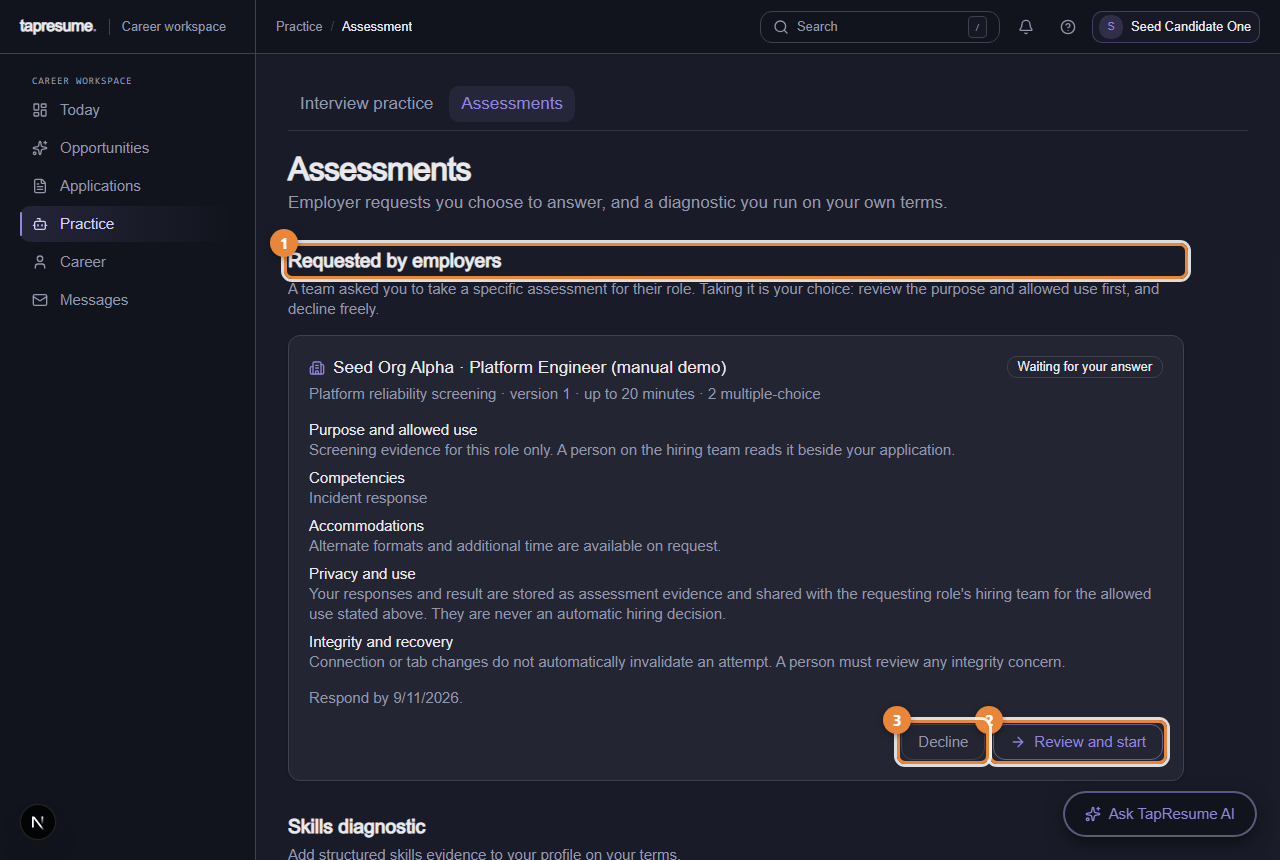
- 1Marker 1: Requested by employers: requests waiting for your answer
- 2Marker 2: Review and start
- 3Marker 3: Decline
Decline it
- Click Practice, then Assessments.
- On the card, click Decline.
- In Decline this request?, write a note to the team if you want.
- Click Decline request. The card says You declined with your note; the team sees the same.
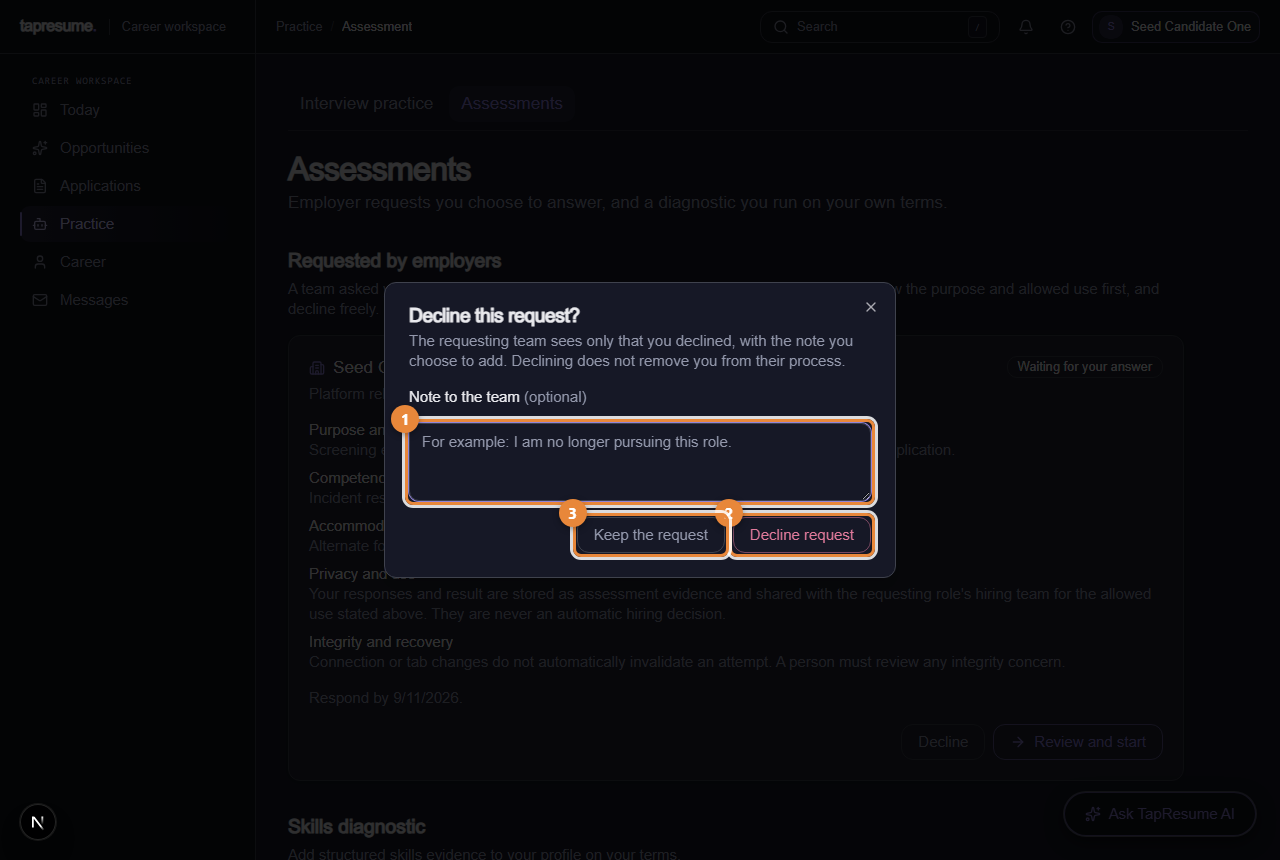
- 1Marker 1: Note to the team, optional
- 2Marker 2: Decline request
- 3Marker 3: Keep the request: close without declining
If something goes wrong
- You had to stop part way. The card says In progress. Click Continue this assessment; the timer has kept running.
- Your connection dropped and time ran out. The Time expired page offers Restore N minutes and continue when the drop was recorded.
- You declined by mistake. Tell the team through Messages. They can send a fresh request.