Add a resume
- Click Career in the left navigation, then the Edit profile tab. The page is called My Profile.
- Find the Resume section. Click Upload a resume and choose your file. The page shows Uploading your resume, then Analyzing your resume with AI.
- When it finishes, What we learned from your resume opens with the skills, experience and education that were read. Check them.
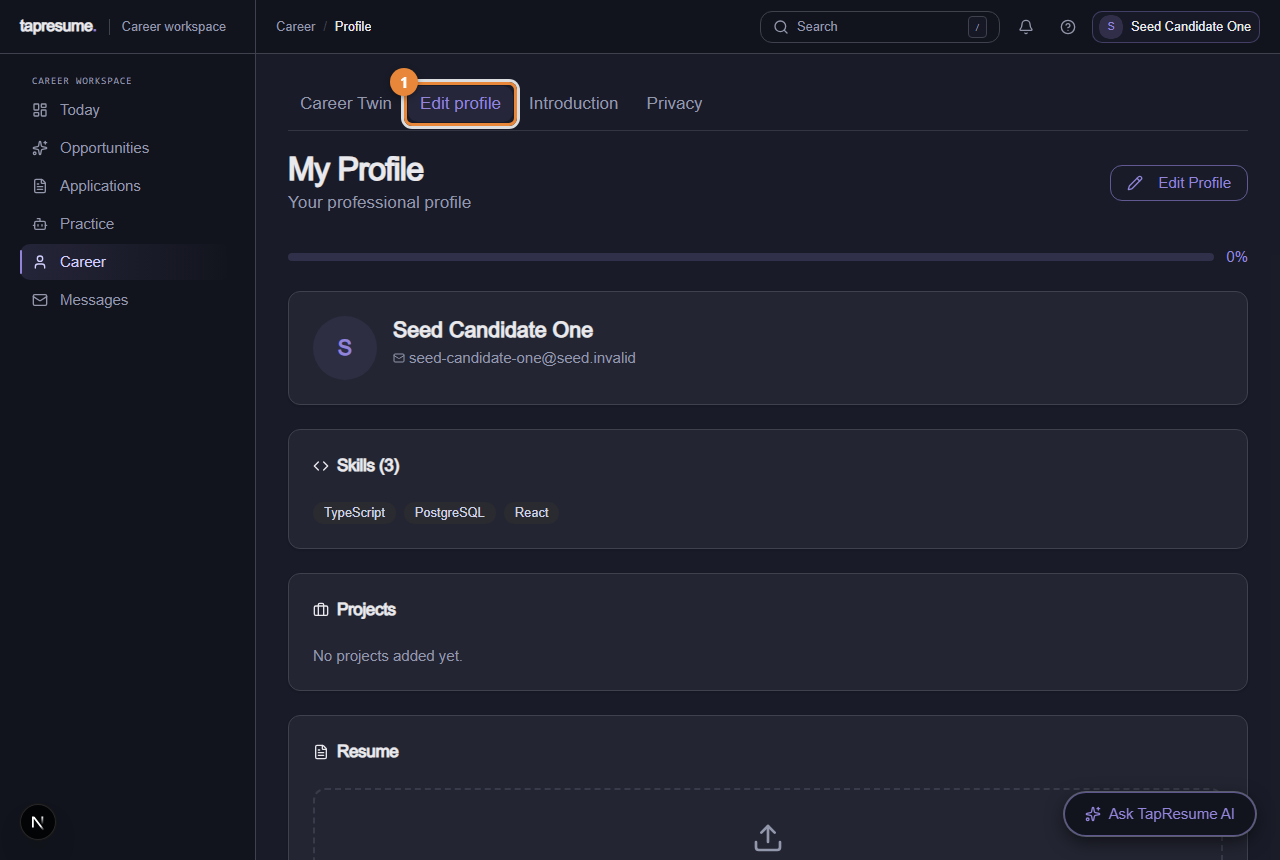
- Marker 1: Edit profile tab
Complete your profile
- Click Edit Profile at the top right. The page changes to Edit Profile.
- Fill in what the resume did not say: headline, location, whether you would relocate, what you want next. Add skills with Add, and projects with + Add Project.
- Click Save Changes. The page confirms Profile saved.
Then review your Career Twin
Click the Career Twin tab. Under Review what we found, each item read from your resume can be kept, corrected in your own words, or removed (see Your Career Twin). Only what you keep is used to suggest roles.
If something goes wrong
- The upload fails. Use a PDF or Word file. Very large scans can fail; export the document again.
- Something was read wrongly. Correct it on Career Twin, or edit the field on Edit Profile. Your version is what is used from then on.