All candidate helpStep by step
Step by step: answer an interview slot and an offer
Both arrive as email links and need no sign-in. Here are the exact clicks.
Respond to an interview slot
- Open the email with the subject Interview Scheduling: and click Pick a Time.
- Click one of the proposed times.
- Add a note if you want.
- Click Confirm this time. The page says Your interview is confirmed; click Add to calendar to save it.
- If no time suits, click None of these times work instead. The team offers others.
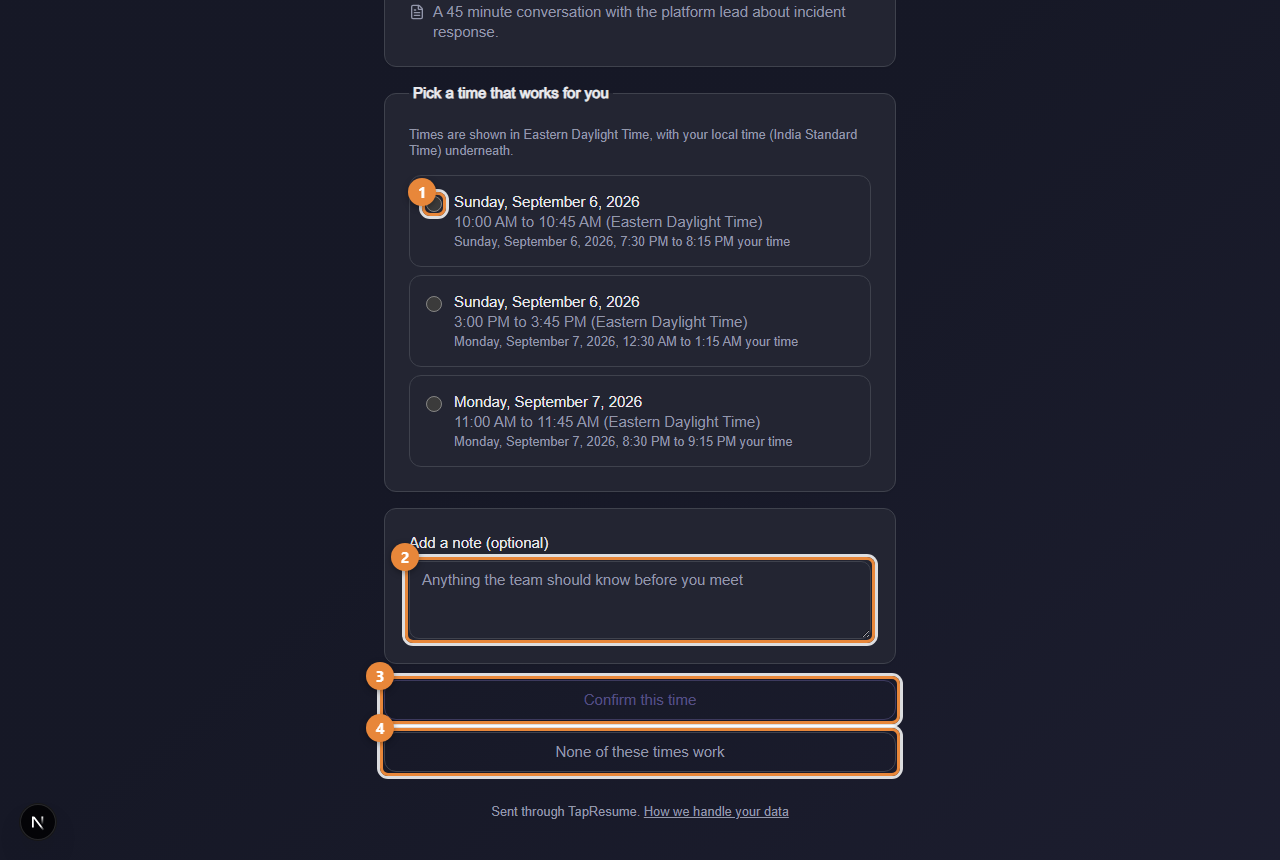
- 1Marker 1: A proposed time; pick one
- 2Marker 2: Add a note, optional
- 3Marker 3: Confirm this time
- 4Marker 4: None of these times work
Respond to an offer
- Open the email with the subject You've received an offer: and click View and respond to your offer.
- Read the offer, its compensation and its expiry date.
- To accept: click Accept Offer, check the summary, click Confirm acceptance. The page says Offer accepted.
- To decline: click Decline, add a note if you want, click Confirm decline. The page says Your answer is recorded.
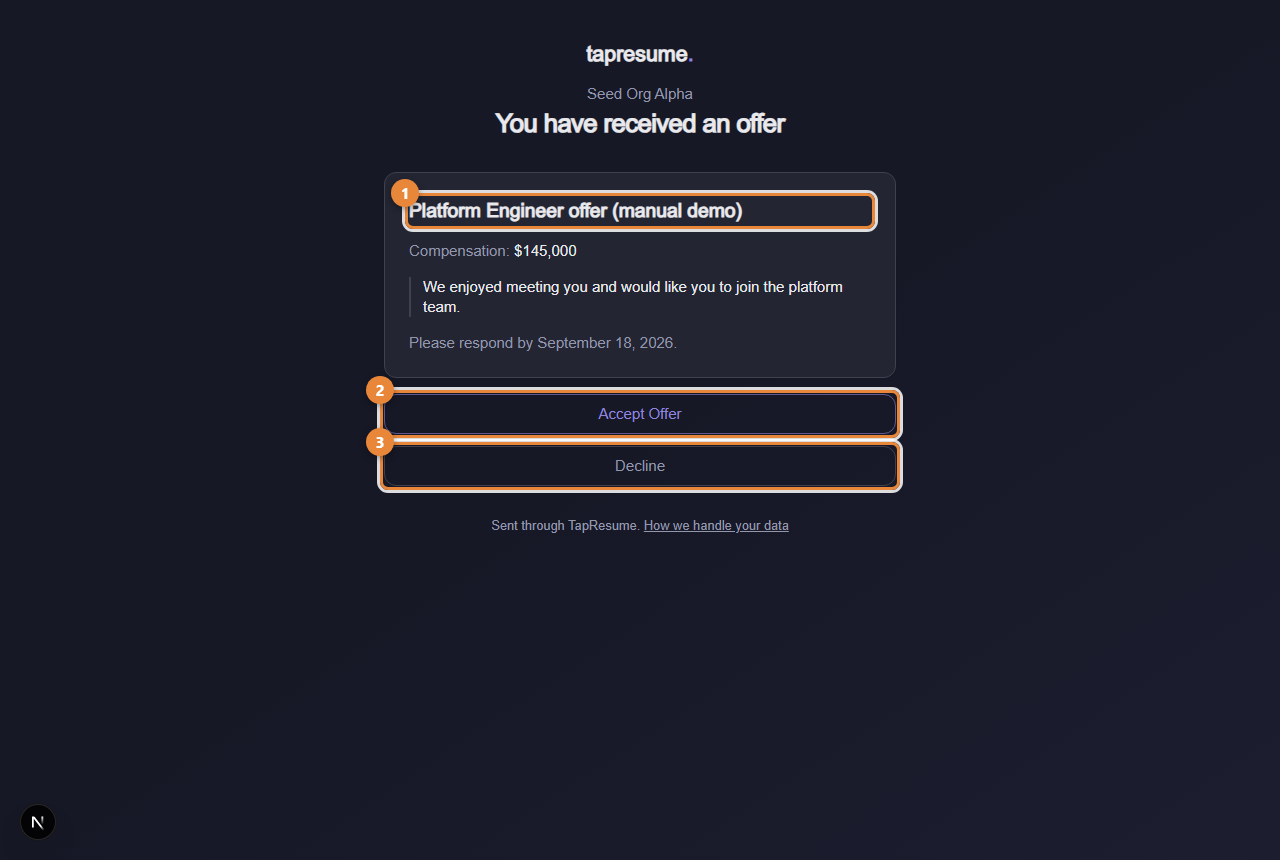
- 1Marker 1: The offer title
- 2Marker 2: Accept Offer: a confirmation follows
- 3Marker 3: Decline: add a note, then confirm
If something goes wrong
- The link says it has expired. Ask the team for a new one through Messages.
- You need to change an answer. The page cannot undo it. Contact the hiring team directly.
- The link says the interview was cancelled or the offer was replaced. Open the newest email from the team; the current one is there.