Read your application status
- Click Applications in the left navigation. The page is called My Applications and says how many applications you have and how many are active.
- Each application shows its status: Applied, Under Review, Shortlisted, Interview, Offer Received, Not Selected, or Withdrawn. Filter by status with the selector at the top.
- Open an application for its details and the messages about it.
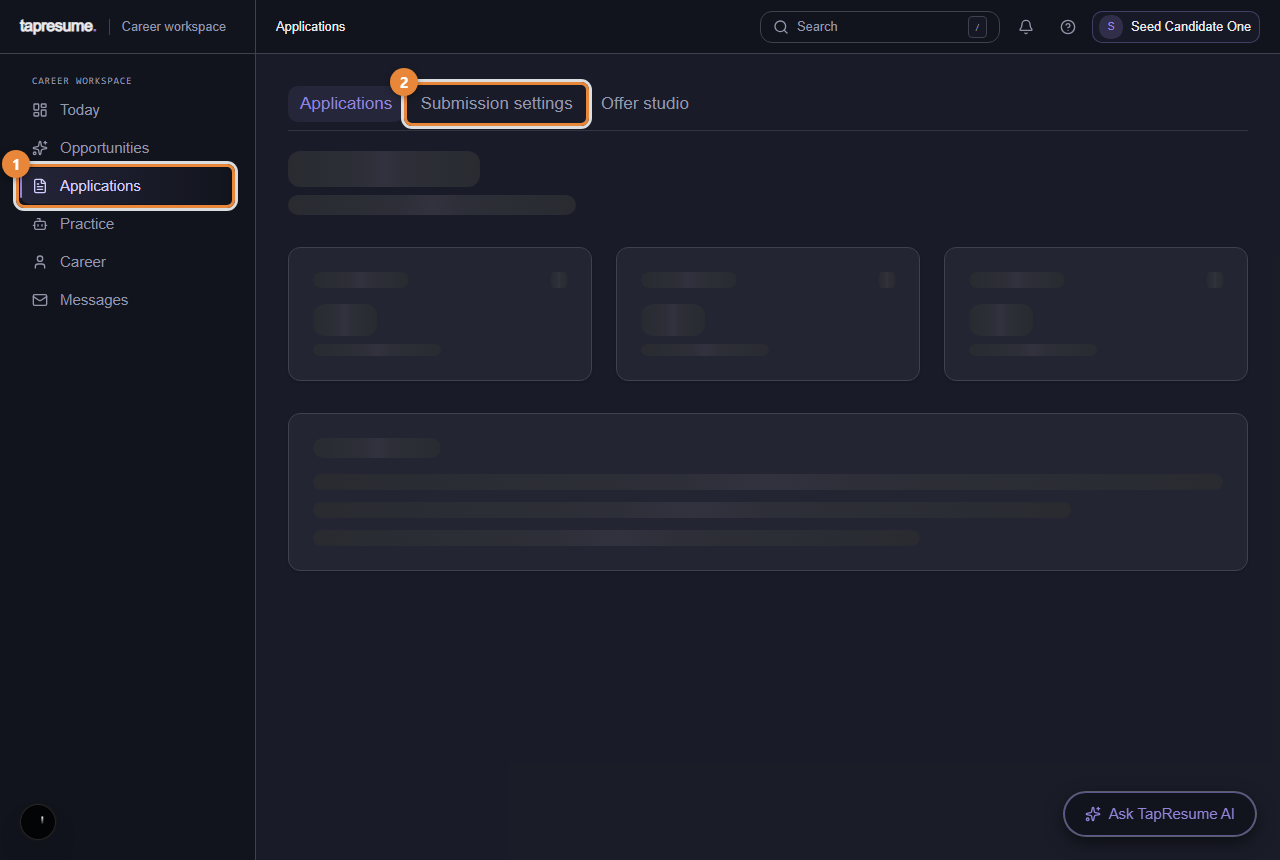
- Marker 1: Every application you have made
- Marker 2: Follow-up email preferences
Withdraw an application
- On My Applications, find the application. Withdraw Application appears on applications that are still active.
- Click it. The dialog Withdraw Application? names the role and organization and says the action cannot be undone.
- Click Withdraw. The page confirms Application withdrawn and the status changes to Withdrawn. The team is told.
To apply again later, apply from the role as before; the team sees both.
Stop emails
- Open any reminder or invitation email from the organization.
- Click the unsubscribe link at the bottom: Unsubscribe from follow-ups or Stop email from the organization.
- The Email preferences page says You have been unsubscribed. Your application is unchanged.
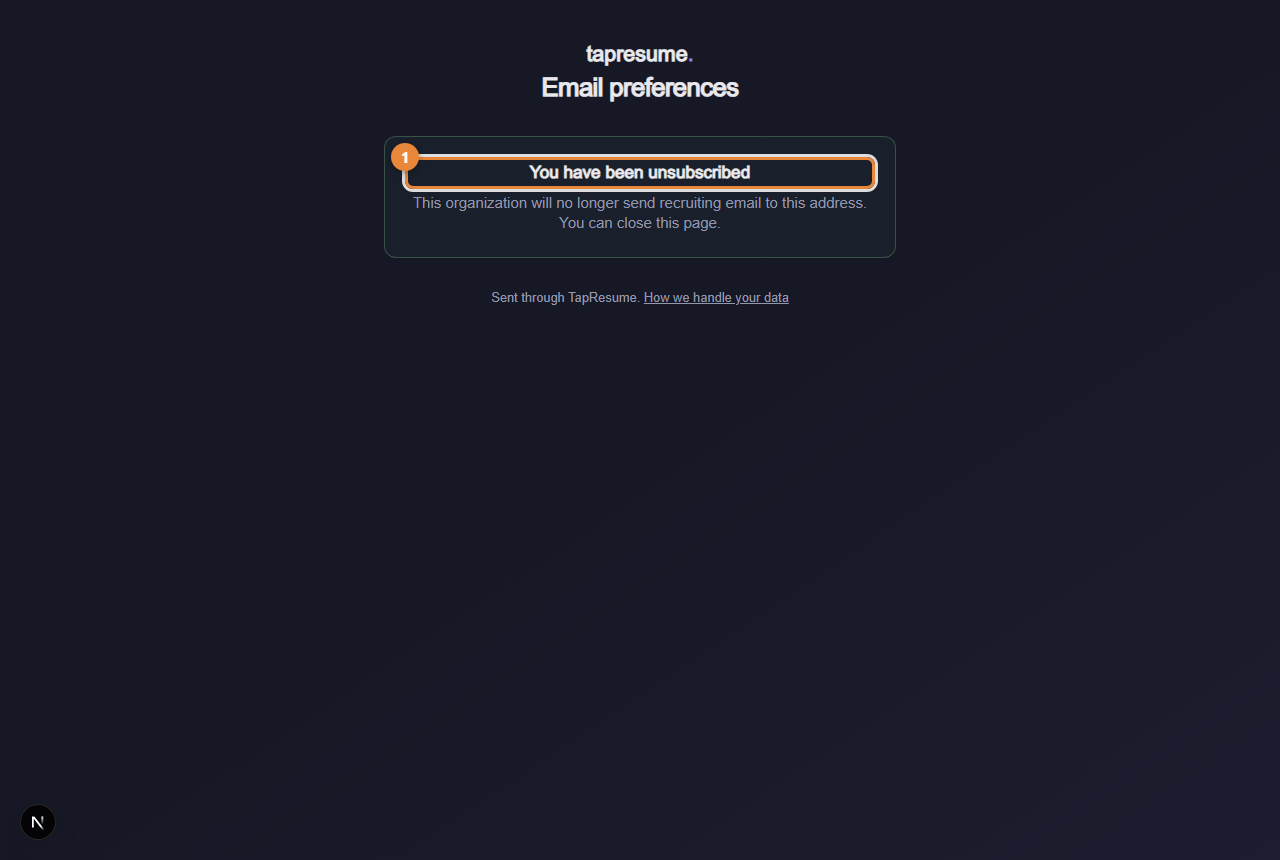
- Marker 1: You have been unsubscribed: done, nothing else changes
For the account-level switches, open Manage email preferences in the grey footer of any TapResume email (see Email preferences and stopping email).