Steps
- Open the request: the Review the request button in the email, the Role introduction button on Submission settings, or the card on Today.
- Read Before you begin: why it is requested, the time limit, who can watch, retention, and the deadline.
- Under Choose a format, click Video, Audio only, or Written.
- For video or audio: click Start recording, speak, and click Stop recording. Recording stops by itself at the time limit. Nothing is uploaded yet. Play it back; click Discard and record again to try again, or Upload a file to use a recording you already have.
- For written: type in Your answer.
- When the role asks for it, tick the box that says you understand the purpose, who can review it, and how long it is kept.
- Click Submit response. The page confirms Your response was submitted.
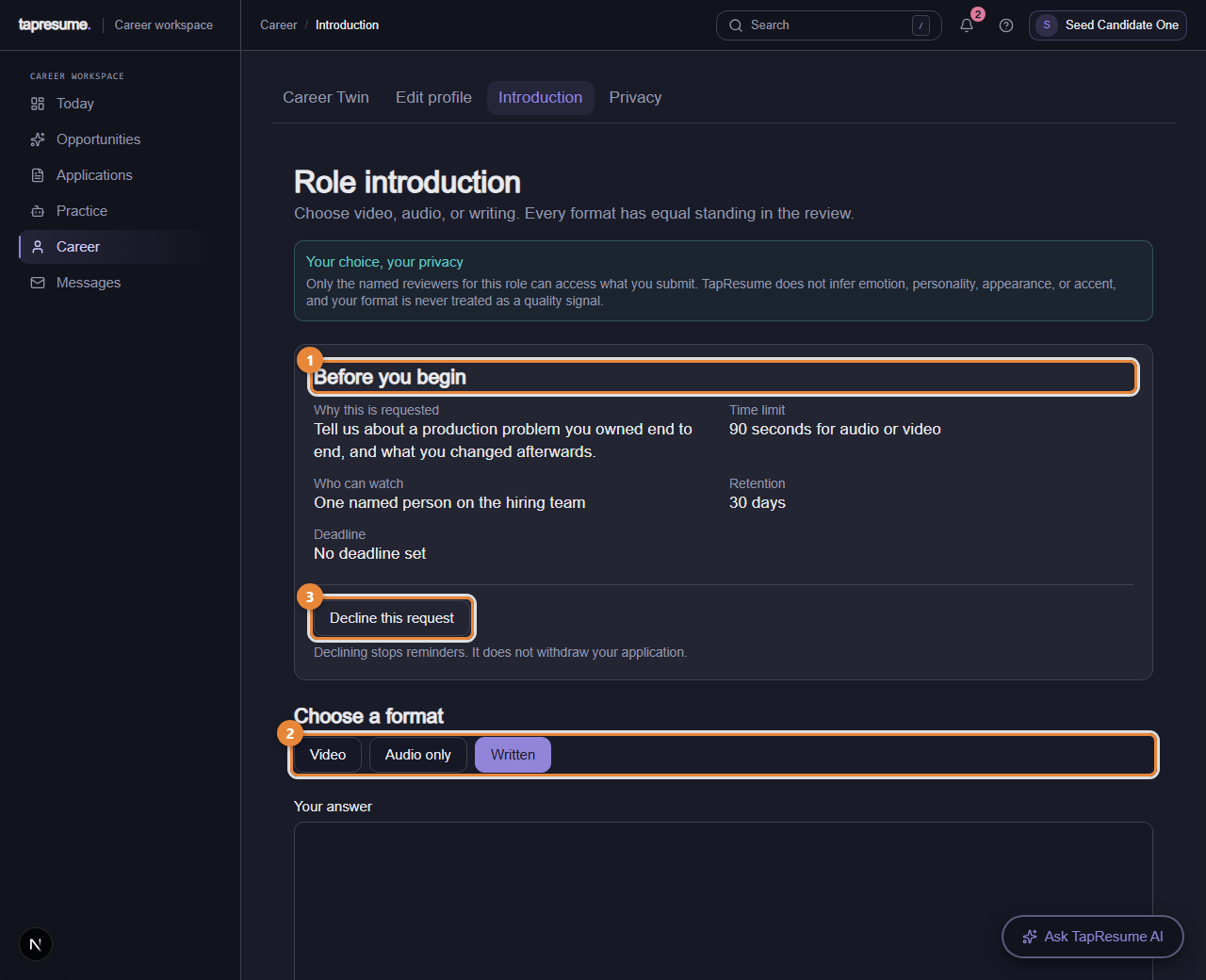
- Marker 1: Before you begin: purpose, time limit, who can watch, retention, deadline
- Marker 2: Choose a format: Video, Audio only, or Written
- Marker 3: Decline this request
Replace or delete it
Open the same page. Click Replace response, record or write again, and click Submit replacement; or click Delete permanently and confirm. A deleted recording cannot be recovered.
Decline instead
Click Decline this request under the details. Reminders stop; your application stays.
If something goes wrong
- The browser asks for camera or microphone access. Allow it, or use Upload a file, or choose Written.
- The file is refused. Use WebM, MP4, MP3, OGG or WAV, 50 MB or smaller, and no longer than the time limit.
- The page says to open it from an application. It needs the role. Use one of the three ways in step 1.