Before you start
You need the email address you want ACI to use, and your resume as a file if you have one. No account is needed.
Steps
- On the ACI careers site, open the role. The page shows the description and skills, and under it Apply for this role.
- Enter your email address and click the button. The page says We sent a 6-digit code to your address.
- Open the newest TapResume email and type the code into 6-digit code. Click Verify code. If the code has expired, click Send a new code.
- Fill in your details: your name, your resume file, and a note to the hiring team if you want one.
- Tick the consent box, which links to the legal notices, and click Submit application.
- The page confirms that your application for the role at ACI Infotech is complete and that the team will review it and reach you by email.
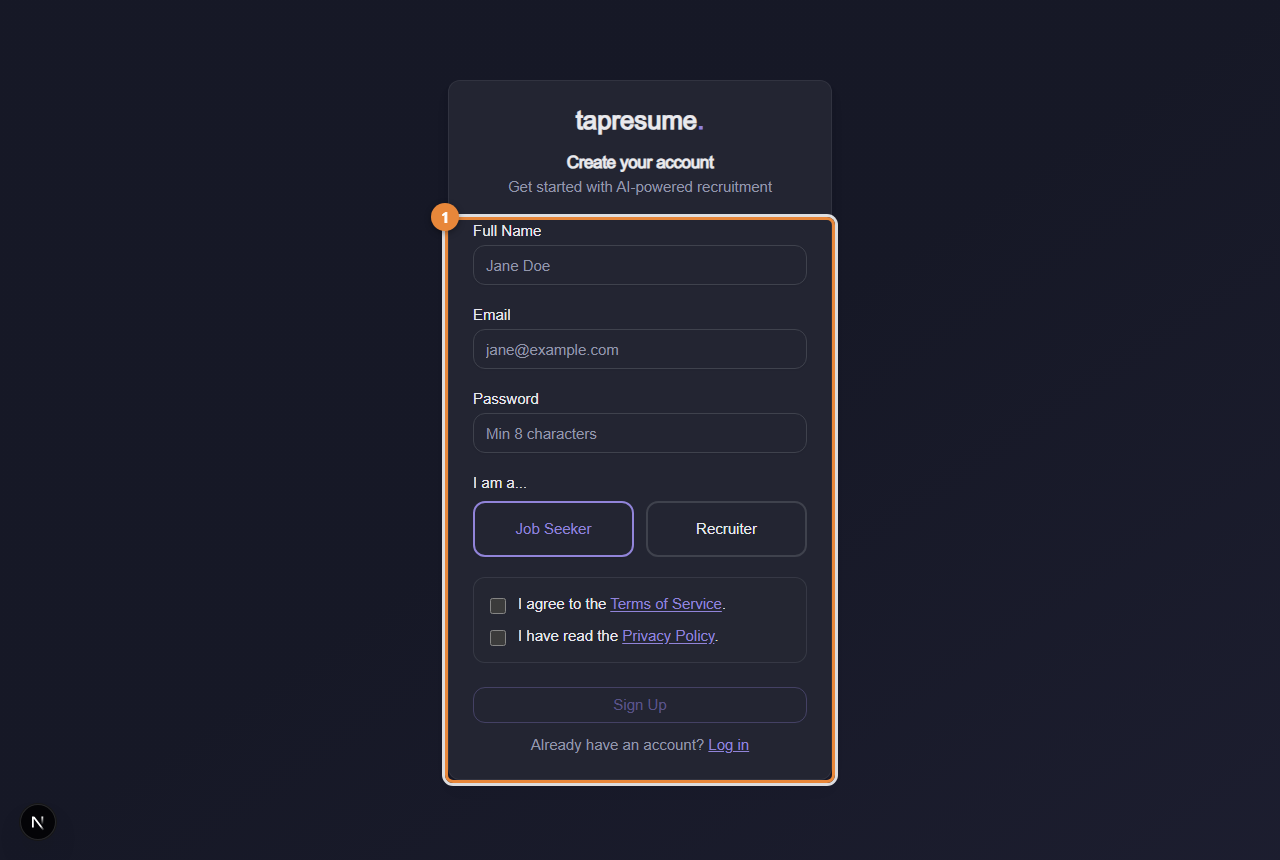
- Marker 1: The sign-up form; from an invitation email your details are linked to your application
What arrives
An email with the subject Application received: and the role title. Later, if your application had no resume, a one-time invitation to add one; if the team decides something, an application update.
If something goes wrong
- The code is not right. The page says how many attempts remain. Check the newest email; older codes are void.
- Too many attempts. Click Send a new code and use that one.
- The page says you already applied. One application per role and email is kept. Sign in to see it under Applications.