Submission settings
Open Applications to see your application records and their candidate-visible states: In consideration, In process, Decision pending, or Closed. You can open the submitted copy for an application when one is available.
To apply to a TapResume opportunity, open the role, choose Review exact application, save and approve the exact draft, then choose Submit this exact application. Saving or approving the draft does not submit it. Automatic applying is not enabled; there is no candidate setting that turns it on.
Offer studio
Open Applications, then the Offer studio tab (marker 1). It is a private worksheet for comparing offers. Nothing you enter here is shared with any employer.
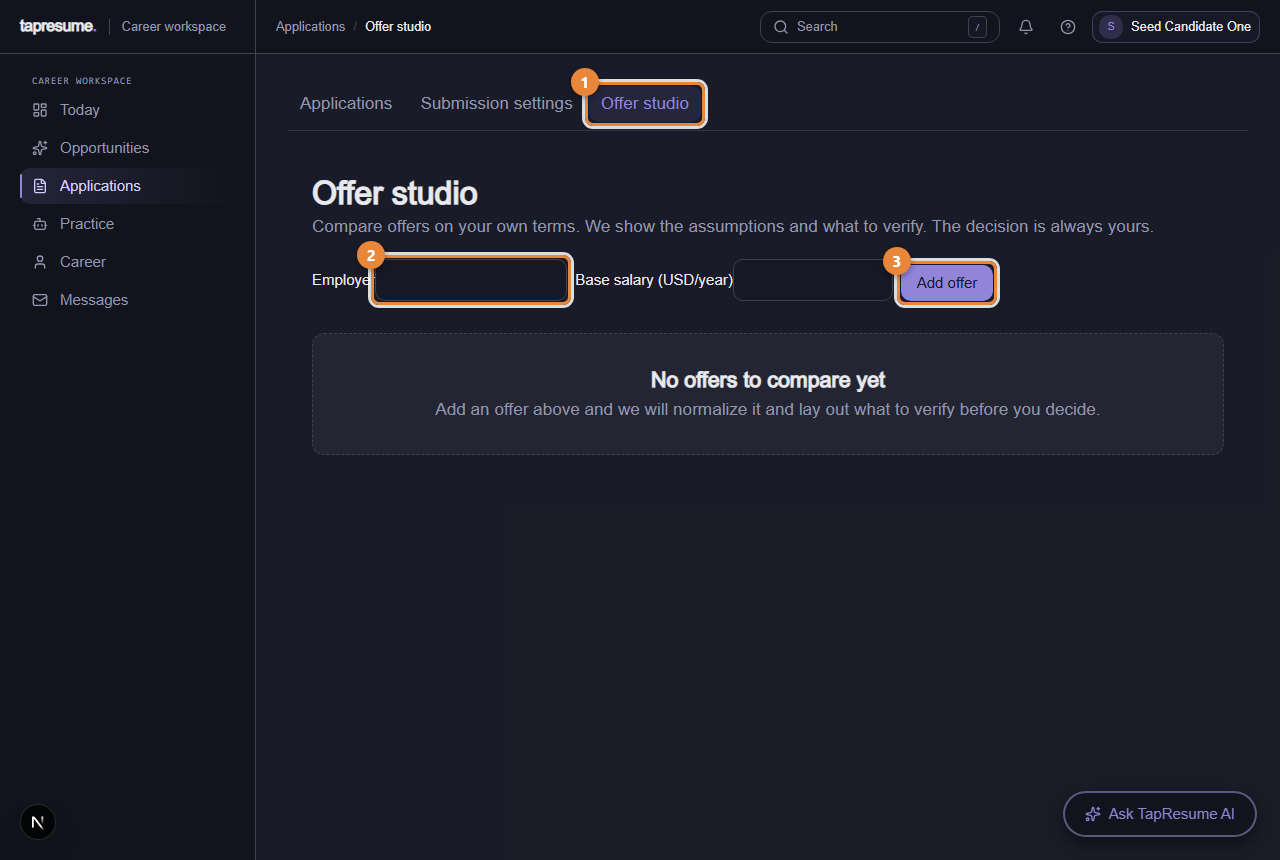
- Marker 1: Offer studio tab
- Marker 2: Employer
- Marker 3: Add offer
- Type the Employer, base compensation, currency and pay period, then click Add offer.
- Each offer appears with a guaranteed and a target annual figure, the assumptions used, and anything uncertain.
- Under Questions to verify before you decide, the page lists what to confirm with the employer.
- Mark where you stand with Accept, Ask for time, or Decline. This is your private note; it does not answer the employer. To answer a real offer, use the link in the offer email (see Respond to your offer).
Common questions
Does the hiring team see my offer notes? No. Offer studio is your private worksheet.
Can I turn on automatic submission? No. Every application requires your review and final submit action.