The email
The subject is Interview Scheduling: followed by the interview title. It names the person and organization inviting you, the location or notes if any, and the proposed time slots in the team's time zone. The button is Pick a Time.
The page
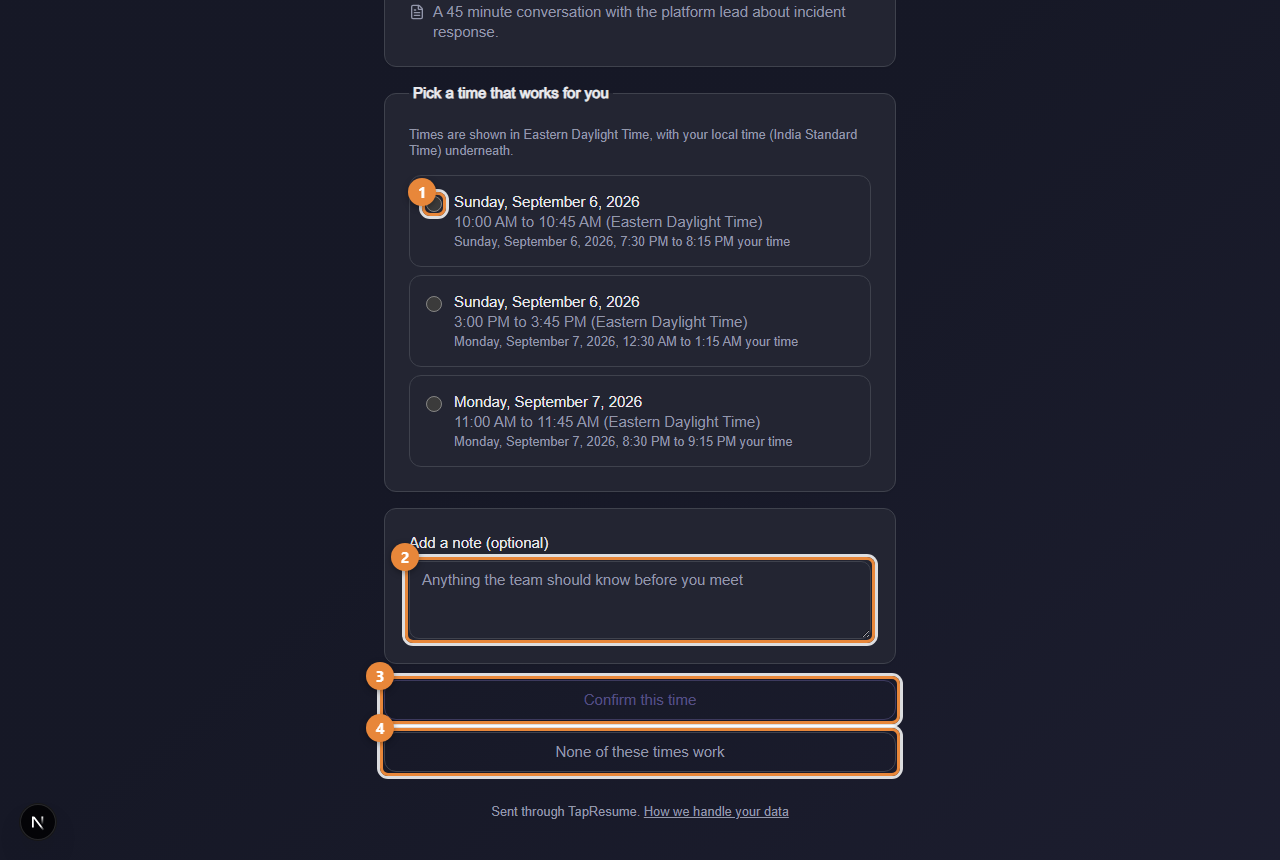
- Marker 1: A proposed time; pick one
- Marker 2: Add a note, optional
- Marker 3: Confirm this time
- Marker 4: None of these times work
- Click Pick a Time in the email. The page opens with the interview title, and the location and notes if the team added them.
- Choose one slot (marker 1). Each shows the date and time in the team's zone; when your browser is in another zone, your local time is shown underneath.
- Add a note if you want (marker 2). It goes to the team with your answer.
- Click Confirm this time (marker 3). The page says Your interview is confirmed and offers Add to calendar, which downloads a calendar file. If the team added a video link, Join the video call appears here too.
When none of the times work
Click None of these times work (marker 4). Your note goes with it. The page says Thanks for letting them know, and the team offers other times.
After you answer
The link now shows This interview is already scheduled with the booked time; it cannot be changed from the page. Contact the hiring team through Messages if you need another time. When you are signed in, the interview is listed under the role's process on its opportunity page.
Common questions
The link says it has expired or is not valid. Open the original email and use the full link; email programs sometimes cut it. If it has truly expired, ask the team to send a new one.
It says the interview was cancelled. The team cancelled it. Contact them if you were expecting to meet.