Two ways in
Sign in at the address in your emails (the link under View your applications or Sign in). The page asks for your email first, then offers a sign-in code. A password is always available behind one link.
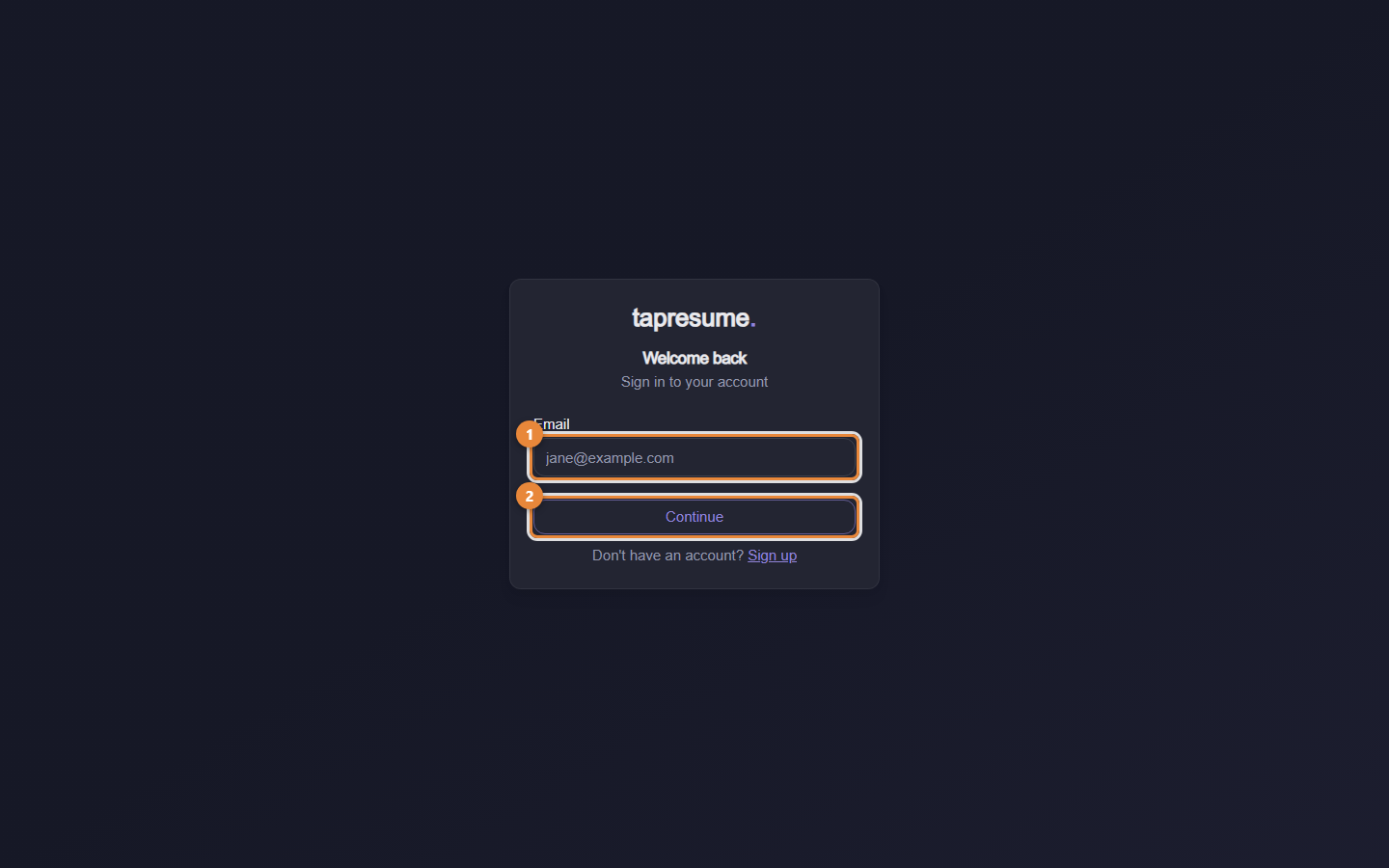
- Marker 1: Your email address, the one your invitation went to
- Marker 2: Continue: a sign-in code is emailed to you; a link under the code field switches to your password
Steps: sign in with a code
- Enter your email address (marker 1). Use the address your ACI emails arrive at.
- Click Continue (marker 2). The page says "We sent a sign-in code to" your address.
- Open the newest email called Your TapResume sign-in code. The code is the large number in it.
- Type the code into Sign-in code and click Verify and sign in (marker 3). You are signed in and taken to your workspace.
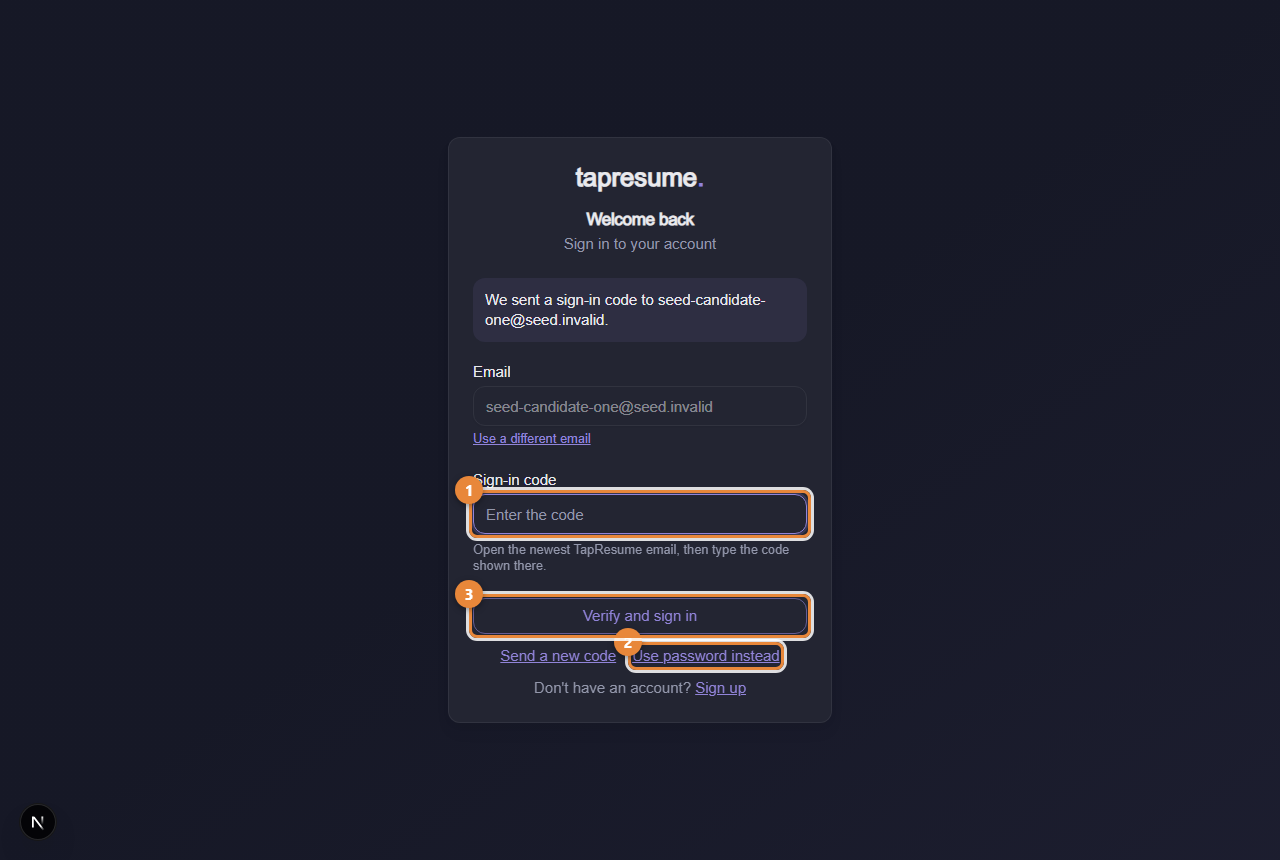
- Marker 1: Sign-in code: type the digits from the newest email
- Marker 2: Use password instead: switch to your password
- Marker 3: Verify and sign in
The code step (marker 1) has two links under it: Use password instead (marker 2) switches to the password field, and Use a different email starts over.
Steps: sign in with a password
- Enter your email and click Continue.
- Click Use password instead.
- Type your password and click Log In. Forgot password? sends a reset link to your email.
Common questions
No code arrives. Codes are sent only to addresses that already have an account. If you have not claimed your profile yet, use the claim link in your invitation email first. Check spam, then click Email me a sign-in code on the password step to send a fresh one; only the newest code works.
The code says it is incorrect or has expired. Codes expire quickly and work once. Request a new one and use the newest email.
I was signed out unexpectedly. Sign in again; nothing is lost. If the page says your organization limits how long a session may run, that is the reason.