Why you received the email
You applied for a role at ACI Infotech through its careers site. ACI now runs hiring on TapResume, and your application is already there. The email invites you to claim your profile so you can add a resume, complete your details, and follow your application.
Nothing happens to your application if you ignore the email. The link works for 30 days.
Steps
- Open the email from ACI Infotech and click Claim your profile and add your resume (or Claim your profile and see the request). It opens the sign-up page with your invitation already attached.
- Enter your name. The email address is filled in from the invitation. Choose a password of at least 8 characters, and tick the boxes for the Terms of Service and the Privacy Notice.
- Click Claim Profile & Sign Up. Your new account is linked to the application you made, so you will see it straight away.
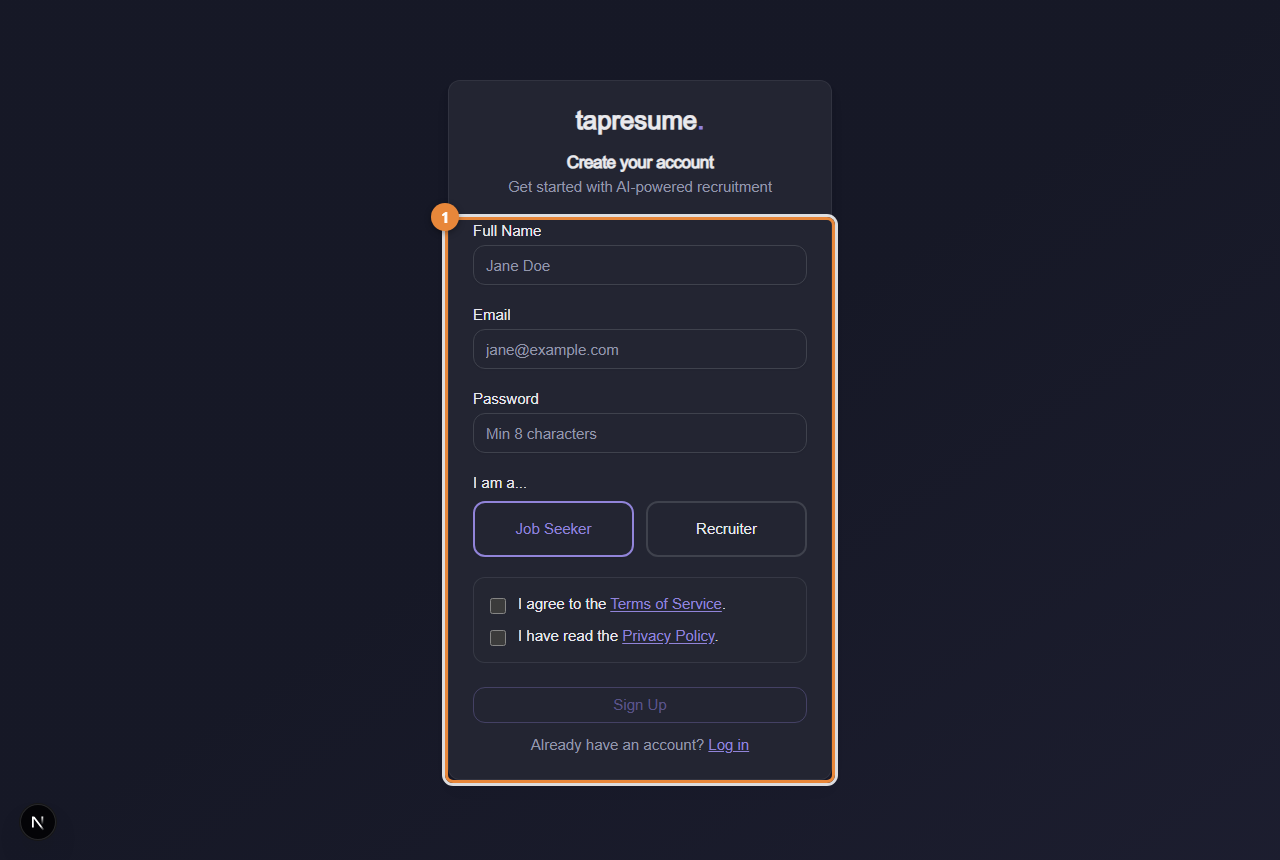
- Marker 1: The sign-up form; from an invitation email your details are linked to your application
What you should see next
Your Today page, with your application listed under Applications. If a hiring team has asked you to take an assessment, that request appears here too.
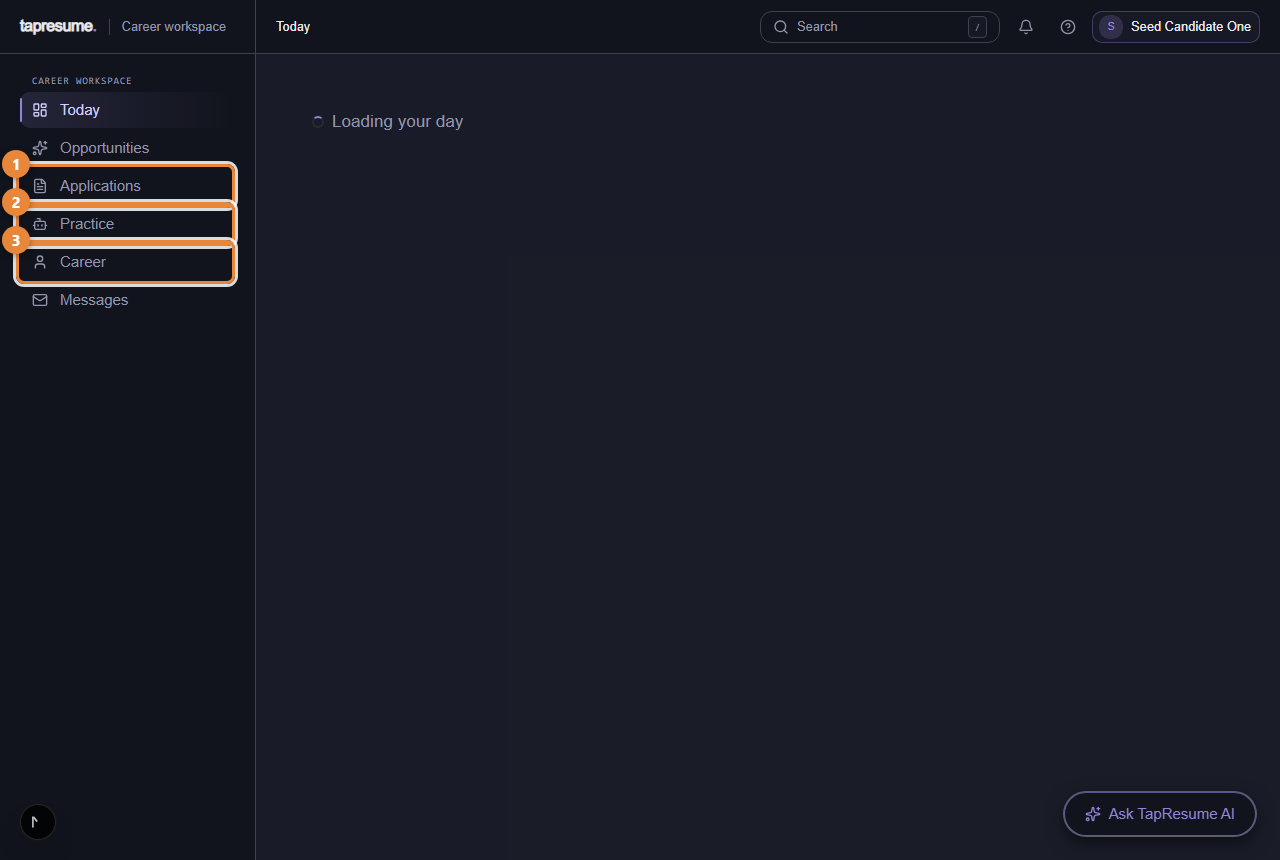
- Marker 1: Applications: where each one stands
- Marker 2: Practice and assessments
- Marker 3: Your profile and resume
Common questions
I used a different email. The link is tied to the address the invitation was sent to; the sign-up page fills it in and does not let you change it there.
I do not want these emails. Every email has a one-click unsubscribe link at the bottom. Your application stays as it is.
The link says it has expired. Ask the ACI hiring team to send a new one, or apply again from the careers site.