The email
| Item | Detail |
|---|---|
| Subject | You've received an offer: followed by the offer title |
| Link | View and respond to your offer |
It names the organization and the role, the compensation when the team included it, the team's message, and the date the offer expires.
What to do
- Click View and respond to your offer.
- Read the offer. Click Accept Offer and then Confirm acceptance, or Decline and then Confirm decline (see Respond to your offer from the email link).
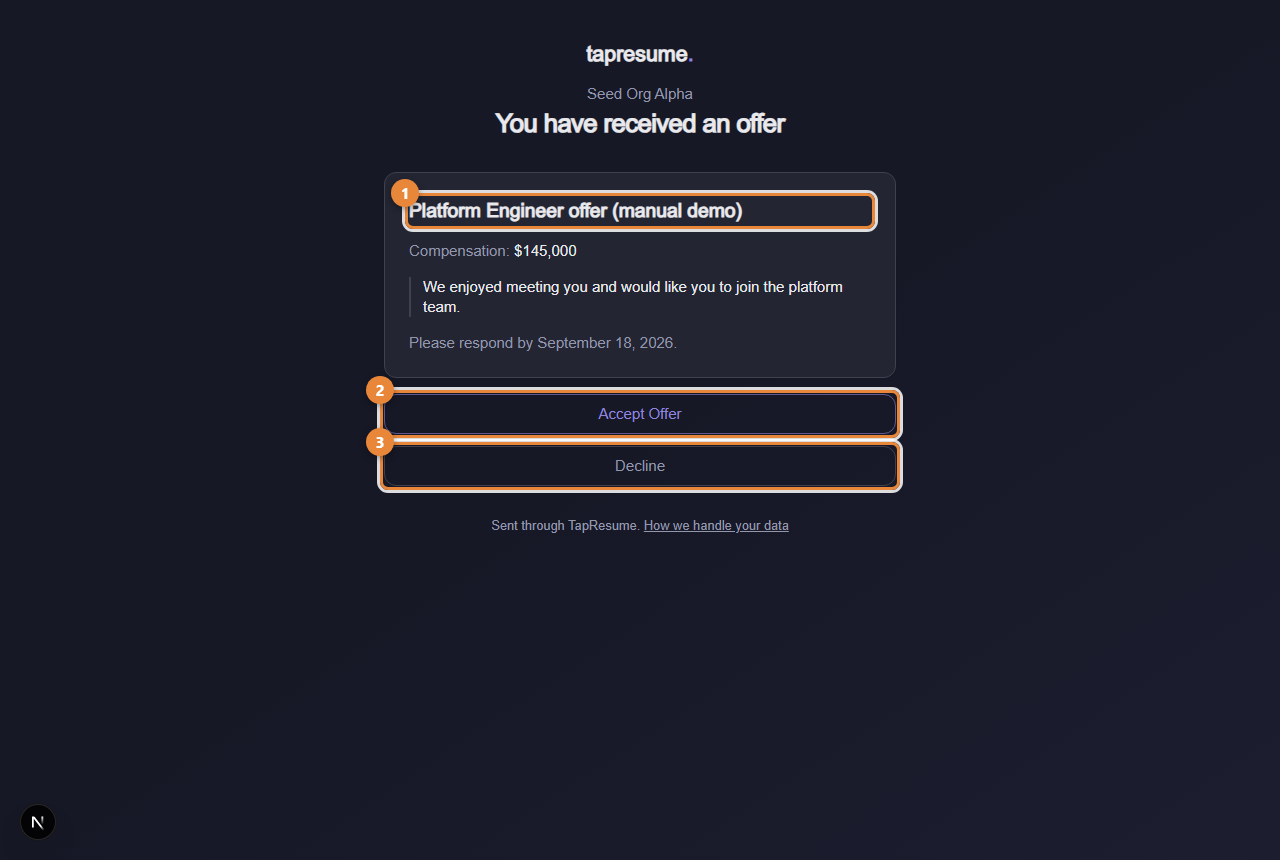
- Marker 1: The offer title
- Marker 2: Accept Offer: a confirmation follows
- Marker 3: Decline: add a note, then confirm
What happens next
The team is told your answer at once. After accepting, the link shows You have already answered this offer, and the team follows up outside TapResume with the contract and start date. If the offer is later replaced, a newer email arrives and the old link says This offer was replaced.
Common questions
The email never arrived. The team can see that delivery failed and resend it. Ask them through Messages.
How long do I have? Until the expiry date in the email and on the page. After it, the page says the offer has expired; contact the team if you are still interested.