When you have no account yet
| Item | Detail |
|---|---|
| Subject | The organization would like you to take an assessment for the role |
| Button | Claim your profile and see the request |
| Unsubscribe | Stop email from the organization, at the bottom |
The email names the role, the assessment and roughly how long it takes, and explains that assessments run inside your own account, where you see the purpose, sections and allowed use before you accept, and where you can decline. Your application is already on file; the link only adds an account. It says how many days you have to respond once the account exists, and the date until which the link works.
- Click Claim your profile and see the request and create your account (see Claim your profile from the invitation email).
- Open Practice, then Assessments. The request is under Requested by employers.
- Continue with An assessment request: review it, start it, or decline.
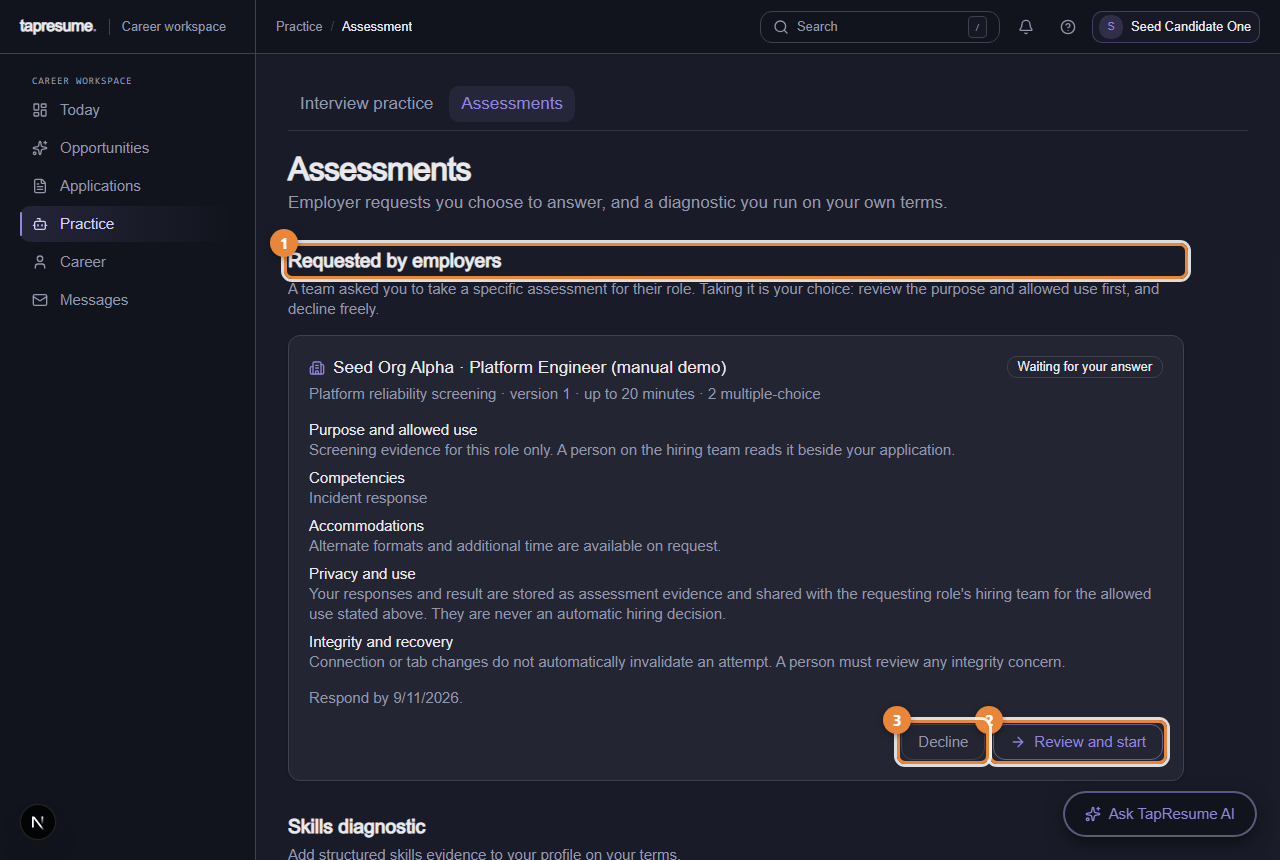
- Marker 1: Requested by employers: requests waiting for your answer
- Marker 2: Review and start
- Marker 3: Decline
When you already have an account
No email is sent. A notification called Assessment request appears under the bell in the top bar, saying which organization asked you to take which assessment for which role, and pointing you to the Assessments page.
What happens next
Nothing until you answer. The request waits until its Respond by date. Declining is recorded plainly and does not remove you from the process.
Common questions
The email says the link works until a date; the request says a different date. The email link is for creating the account. The request's own window starts once the account exists.
I want no more of these. Click Stop email from the organization. Your application is not affected.