The page
After Start now, the assessment opens on its own page. The heading says Questions (marker 1), with the assessment name and version under it and the competencies as small labels. The timer sits on the right (marker 2) and counts down in minutes and seconds. It turns amber under five minutes and red under one.
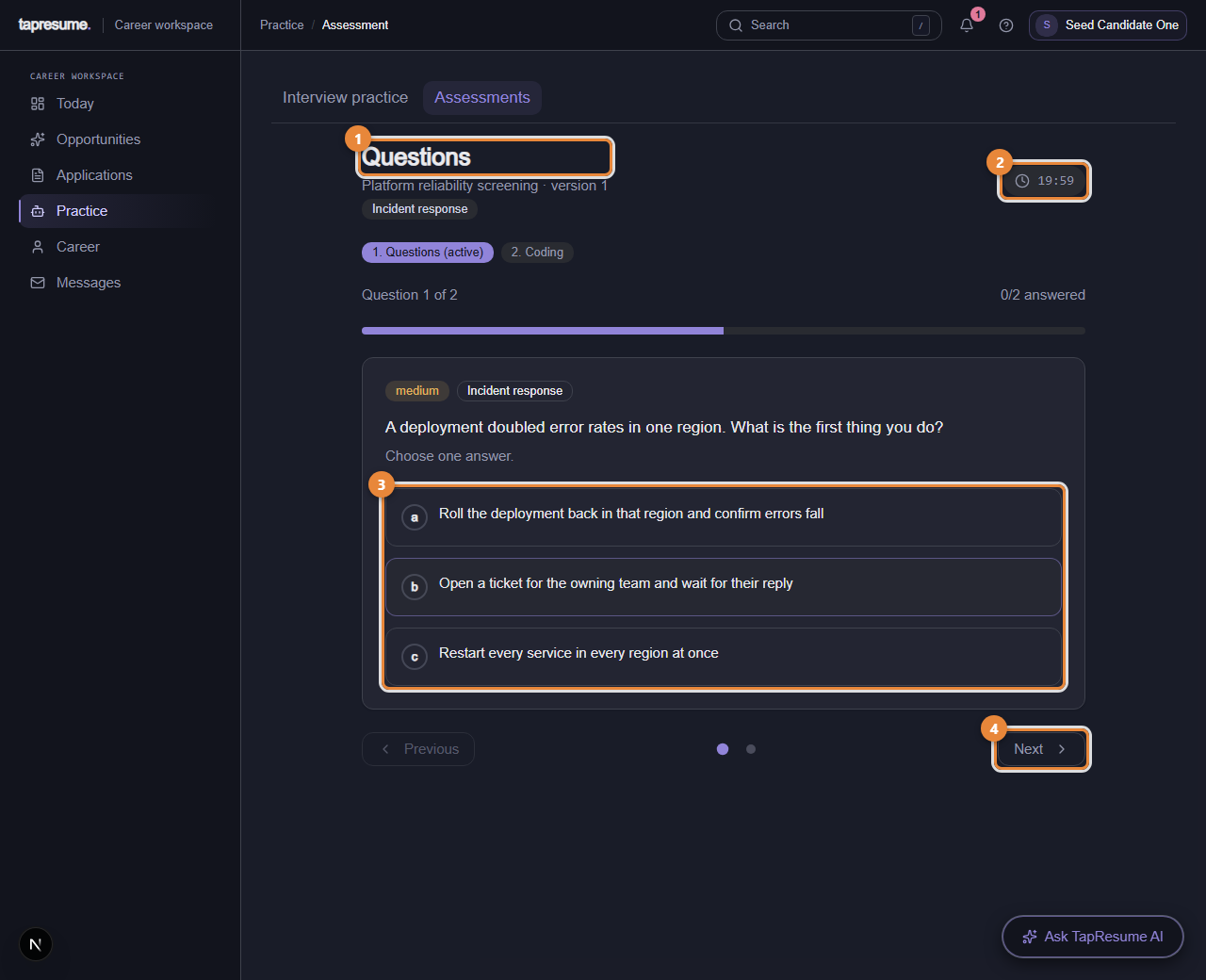
- Marker 1: Questions: the section you are in
- Marker 2: The timer, counting down
- Marker 3: The answers for this question
- Marker 4: Next: move to the next question
Two badges under the heading show where you are: 1. Questions (active) and 2. Coding. The second badge is always shown; the coding section itself opens only when the assessment includes coding problems, and most do not.
Answering
- Read the question. The line under it says how it is marked, before you answer.
- Choose an answer (marker 3). For a multiple-choice question, click one option. For a select-all question, click every option that applies. For a written answer, type in the box; the scoring criteria are shown above it. For an ordering question, use the Move earlier and Move later buttons.
- Click Next (marker 4) or Previous to move between questions. The dots between the buttons jump to any question; a filled dot is answered.
- The line Answers saved confirms each answer reached the server. If it says Saved on this device, the answer is kept in your browser and sent again with your next answer.
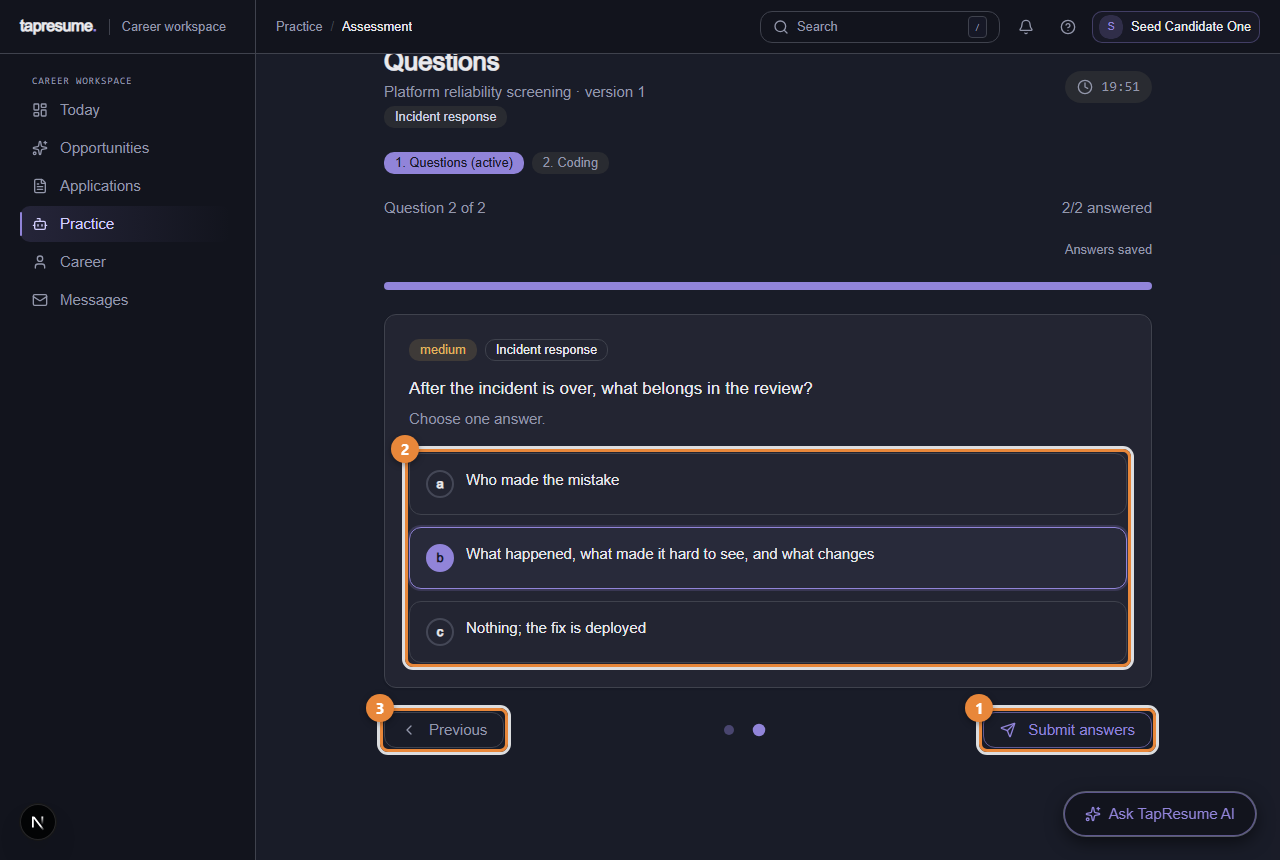
- Marker 1: Submit answers: on the last question. Answers cannot be changed after this
- Marker 2: The answers for the last question
- Marker 3: Previous: go back to check an answer
Submitting
On the last question the button reads Submit answers (marker 1). Click it. If any question is unanswered, the browser asks whether to submit anyway. Once submitted, answers cannot be changed. The page then scores your answers; when the assessment has a coding section, it moves you there next.
Coding problems
Each problem shows its description, the function signature, and example test cases. Write your solution in the editor, click Run Tests to check it against the examples, and when every problem is done click Submit all solutions.
If something goes wrong
- You switch to another tab or window. A notice called Tab change noted appears when you come back. It is recorded for context and cannot by itself invalidate your attempt. Click Continue assessment.
- Your connection drops. Keep the page open, or reopen it: your answers are kept. The drop is recorded when the connection returns, and it is what entitles you to the minutes it cost you (see After you submit).
- Time runs out. The page says Time expired. What you submitted counts; nothing more can be entered.
Common questions
Can I go back to a question? Yes, with Previous or the dots, at any time before you submit.
Does closing the page end the attempt? No. The timer keeps running, and Continue this assessment on the Assessments page brings you back.
Can I use my phone? Yes for questions. A laptop is easier for written answers and coding.