Where the request appears
Open Practice, then Assessments. Requests from hiring teams sit at the top under Requested by employers (marker 1). Each card names the organization and role, the assessment and its version, how long it allows, and its sections. A badge shows its state: Waiting for your answer, In progress, Completed, You declined, or Expired.
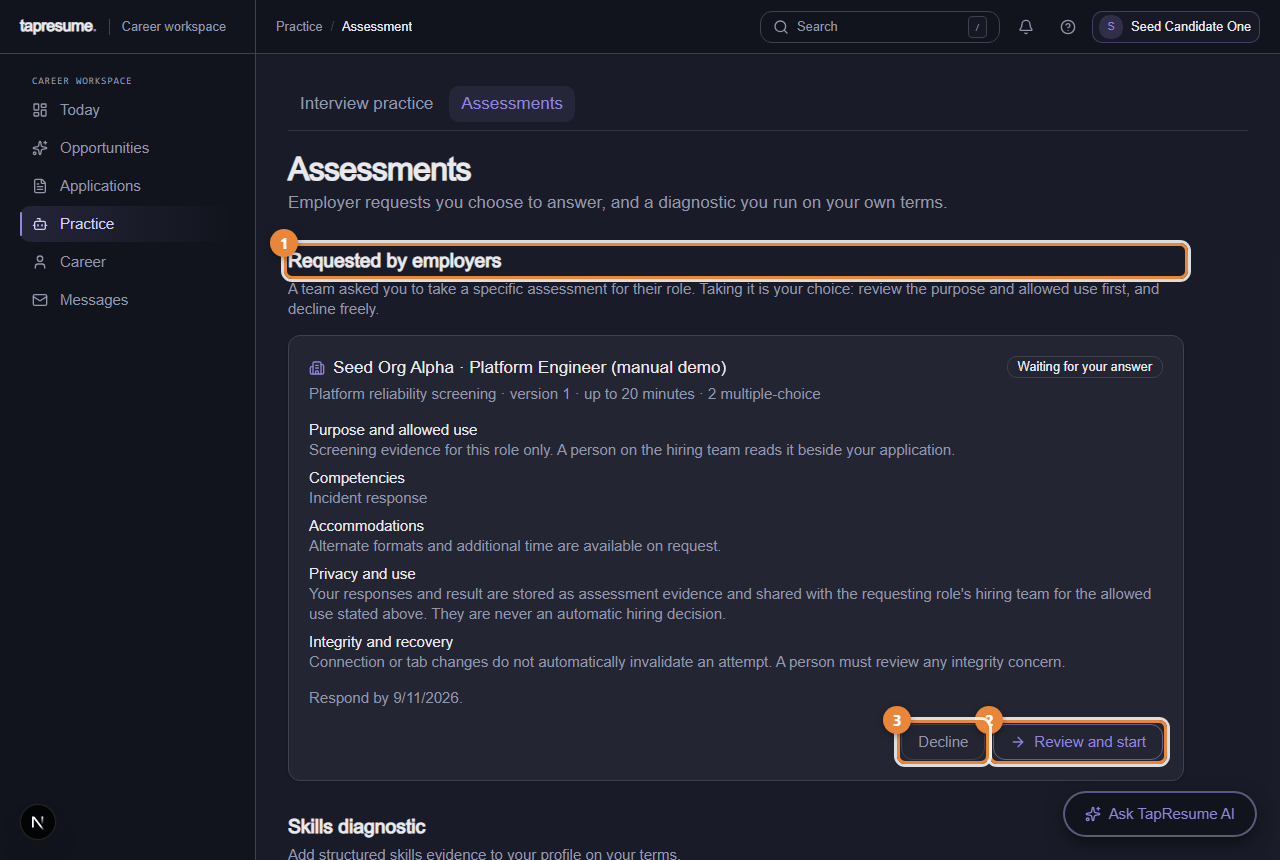
- Marker 1: Requested by employers: requests waiting for your answer
- Marker 2: Review and start
- Marker 3: Decline
Under the card you can read, before deciding anything:
- Purpose and allowed use: what the team may use the result for. This is copied at the moment they sent the request, so it cannot change afterwards.
- Competencies: what the questions cover.
- Accommodations: how to ask for another format or more time.
- Privacy and use and Integrity and recovery: who sees the result, and what happens if your connection drops.
- Respond by: the date the request expires.
Steps: start it
- Click Review and start (marker 2). A dialog called Start this assessment? repeats the assessment, version, organization and role, and reminds you that the timer starts once you begin and that answers are saved as you go.
- Tick the consent box (marker 1 on the next picture). The button stays off until you do.
- Click Start now (marker 2). The first question opens with the timer running. Not now (marker 3) closes the dialog and changes nothing.
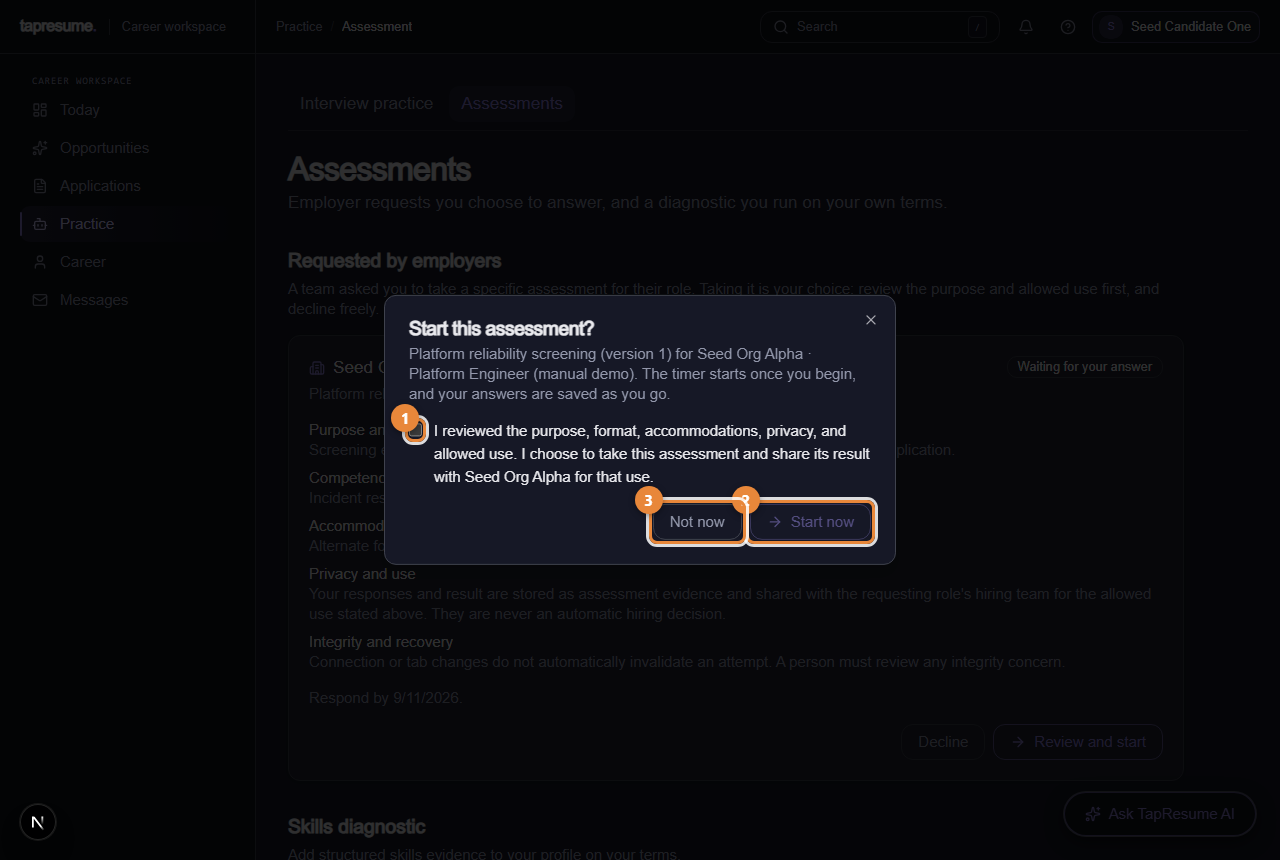
- Marker 1: The consent box; Start now stays off until it is ticked
- Marker 2: Start now: the timer starts
- Marker 3: Not now: close without starting
Have the full time free before you start. You cannot pause the timer. If you leave, the card shows In progress with a Continue this assessment button, and the timer keeps running.
Steps: decline it
- Click Decline (marker 3 on the first picture). A dialog called Decline this request? opens.
- Add a Note to the team if you want (marker 1). It is optional, up to 2,000 characters, and is shown to the team exactly as you wrote it.
- Click Decline request (marker 2). The card changes to You declined with your note. Keep the request (marker 3) closes the dialog and leaves the request waiting.
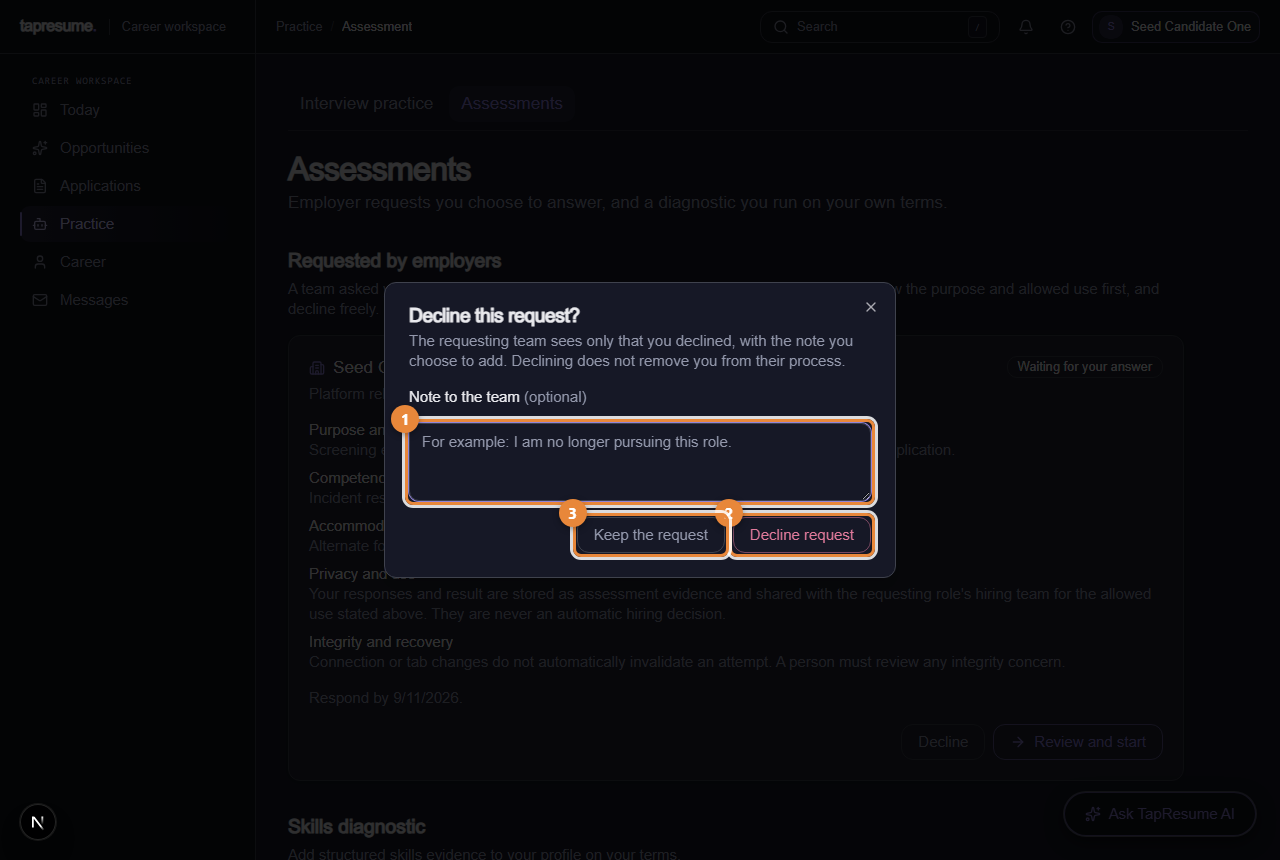
- Marker 1: Note to the team, optional
- Marker 2: Decline request
- Marker 3: Keep the request: close without declining
The team sees only that you declined and the note you chose to add. Declining does not remove you from their process. If they still want the assessment, they can send a new request.
Common questions
Review and start is greyed out. The card says why, in a note above the buttons. Usually the team's assessment is not ready to run yet; nothing is needed from you.
Can I take it later? Yes, until the Respond by date. After that the card says Expired and the team can send a fresh request.
Where is the diagnostic that used to be here? Below the requests, under Skills diagnostic. It is separate from employer requests; see Practice and the skills diagnostic.