How to apply, claim your profile, add a resume, take an assessment, pick an interview time and respond to an offer, with pictures of each step.
For people applying to ACI Infotech
Generated 2026-10-28. Pictures are taken from the product itself; when a screen changes, the picture is regenerated.
Chapter 1
Getting started
6 topics: Quick start: what to expect; Apply from the ACI careers site; Claim your profile from the invitation email; Sign in with a code or a password; Today: what is waiting on you; Add your resume and complete your profile.
1.1 · Getting started
Quick start: what to expect
What TapResume is, what ACI Infotech will ask of you, and what you will always be able to see.
What this is
ACI Infotech runs its hiring on TapResume. You applied for a role; this is where your application lives, where the team may ask you for something, and where you can see what is happening.
What you may be asked to do
Claim your profile from an email, so you can add a resume and follow your application. One minute.
Add your resume, so the team's matching can read your skills.
Take a short assessment for a role. You see what it is before you decide, and you may decline.
Record a short introduction, only when a role asks, in video, audio or writing.
Pick an interview time from slots the team offers.
Respond to an offer from a link in an email.
Nothing here is required to keep your application open. Each request says what it is for and how long it takes.
What you can always see
Where each application stands, in plain words.
Every organization that can see your profile, and a switch to stop each one.
Every time someone revealed your contact details or downloaded your resume, with the reason they gave.
A copy of everything held about you, and a way to ask for deletion.
Stopping emails
Every email has a one-click unsubscribe link at the bottom. Using it stops that kind of email. Your application is not affected.
Getting help
Each page of this guide ends with Common questions. For anything about a specific role, write to the hiring team through Messages.
1.2 · Getting started
Apply from the ACI careers site
Applying takes a few minutes and does not need an account. A one-time code confirms your email.
Steps
On the ACI Infotech careers site, open the role and click Apply.
Enter your name and email address. A one-time code is sent to that address; type it in to confirm the email is yours.
Answer the role's questions and attach your resume.
Click Review your application, read it once, and click Submit.
You receive a confirmation email straight away.
What happens next
Your application goes to the ACI hiring team on TapResume. You can follow it without an account through the links in the emails you receive, or claim a profile to see everything in one place (see Claim your profile).
If you did not attach a resume, you may receive a reminder asking for one. Adding it lets the team's matching read your skills.
Common questions
Can I apply to more than one role? Yes. Each application is separate.
I never received the code. Check the spam folder; codes expire in ten minutes. Request a new one from the same page.
Can I change my application after submitting? Not the answers. You can add or replace your resume from your profile once you have claimed it, and you can withdraw.
1.3 · Getting started
Claim your profile from the invitation email
You applied to ACI Infotech before. One email lets you add your resume and see where your application stands.
Why you received the email
You applied for a role at ACI Infotech through its careers site. ACI now runs hiring on TapResume, and your application is already there. The email invites you to claim your profile so you can add a resume, complete your details, and follow your application.
Nothing happens to your application if you ignore the email. The link works for 30 days.
Steps
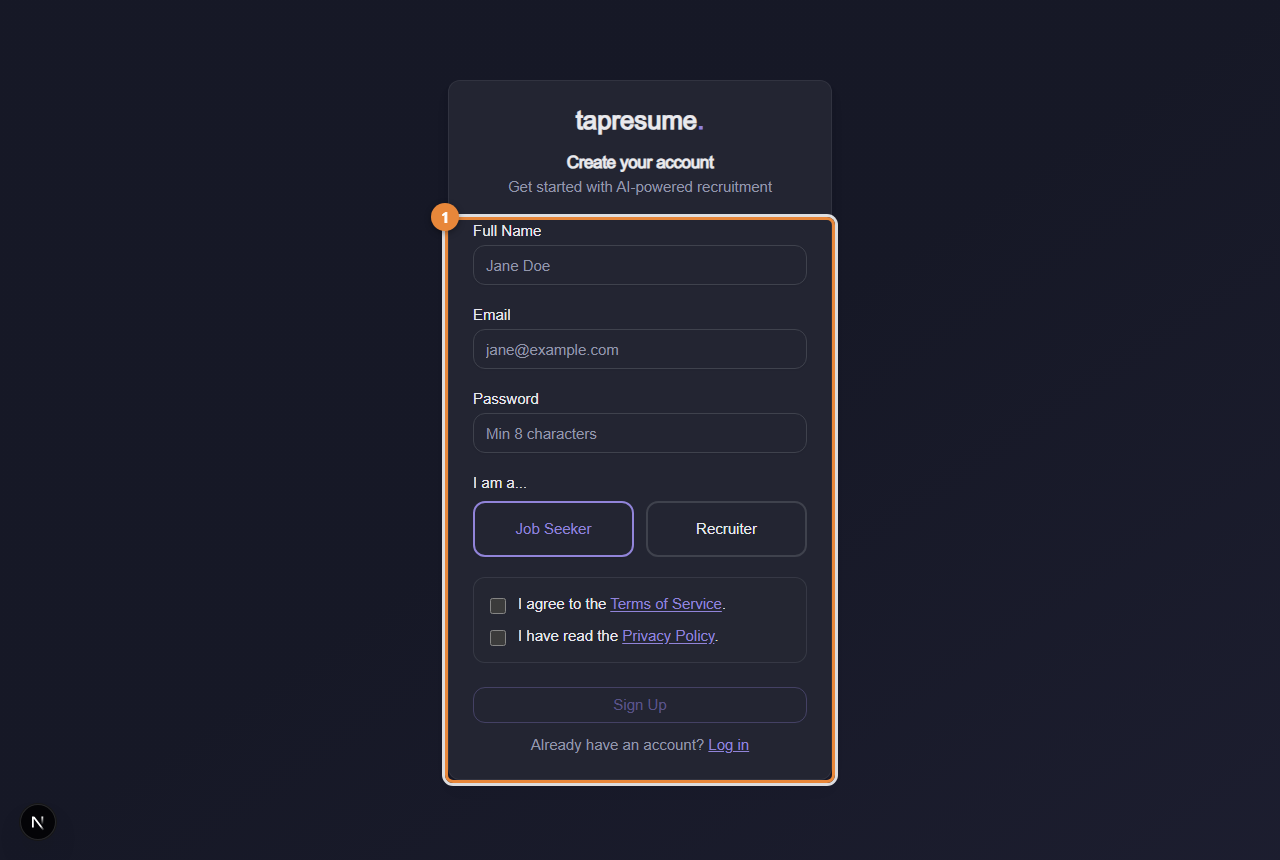
Open the email from ACI Infotech and click Claim your profile and add your resume (or Claim your profile and see the request). It opens the sign-up page with your invitation already attached.
Enter your name. The email address is filled in from the invitation. Choose a password of at least 8 characters, and tick the boxes for the Terms of Service and the Privacy Notice.
Click Claim Profile & Sign Up. Your new account is linked to the application you made, so you will see it straight away.
1Marker 1: The sign-up form; from an invitation email your details are linked to your application
What you should see next
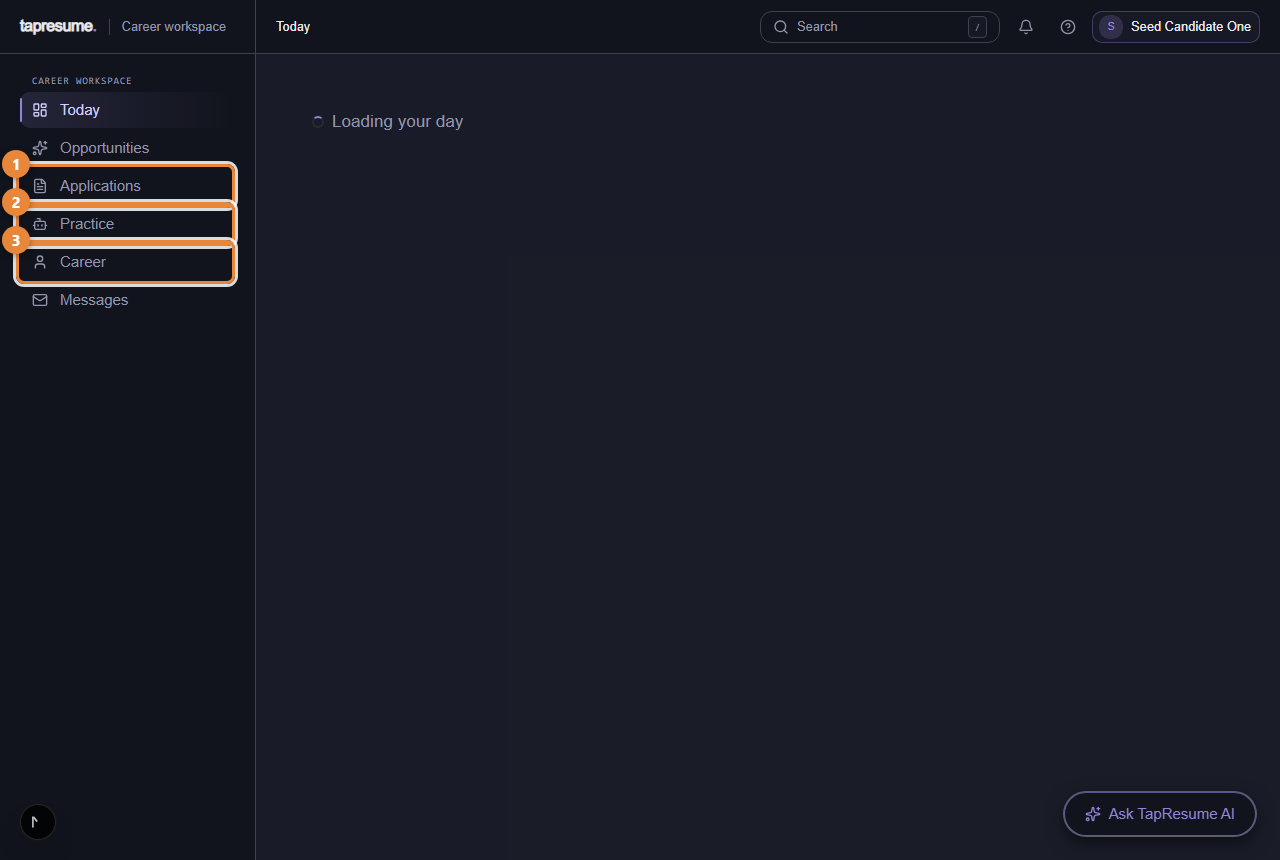
Your Today page, with your application listed under Applications. If a hiring team has asked you to take an assessment, that request appears here too.
1Marker 1: Applications: where each one stands
2Marker 2: Practice and assessments
3Marker 3: Your profile and resume
Common questions
I used a different email. The link is tied to the address the invitation was sent to; the sign-up page fills it in and does not let you change it there.
I do not want these emails. Every email has a one-click unsubscribe link at the bottom. Your application stays as it is.
The link says it has expired. Ask the ACI hiring team to send a new one, or apply again from the careers site.
1.4 · Getting started
Sign in with a code or a password
Signing in starts with your email address. A code is emailed to you; a password works too.
Two ways in
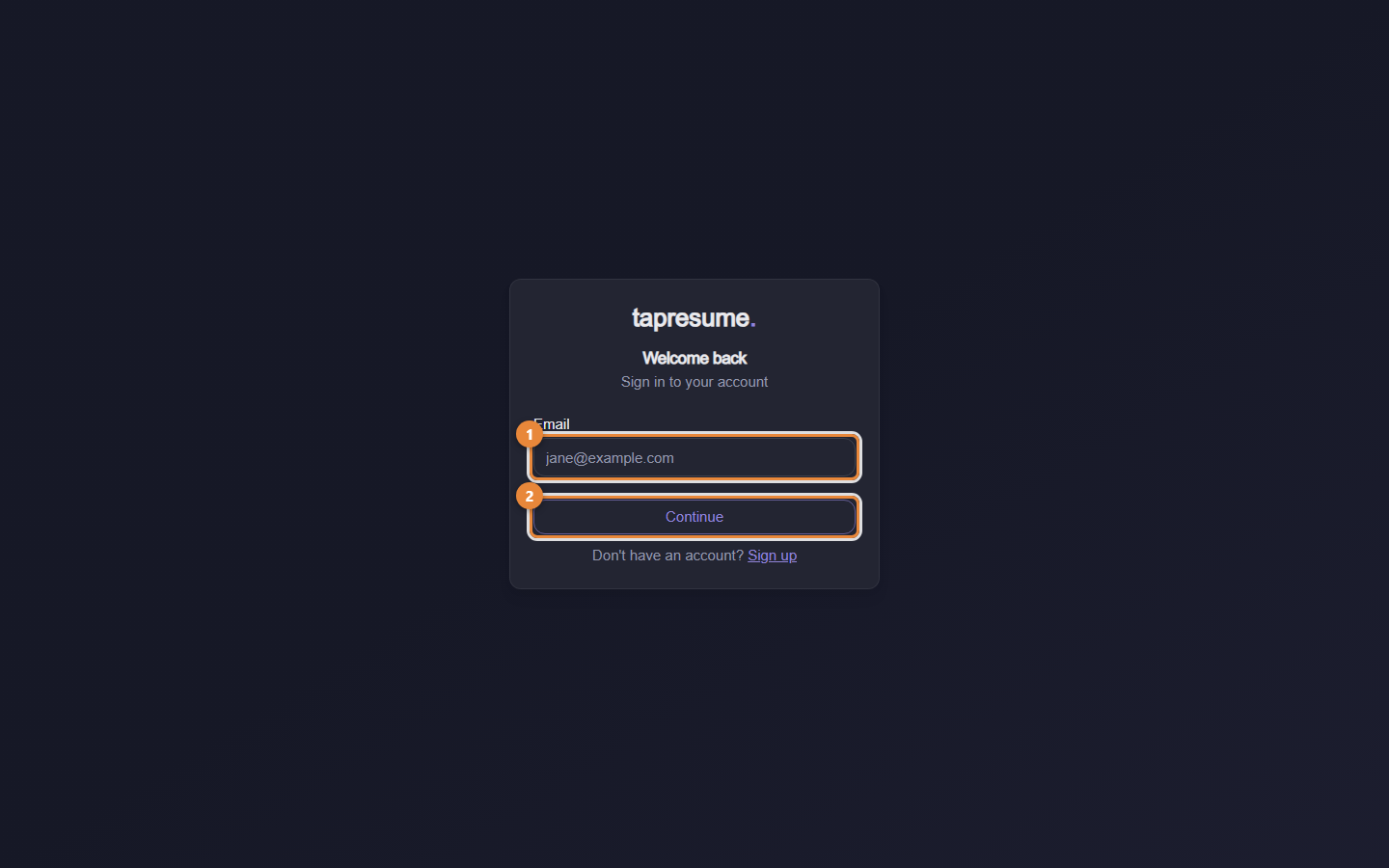
Sign in at the address in your emails (the link under View your applications or Sign in). The page asks for your email first, then offers a sign-in code. A password is always available behind one link.
1Marker 1: Your email address, the one your invitation went to
2Marker 2: Continue: a sign-in code is emailed to you; a link under the code field switches to your password
Steps: sign in with a code
Enter your email address (marker 1). Use the address your ACI emails arrive at.
Click Continue (marker 2). The page says "We sent a sign-in code to" your address.
Open the newest email called Your TapResume sign-in code. The code is the large number in it.
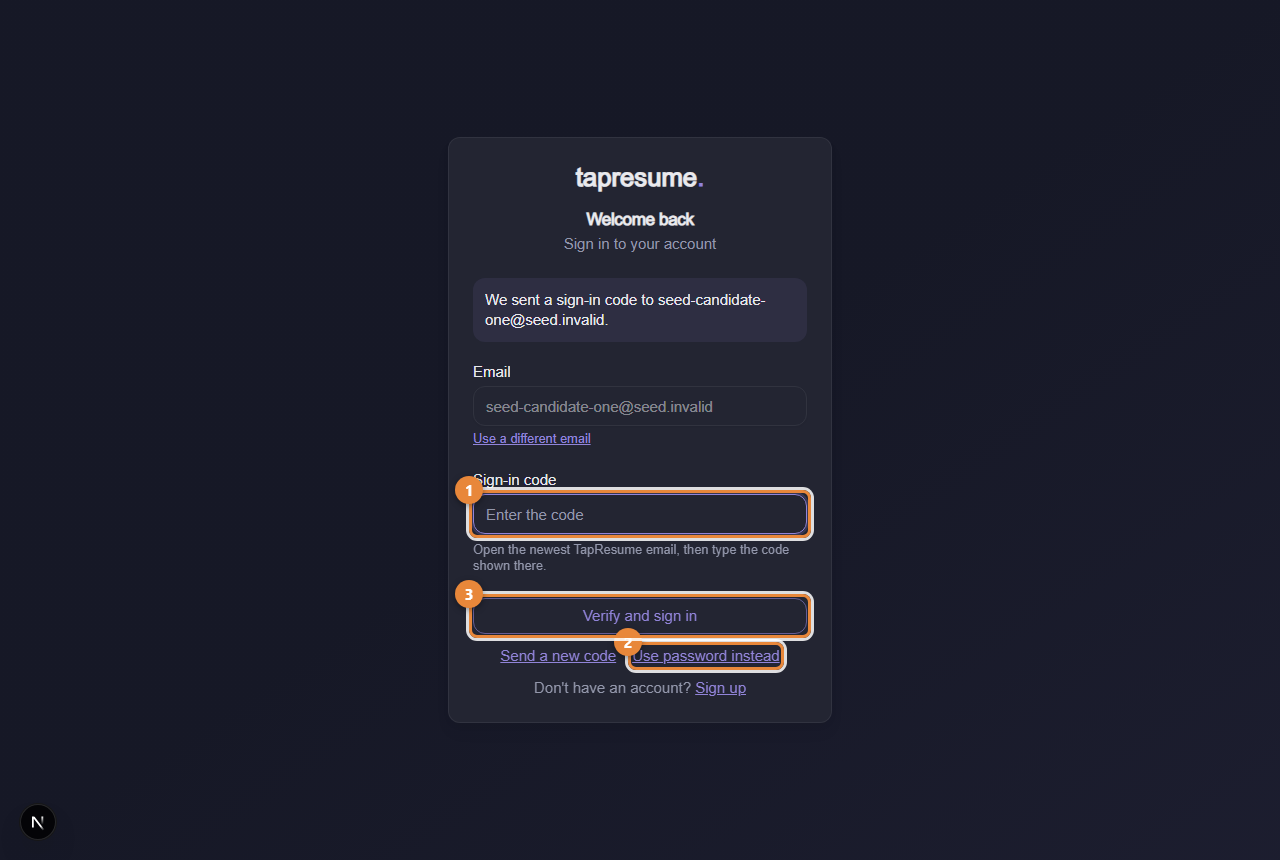
Type the code into Sign-in code and click Verify and sign in (marker 3). You are signed in and taken to your workspace.
1Marker 1: Sign-in code: type the digits from the newest email
2Marker 2: Use password instead: switch to your password
3Marker 3: Verify and sign in
The code step (marker 1) has two links under it: Use password instead (marker 2) switches to the password field, and Use a different email starts over.
Steps: sign in with a password
Enter your email and click Continue.
Click Use password instead.
Type your password and click Log In. Forgot password? sends a reset link to your email.
Common questions
No code arrives. Codes are sent only to addresses that already have an account. If you have not claimed your profile yet, use the claim link in your invitation email first. Check spam, then click Email me a sign-in code on the password step to send a fresh one; only the newest code works.
The code says it is incorrect or has expired. Codes expire quickly and work once. Request a new one and use the newest email.
I was signed out unexpectedly. Sign in again; nothing is lost. If the page says your organization limits how long a session may run, that is the reason.
1.5 · Getting started
Today: what is waiting on you
Today is your home page. It puts the one thing worth doing next at the top, and everything else underneath.
What Today shows
Today opens every time you sign in. It reads your applications, requests from hiring teams, and gaps in your profile, and turns them into a short list.
1Marker 1: Applications: where each one stands
2Marker 2: Practice and assessments
3Marker 3: Your profile and resume
Your next step: one card at the top with the most useful thing to do now, the reason it was chosen, and a Why it matters line.
When you are ready: smaller cards for the rest. Each has a label that says what kind of item it is: Deadline, Update, Opportunity, Draft, Waiting, or Profile.
When nothing is waiting, the page says You are all caught up and offers a link to Opportunities.
Steps
Read the card at the top. Click Open next step to go straight to it.
Click Not now to hide it for this visit. It comes back next time if it is still relevant.
Below, click Open on any card, or Dismiss to hide it for this visit.
The left navigation
The navigation on the left is the same on every page: Today, Opportunities, Applications (marker 1), Practice (marker 2), Career (marker 3), and Messages. Most of these open with a row of tabs under the page title; this guide names the tab where it matters.
Common questions
Why does it ask me to add experience? Matching reads what your profile says. Gaps in it appear here as Profile cards until they are filled or dismissed.
I dismissed something by mistake. Dismissing only hides a card for this visit. Sign out and in, or come back later, and it is listed again.
1.6 · Getting started
Add your resume and complete your profile
Your resume is what matching reads. Add it once, check what was read from it, and keep your profile current.
Why it matters
Hiring teams match roles to the skills read from your resume. Without a resume on record, matching cannot see you. Adding it takes a minute.
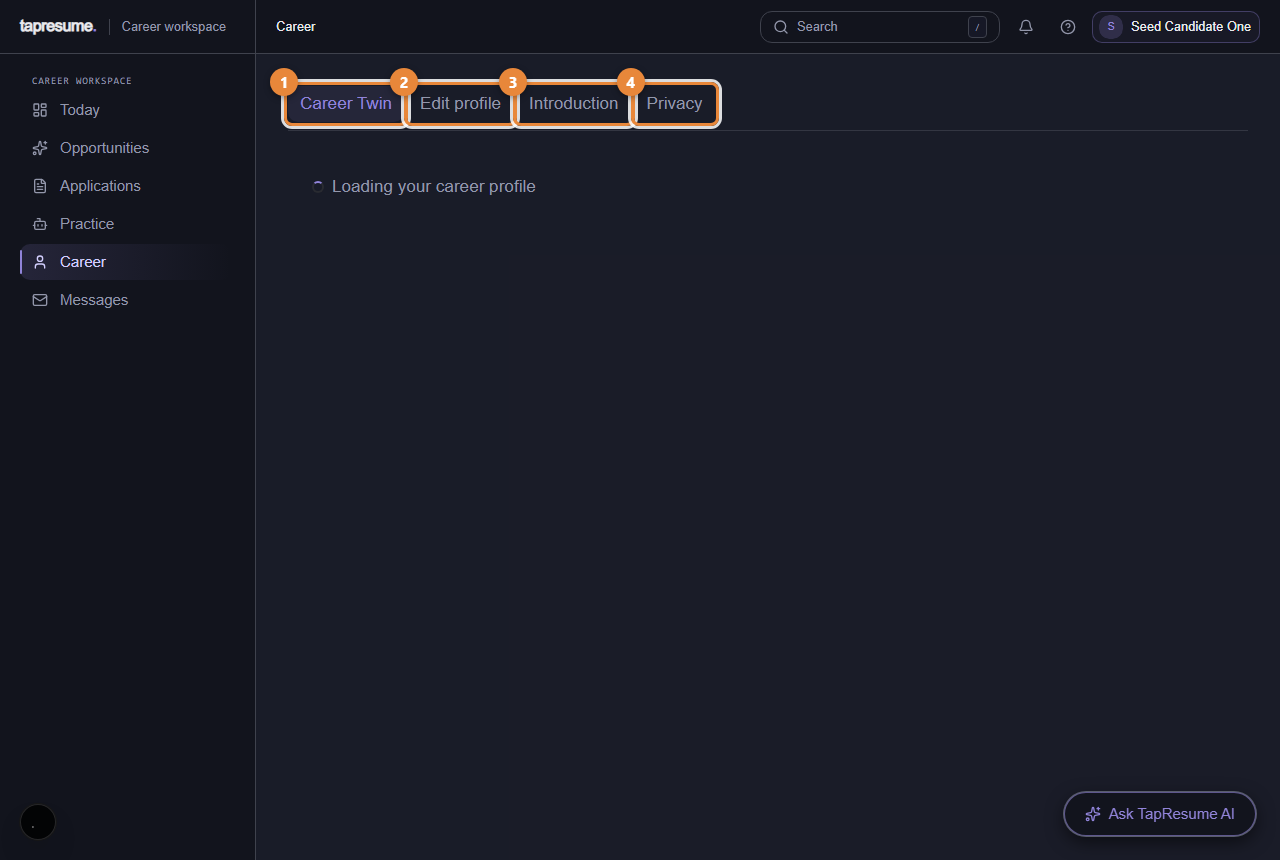
1Marker 1: Career Twin: what you have done and want next
2Marker 2: Edit profile: your details and resume
3Marker 3: Introduction: a short recording in your words
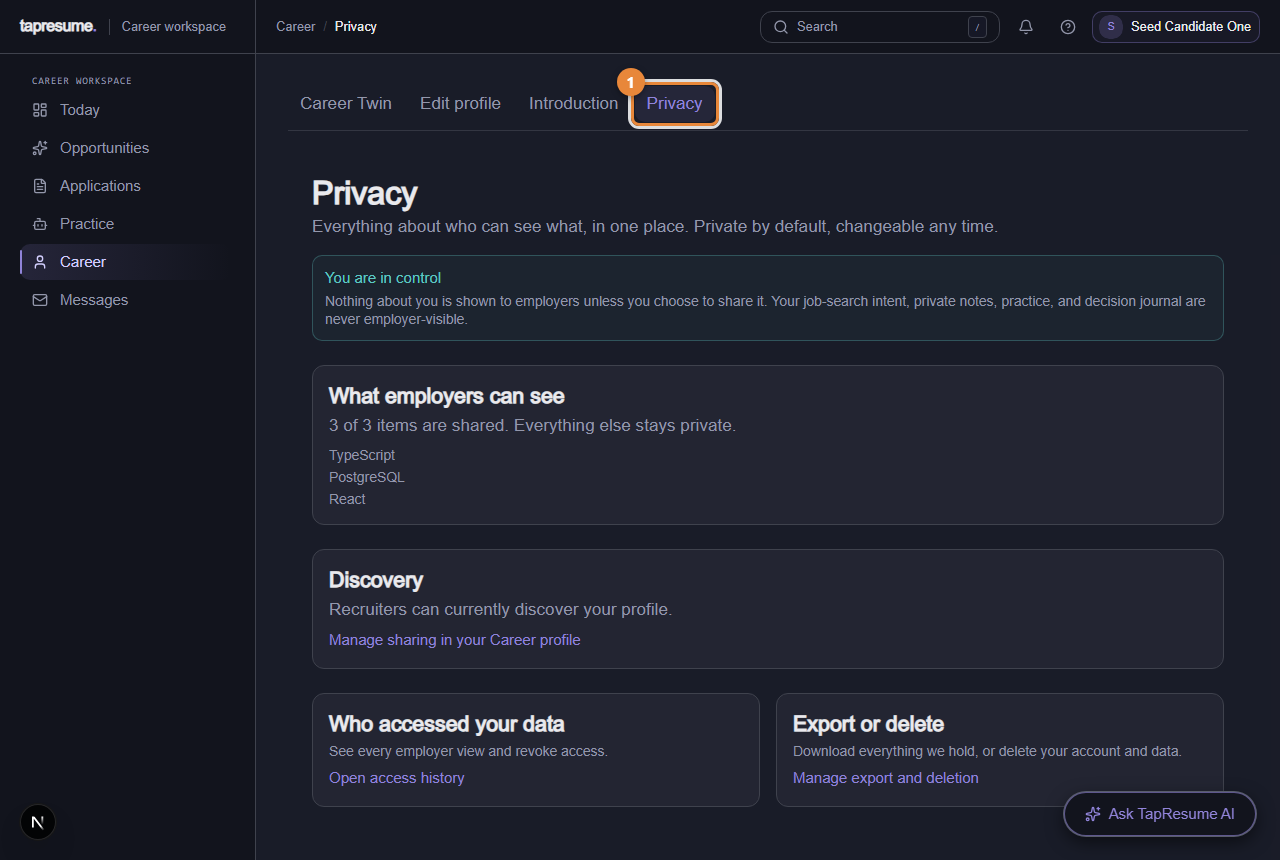
4Marker 4: Privacy: who can see what about you
Steps
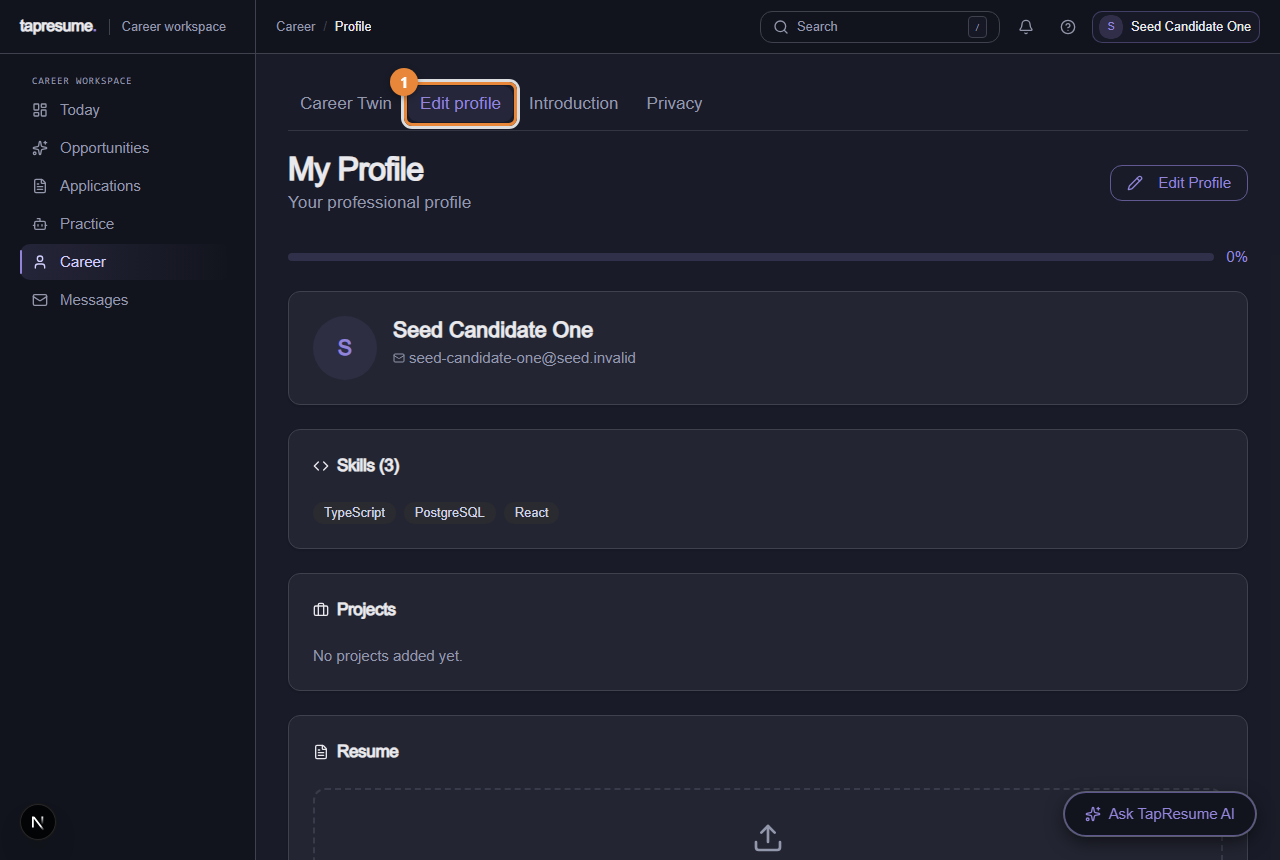
Open Career (marker 1) and then Edit profile (marker 2).
Click Upload resume and choose a PDF or Word file.
Wait a moment: TapResume reads the resume and fills in skills, experience and education. Check them and correct anything it misread.
Add anything the resume does not say: location, whether you can relocate, what you want next.
Click Save.
1Marker 1: Edit profile tab
Introduction and privacy
Introduction (marker 3): a short video, audio or written introduction in your own words, only when a role asks for one.
Privacy (marker 4): who can see your profile, what you have agreed to, and who has looked at your details.
Common questions
Which employers can see my resume? Only organizations you applied to or shared it with. Privacy shows the list and lets you withdraw.
I updated my resume. Do I need to tell anyone? No. Matching reads the latest version.
Chapter 2
Your applications
7 topics: See where your application stands; Pick an interview time and respond to an offer; Submission settings and Offer studio; Pick an interview time from the email link; Respond to your offer from the email link; Record an introduction for a role; Record an introduction, withdraw an application, stop emails.
2.7 · Your applications
See where your application stands
Every application you have made, its current state, and what happens next.
What this screen is for
Applications shows your submitted applications and their current candidate-visible states: in consideration, in process, decision pending, or closed. Where a submitted copy is available, you can open it from the application record.
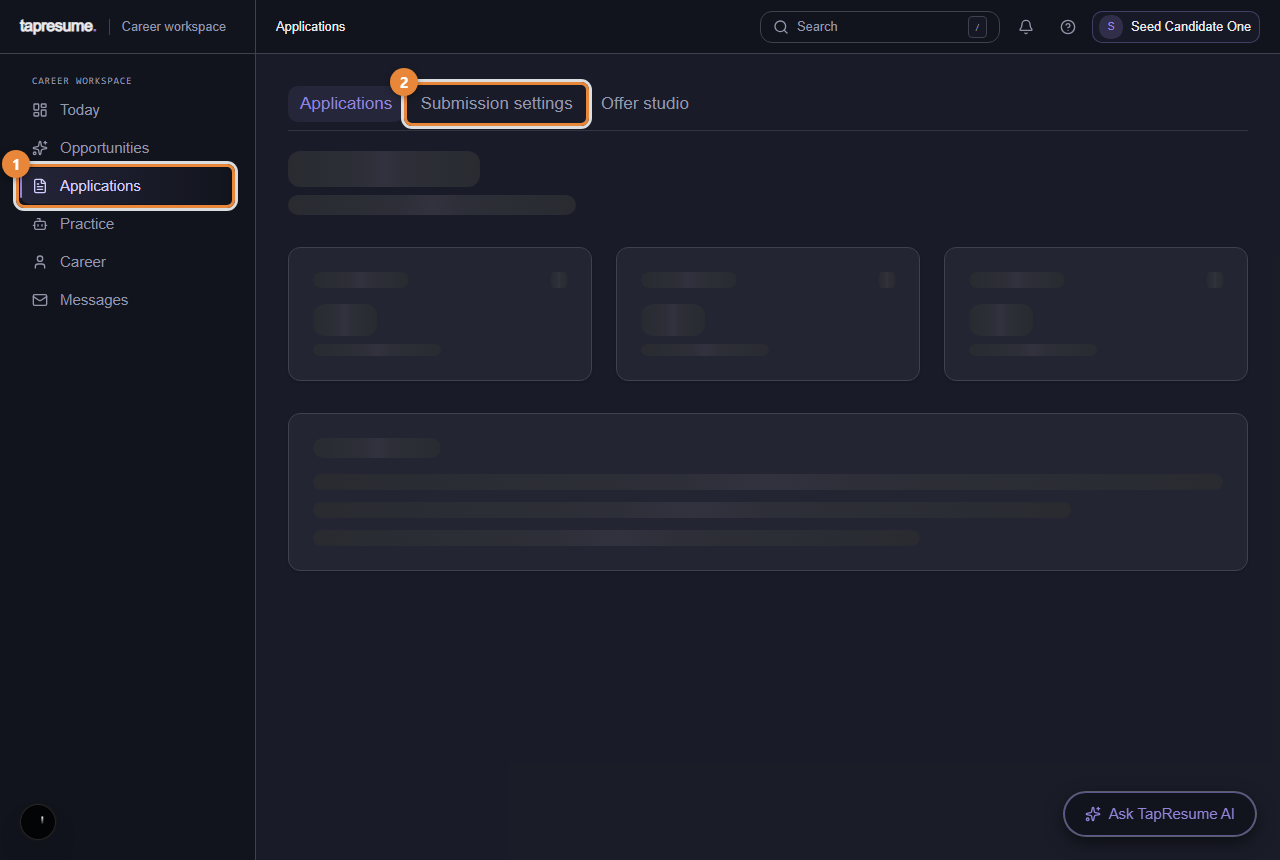
1Marker 1: Every application you have made
2Marker 2: Follow-up email preferences
Steps
Click Applications in the left navigation (marker 1). Filter by status with the selector at the top.
Open an application to read its details and any messages from the hiring team.
For a new TapResume role, review the exact application draft and choose the final Submit action yourself. TapResume does not submit automatically (see Submission settings and Offer studio).
What the statuses mean
Status
Meaning
Applied
Received. Nobody has reviewed it yet.
Under Review
The team has looked at it.
Shortlisted
You are on the shortlist for the role.
Interview
The team has moved you to interviews; an invitation with times follows by email.
Offer Received
An offer was sent; its email carries the link to respond.
Not Selected
The team decided not to proceed.
Withdrawn
You withdrew it.
The application record shows a candidate-visible status; it is not a promise that the employer has taken a specific internal action unless the employer has shared one.
Common questions
Can I withdraw? Yes: Withdraw Application on the application, then Withdraw in the confirmation. The team is told. You can apply again later.
Why is there no salary or feedback shown? Only what the hiring team has chosen to share appears here. Ask them through Messages.
2.8 · Your applications
Pick an interview time and respond to an offer
Both arrive by email with a link. Neither needs you to sign in.
An interview invitation
Open the email from the hiring team and click Pick a Time.
Choose one of the offered slots. Times are shown in the team's time zone, with your local time underneath when it differs.
Click Confirm this time. The page says your interview is confirmed and offers Add to calendar.
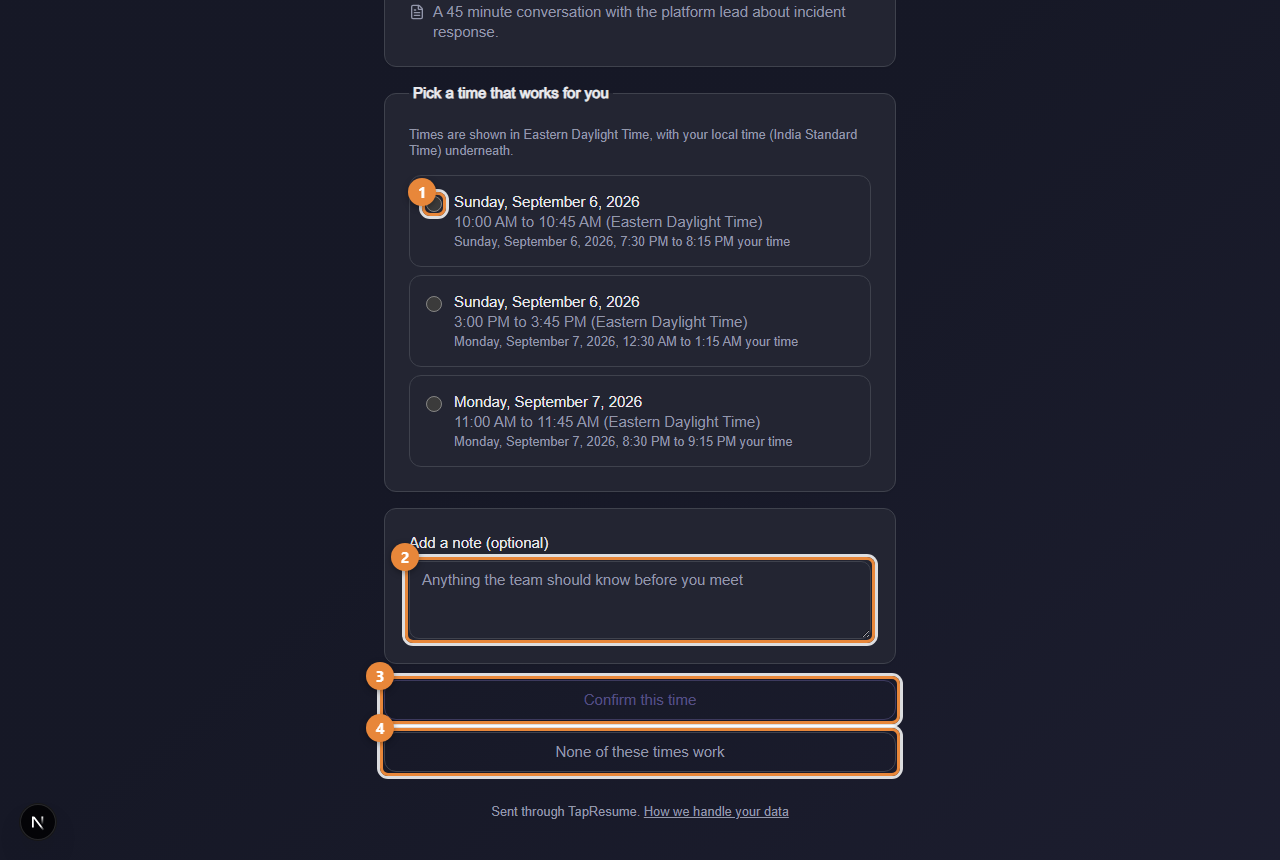
Need a different time? Click None of these times work on the same page, or write through Messages. The full page is described in Pick an interview time from the email link.
An offer
Open the email and click View and respond to your offer. The offer opens in your browser.
Read it. Questions go to the hiring team through Messages.
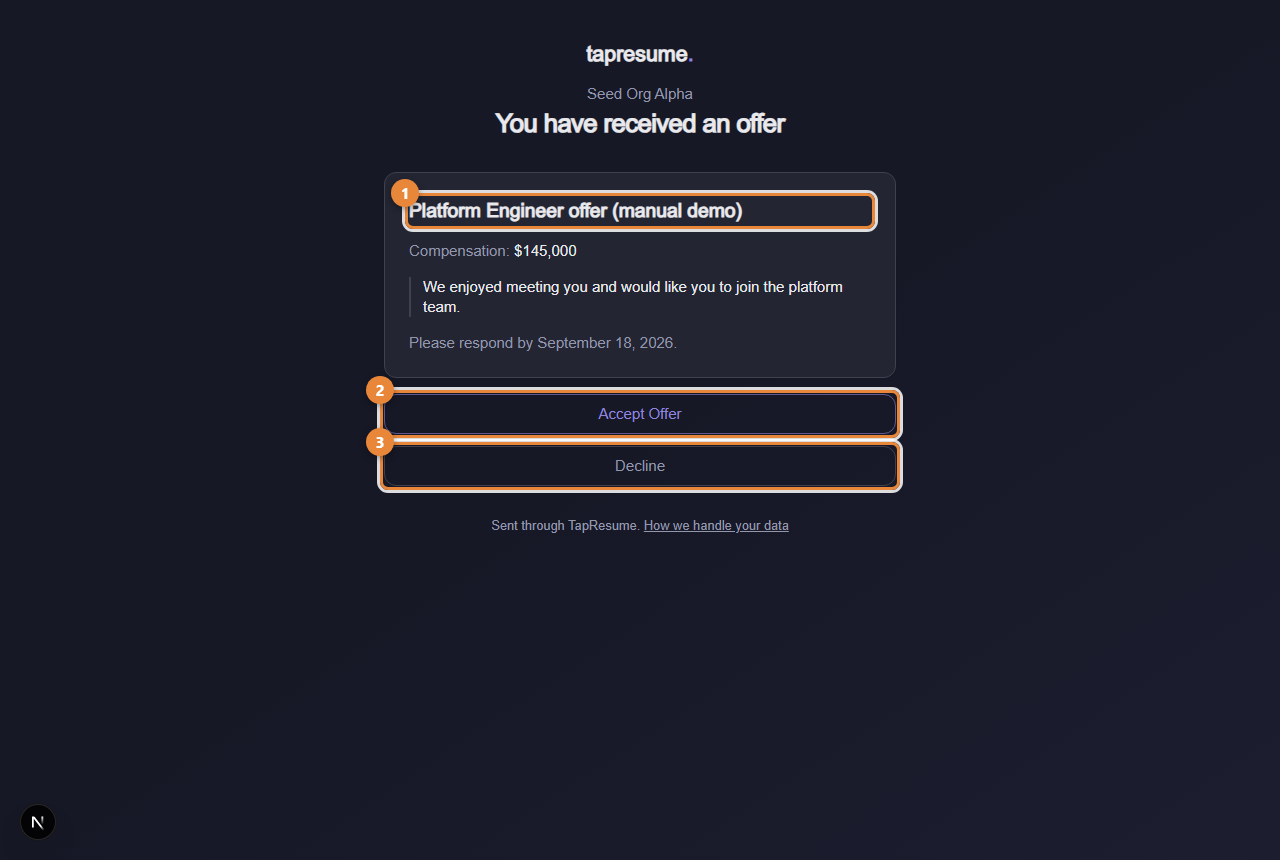
Click Accept Offer and then Confirm acceptance, or Decline and then Confirm decline. Your answer is recorded with the date, and the team is told at once. The full page is described in Respond to your offer from the email link.
An offer has an expiry date, shown on the page. After it, the link says the offer has expired; contact the team if you still want to respond.
What happens after accepting
The hiring team marks you as hired and follows up with next steps outside TapResume: contract, start date, documents. Your application shows as closed with an accepted offer.
Common questions
Can I accept and then change my mind? Tell the hiring team through Messages. The record shows what you did and when.
Is the offer letter legally binding? The letter says what it is. When ACI uses electronic signatures, you sign in the same place; otherwise the letter is an offer and the contract follows.
2.9 · Your applications
Submission settings and Offer studio
Review each application yourself and compare offers privately. Automatic applying is not enabled.
Submission settings
Open Applications to see your application records and their candidate-visible states: In consideration, In process, Decision pending, or Closed. You can open the submitted copy for an application when one is available.
To apply to a TapResume opportunity, open the role, choose Review exact application, save and approve the exact draft, then choose Submit this exact application. Saving or approving the draft does not submit it. Automatic applying is not enabled; there is no candidate setting that turns it on.
Offer studio
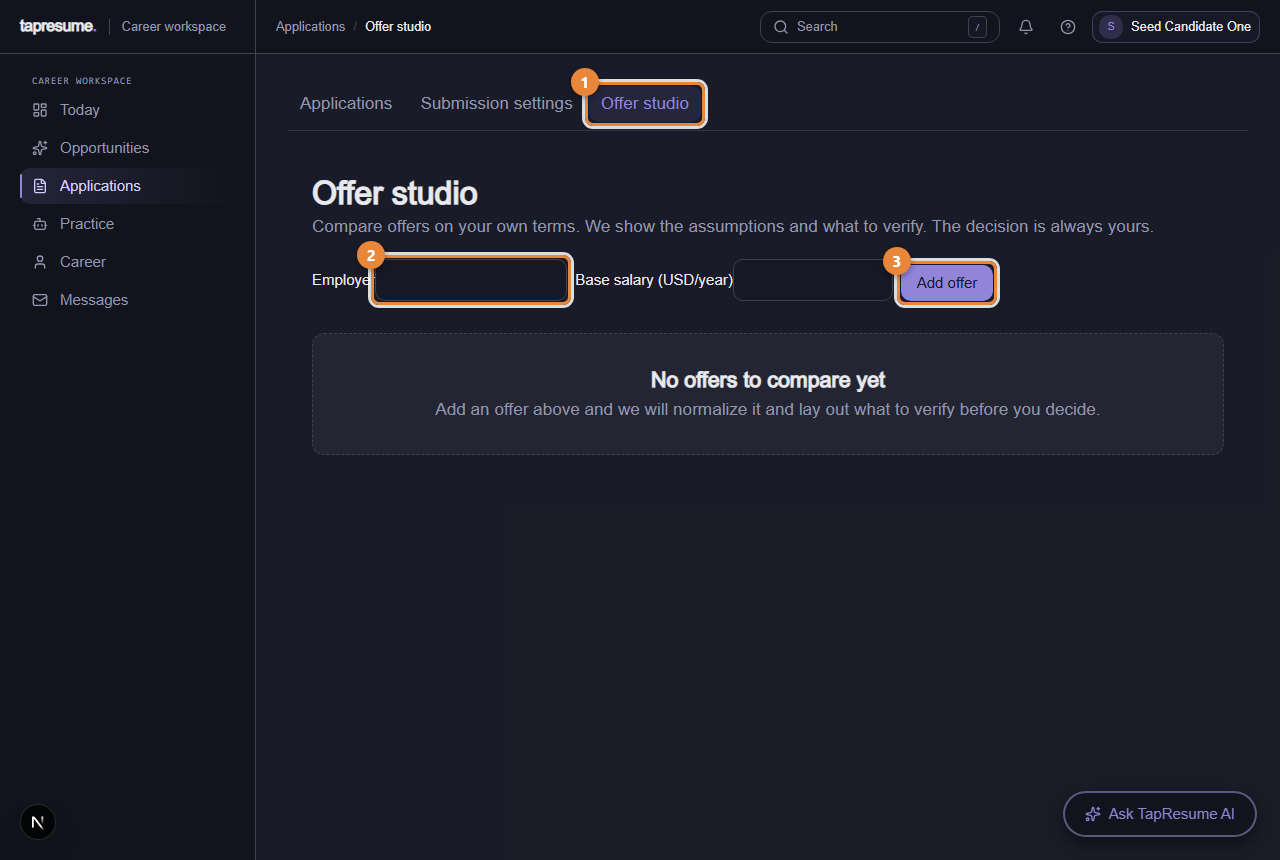
Open Applications, then the Offer studio tab (marker 1). It is a private worksheet for comparing offers. Nothing you enter here is shared with any employer.
1Marker 1: Offer studio tab
2Marker 2: Employer
3Marker 3: Add offer
Type the Employer, base compensation, currency and pay period, then click Add offer.
Each offer appears with a guaranteed and a target annual figure, the assumptions used, and anything uncertain.
Under Questions to verify before you decide, the page lists what to confirm with the employer.
Mark where you stand with Accept, Ask for time, or Decline. This is your private note; it does not answer the employer. To answer a real offer, use the link in the offer email (see Respond to your offer).
Common questions
Does the hiring team see my offer notes? No. Offer studio is your private worksheet.
Can I turn on automatic submission? No. Every application requires your review and final submit action.
2.10 · Your applications
Pick an interview time from the email link
An interview invitation arrives by email with proposed times. One link, one click, no sign-in.
The email
The subject is Interview Scheduling: followed by the interview title. It names the person and organization inviting you, the location or notes if any, and the proposed time slots in the team's time zone. The button is Pick a Time.
The page
1Marker 1: A proposed time; pick one
2Marker 2: Add a note, optional
3Marker 3: Confirm this time
4Marker 4: None of these times work
Click Pick a Time in the email. The page opens with the interview title, and the location and notes if the team added them.
Choose one slot (marker 1). Each shows the date and time in the team's zone; when your browser is in another zone, your local time is shown underneath.
Add a note if you want (marker 2). It goes to the team with your answer.
Click Confirm this time (marker 3). The page says Your interview is confirmed and offers Add to calendar, which downloads a calendar file. If the team added a video link, Join the video call appears here too.
When none of the times work
Click None of these times work (marker 4). Your note goes with it. The page says Thanks for letting them know, and the team offers other times.
After you answer
The link now shows This interview is already scheduled with the booked time; it cannot be changed from the page. Contact the hiring team through Messages if you need another time. When you are signed in, the interview is listed under the role's process on its opportunity page.
Common questions
The link says it has expired or is not valid. Open the original email and use the full link; email programs sometimes cut it. If it has truly expired, ask the team to send a new one.
It says the interview was cancelled. The team cancelled it. Contact them if you were expecting to meet.
2.11 · Your applications
Respond to your offer from the email link
An offer arrives by email with a link. You read it, then accept or decline; accepting asks you to confirm.
The email
The subject is You've received an offer: followed by the offer title. It names the organization, the compensation when the team included it, any message from them, and the date the offer expires. The link is View and respond to your offer.
The page
1Marker 1: The offer title
2Marker 2: Accept Offer: a confirmation follows
3Marker 3: Decline: add a note, then confirm
Click the link. The page shows the offer title (marker 1), the compensation, the team's message, and Please respond by with the expiry date.
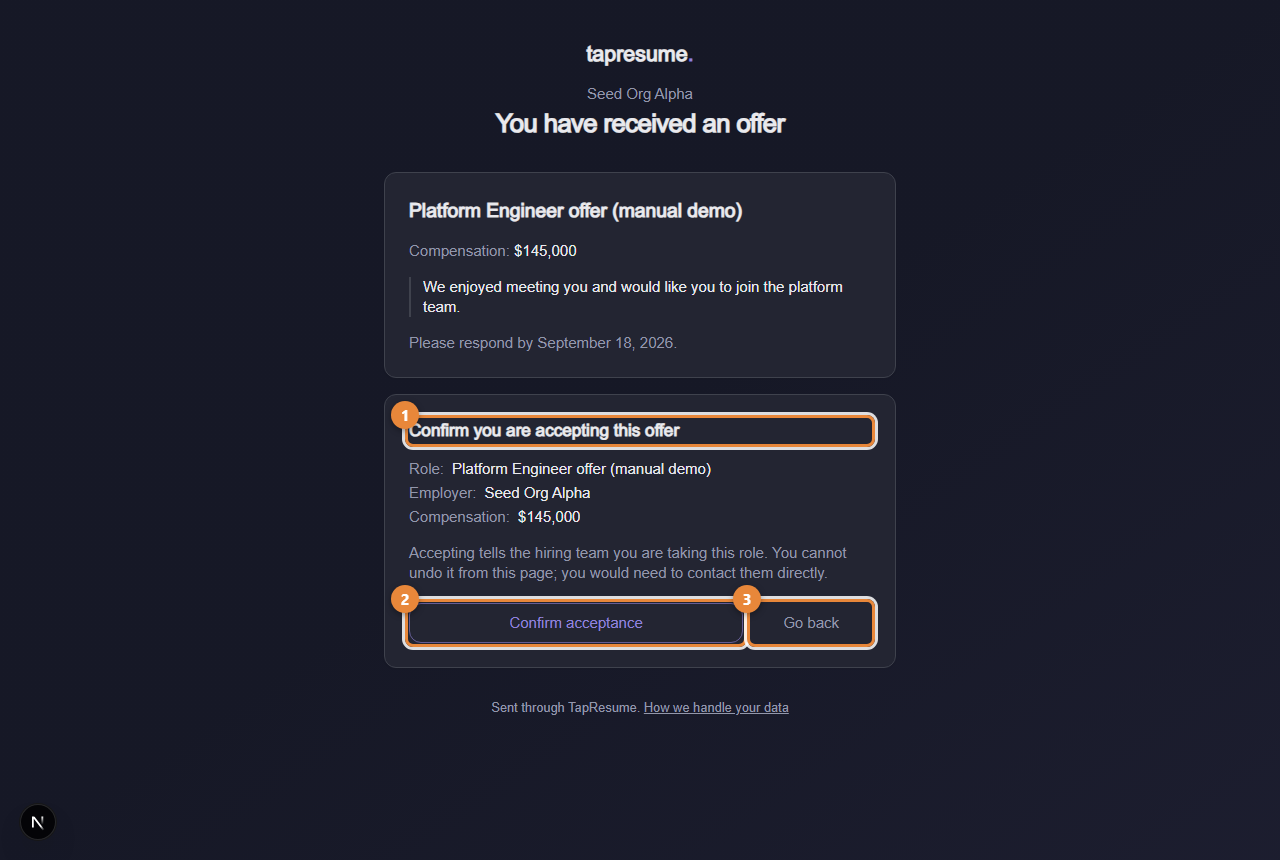
To accept, click Accept Offer (marker 2). A confirmation restates the role, employer and compensation.
Click Confirm acceptance (marker 3 on the next picture). The page says Offer accepted and the team is told at once. Go back returns without answering.
To decline, click Decline (marker 3). Add a note if you wish, then click Confirm decline. The page says Your answer is recorded.
1Marker 1: The confirmation restates the role, employer and compensation
2Marker 2: Confirm acceptance: cannot be undone from this page
3Marker 3: Go back: return without answering
When the offer needs a signature
Some offers are accepted by signing them. The confirmation then says so, and the button reads Continue to sign. It opens the signing page; the offer counts as accepted only once the signature is complete.
After you answer
The link shows You have already answered this offer. Accepting cannot be undone from the page; contact the hiring team directly if you need to change your answer. The team marks you as hired and follows up outside TapResume with the contract and start date.
Common questions
The offer expired before I answered. The page says This offer has expired. Contact the hiring team directly if you are still interested.
It says the offer was replaced. A newer offer was sent to you. Open the most recent email from the team.
2.12 · Your applications
Record an introduction for a role
When a hiring team asks for a short introduction, you choose video, audio, or writing. Every format has equal standing.
When you see this
A team can ask for a role introduction. You get an email with the subject Video Introduction requested for the role, and the request also appears on Today. Introductions belong to one role, so the page opens from that role: the email button Review the request, the Role introduction button on Submission settings, or Career, then Introduction.
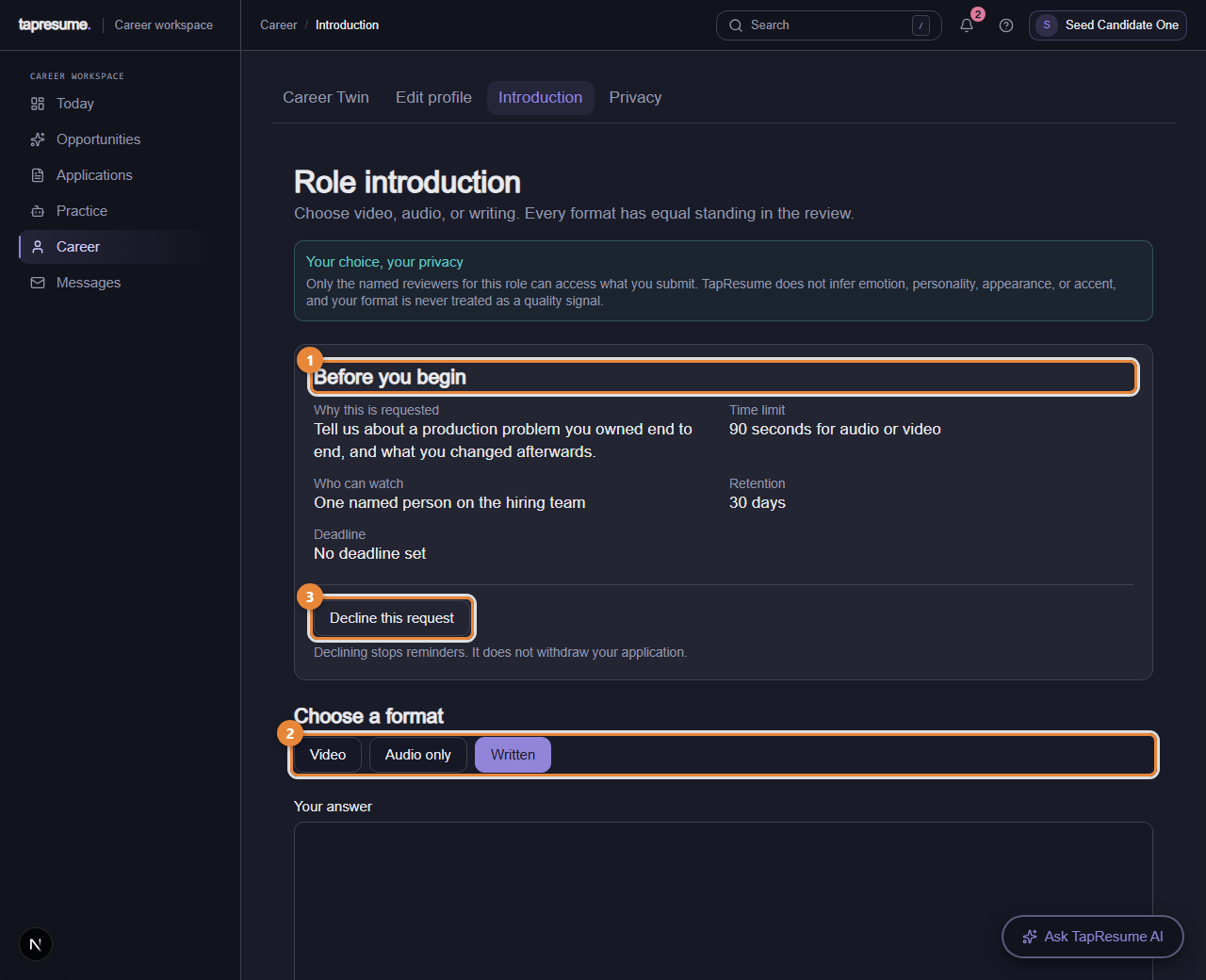
1Marker 1: Before you begin: purpose, time limit, who can watch, retention, deadline
2Marker 2: Choose a format: Video, Audio only, or Written
3Marker 3: Decline this request
Before you begin
The page shows, before you record anything (marker 1): Why this is requested, the Time limit in seconds for audio or video, Who can watch (the named people on the hiring team), Retention in days, and the Deadline.
Steps
Under Choose a format (marker 2), click Video, Audio only, or Written. The role lists which alternatives it accepts; choosing one does not disadvantage you.
For video or audio, click Start recording, speak, and click Stop recording. Recording stops by itself at the time limit. Nothing is uploaded until you submit. Play it back; Discard and record again throws it away, and Upload a file uses a recording you already have (WebM, MP4, MP3, OGG, or WAV, 50 MB or smaller).
For written, type your answer in Your answer.
When the role asks for it, tick the box saying you understand the purpose, who can review it, and how long it is kept. Click Submit response. The page confirms Your response was submitted.
Changing or deleting it
Open the same page. Replace response lets you record or write again, and Submit replacement sends it in place of the earlier one. Delete permanently asks you to confirm; the recording is gone and cannot be recovered.
Declining
Click Decline this request (marker 3). Declining stops reminders. It does not withdraw your application.
Common questions
The page says "Open this from an application". The page needs to know which role. Open it from the email, from Submission settings, or from Today.
It says "No introduction requested". This employer has not asked for one for this role. There is nothing to submit.
The browser cannot record. Allow camera or microphone access when asked, or upload a file, or choose the written format.
2.13 · Your applications
Record an introduction, withdraw an application, stop emails
Three things you may be asked to do or want to do, each in a minute.
Record an introduction
Some roles ask for a short introduction in your own words: a video, an audio clip, or written text. The role says which it accepts and what it is for.
Open the request from Today, from the email button Review the request, or from the Role introduction button on Submission settings.
Read Before you begin: the purpose, the time limit, who can watch, retention and the deadline.
Choose Video, Audio only or Written. Record, or write, then review it. Discard and record again lets you try again before sending.
Click Submit response. Only the named people on the hiring team see it, and you can replace or delete it later from the same page (see Record an introduction for a role).
If you would rather not record video, choose the written or audio alternative when the role offers one.
Withdraw an application
Open Applications and find the application.
Click Withdraw Application, then Withdraw in the confirmation.
The hiring team is told. Your record stays, marked withdrawn, so you can apply again later without confusion.
Stop emails
Every reminder and invitation from a hiring team ends with a one-click unsubscribe link. Clicking it stops recruiting email from that organization at once and shows a page confirming it. Nothing else changes: your application, your profile and your account stay as they are.
If you want to stop everything, use Privacy and withdraw sharing from the organization.
Common questions
I withdrew by mistake. Apply again from the role. The team sees both, which is fine.
Does unsubscribing hide me from the team? No. It stops email. Your application is still theirs to review.
Chapter 3
Assessments
5 topics: Take an assessment; An assessment request: review it, start it, or decline; Sitting the assessment: questions, timer, and submitting; After you submit: your result, reviews, and lost time; Interview practice and the skills diagnostic.
3.14 · Assessments
Take an assessment
A hiring team may ask you to take a short skills assessment. You see exactly what it is before you decide, and you can decline.
What an assessment is
A hiring team can ask you to take a skills assessment for a role. Before you start, you see its purpose, how long it takes, what sections it has, and how the result will be used. You choose to take it or decline; declining is recorded plainly and is not a mark against you.
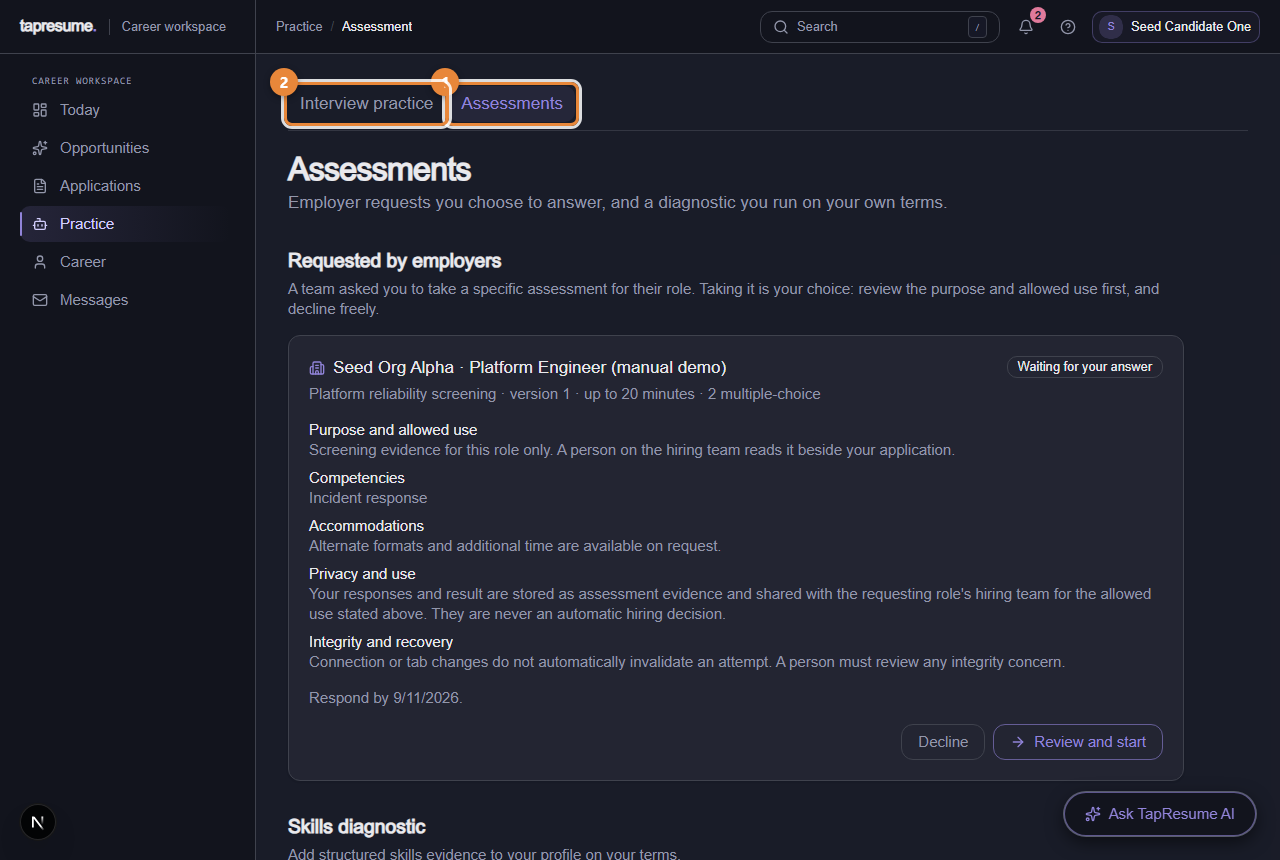
1Marker 1: Assessments tab under Practice
2Marker 2: Interview practice: rehearse before a real one
Steps
Open Practice, then Assessments (marker 1). Requests waiting for you are at the top under Requested by employers, with the date to respond by.
Read the card: purpose and allowed use, competencies, accommodations, privacy, and how long it takes.
Click Review and start when you are ready and have the time in one sitting. Tick the consent box in Start this assessment? and click Start now.
Answer each question. The timer is shown. If your connection drops, reopen the page: your answers are kept and you can resume.
Click Submit answers on the last question. You cannot change answers after that.
The three pages that follow show each of these screens in detail.
What the hiring team sees
Your result, as evidence beside your application, never as a verdict. A person on the team reviews it. If anything about the attempt needs a second look, a person decides, and you are told if it affects your application.
Practise first
Interview practice (marker 2) lets you rehearse questions with no one watching and nothing recorded for employers.
Common questions
Can I take it on my phone? Yes, but a laptop is easier for coding sections.
I ran out of time. What you submitted counts. Tell the hiring team through Messages if something went wrong.
3.15 · Assessments
An assessment request: review it, start it, or decline
A request from a hiring team appears under Requested by employers. You read everything about it before you answer, and both answers are yours to give.
Where the request appears
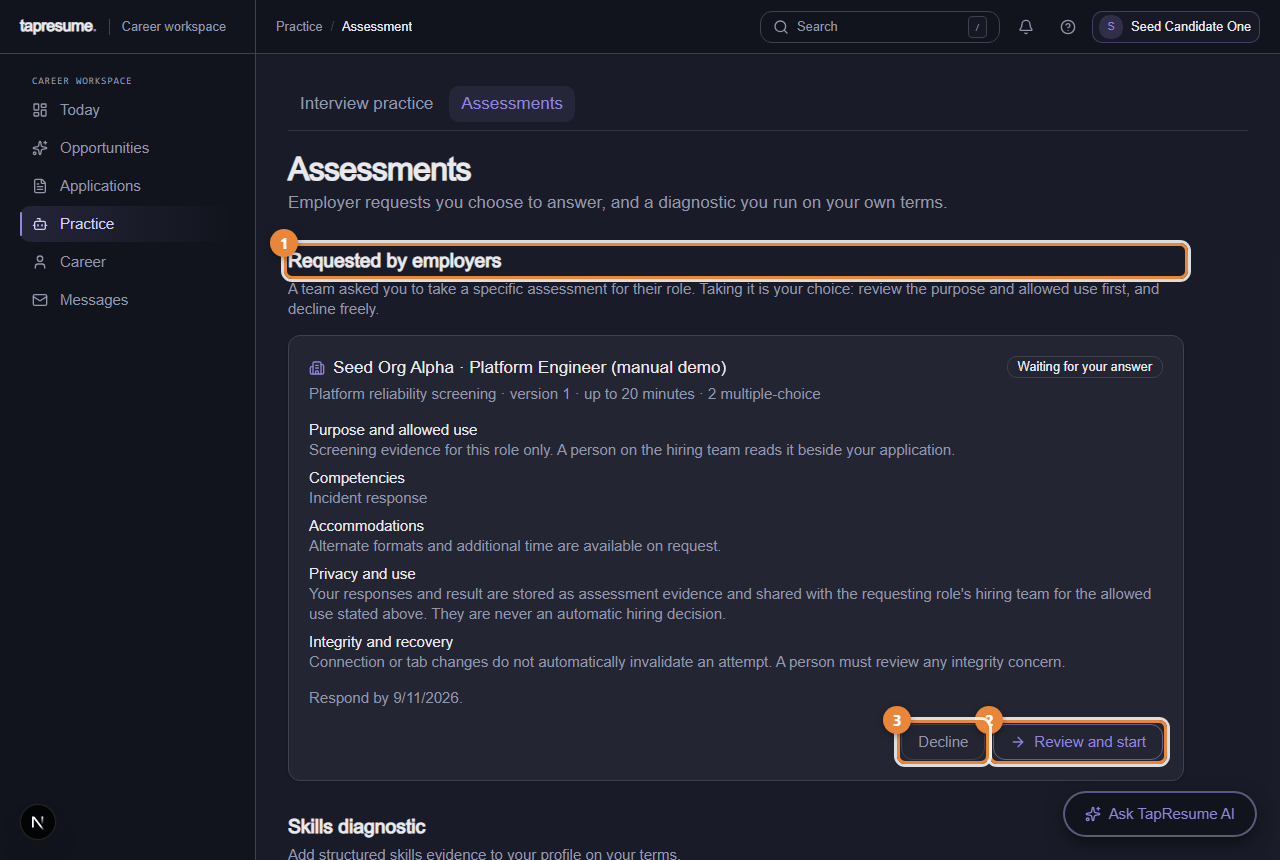
Open Practice, then Assessments. Requests from hiring teams sit at the top under Requested by employers (marker 1). Each card names the organization and role, the assessment and its version, how long it allows, and its sections. A badge shows its state: Waiting for your answer, In progress, Completed, You declined, or Expired.
1Marker 1: Requested by employers: requests waiting for your answer
2Marker 2: Review and start
3Marker 3: Decline
Under the card you can read, before deciding anything:
Purpose and allowed use: what the team may use the result for. This is copied at the moment they sent the request, so it cannot change afterwards.
Competencies: what the questions cover.
Accommodations: how to ask for another format or more time.
Privacy and use and Integrity and recovery: who sees the result, and what happens if your connection drops.
Respond by: the date the request expires.
Steps: start it
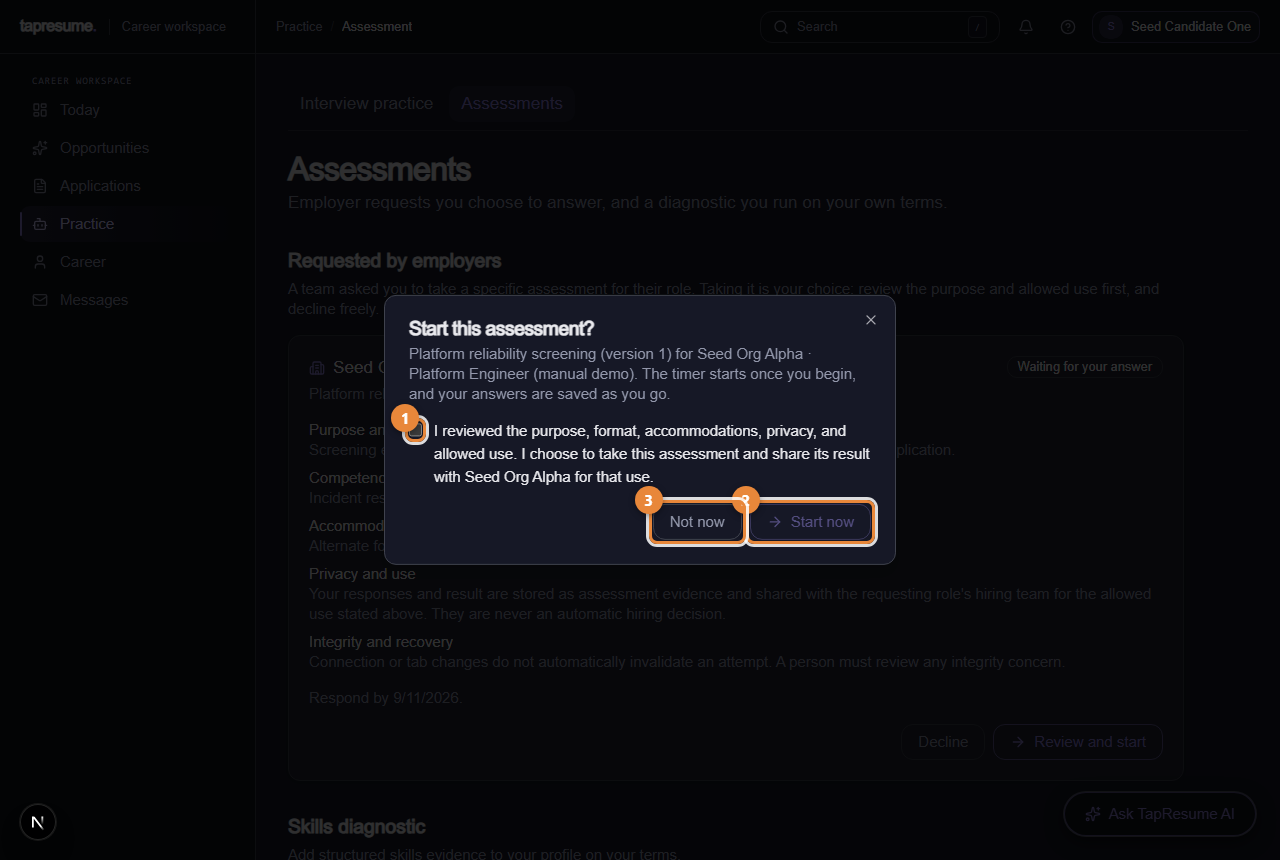
Click Review and start (marker 2). A dialog called Start this assessment? repeats the assessment, version, organization and role, and reminds you that the timer starts once you begin and that answers are saved as you go.
Tick the consent box (marker 1 on the next picture). The button stays off until you do.
Click Start now (marker 2). The first question opens with the timer running. Not now (marker 3) closes the dialog and changes nothing.
1Marker 1: The consent box; Start now stays off until it is ticked
2Marker 2: Start now: the timer starts
3Marker 3: Not now: close without starting
Have the full time free before you start. You cannot pause the timer. If you leave, the card shows In progress with a Continue this assessment button, and the timer keeps running.
Steps: decline it
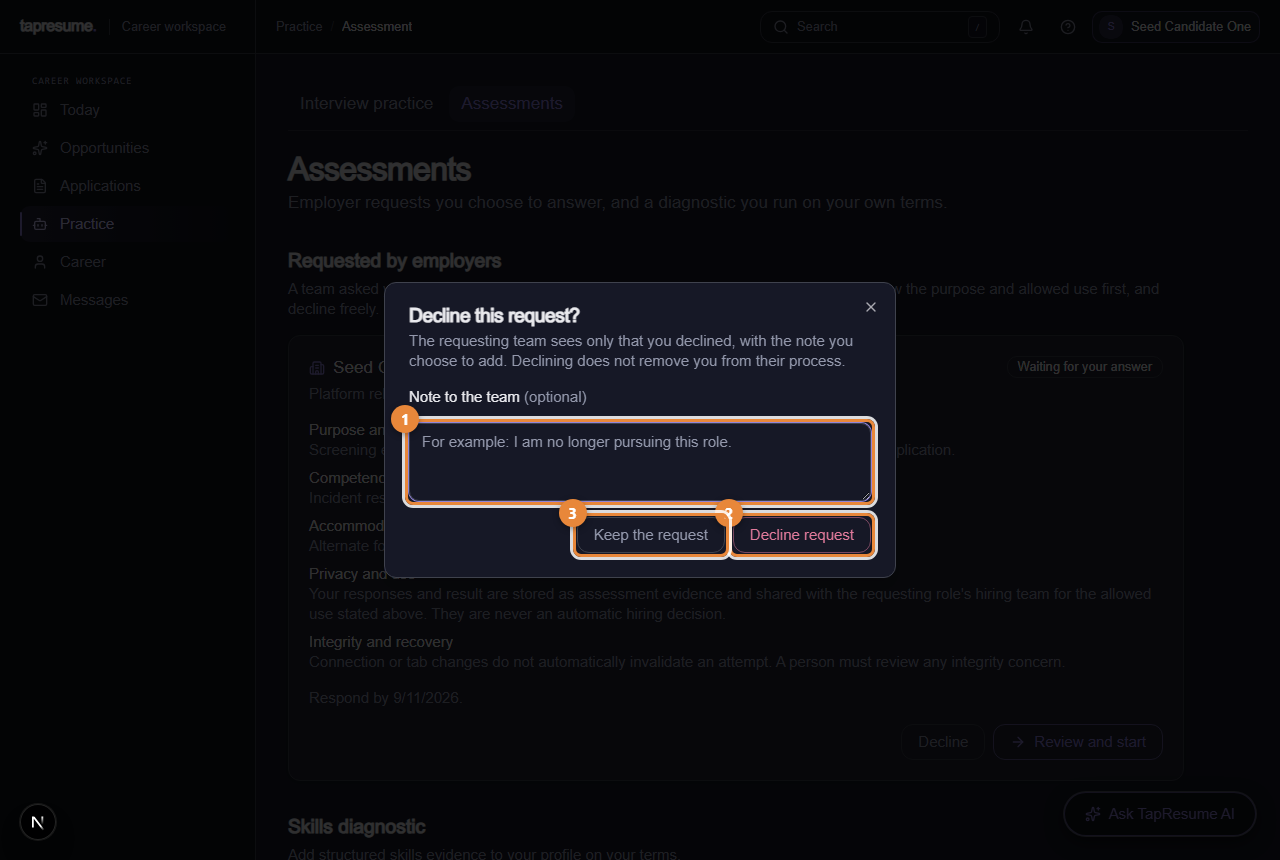
Click Decline (marker 3 on the first picture). A dialog called Decline this request? opens.
Add a Note to the team if you want (marker 1). It is optional, up to 2,000 characters, and is shown to the team exactly as you wrote it.
Click Decline request (marker 2). The card changes to You declined with your note. Keep the request (marker 3) closes the dialog and leaves the request waiting.
1Marker 1: Note to the team, optional
2Marker 2: Decline request
3Marker 3: Keep the request: close without declining
The team sees only that you declined and the note you chose to add. Declining does not remove you from their process. If they still want the assessment, they can send a new request.
Common questions
Review and start is greyed out. The card says why, in a note above the buttons. Usually the team's assessment is not ready to run yet; nothing is needed from you.
Can I take it later? Yes, until the Respond by date. After that the card says Expired and the team can send a fresh request.
Where is the diagnostic that used to be here? Below the requests, under Skills diagnostic. It is separate from employer requests; see Practice and the skills diagnostic.
3.16 · Assessments
Sitting the assessment: questions, timer, and submitting
One question at a time, a visible timer, answers saved as you go, and a clear Submit at the end.
The page
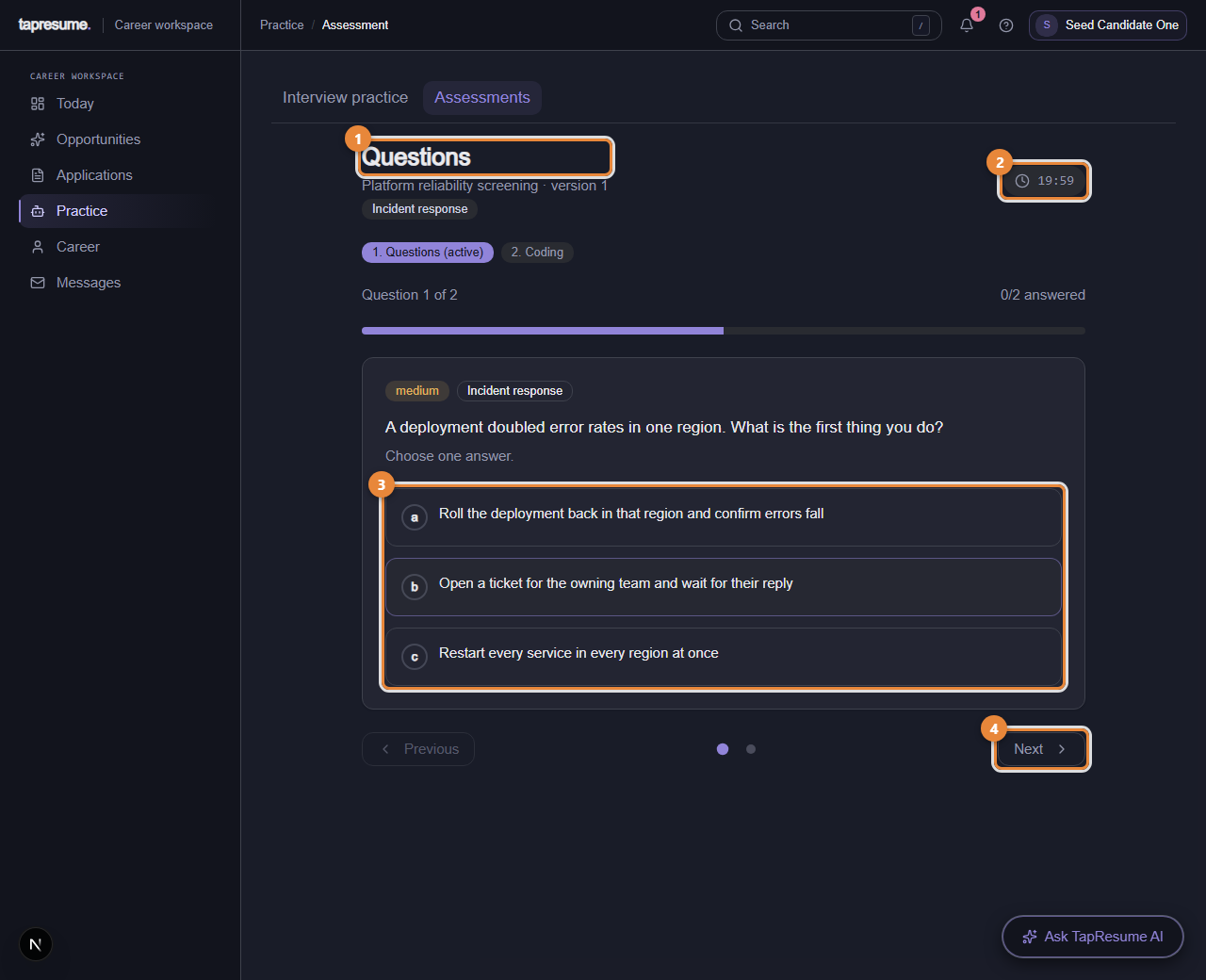
After Start now, the assessment opens on its own page. The heading says Questions (marker 1), with the assessment name and version under it and the competencies as small labels. The timer sits on the right (marker 2) and counts down in minutes and seconds. It turns amber under five minutes and red under one.
1Marker 1: Questions: the section you are in
2Marker 2: The timer, counting down
3Marker 3: The answers for this question
4Marker 4: Next: move to the next question
Two badges under the heading show where you are: 1. Questions (active) and 2. Coding. The second badge is always shown; the coding section itself opens only when the assessment includes coding problems, and most do not.
Answering
Read the question. The line under it says how it is marked, before you answer.
Choose an answer (marker 3). For a multiple-choice question, click one option. For a select-all question, click every option that applies. For a written answer, type in the box; the scoring criteria are shown above it. For an ordering question, use the Move earlier and Move later buttons.
Click Next (marker 4) or Previous to move between questions. The dots between the buttons jump to any question; a filled dot is answered.
The line Answers saved confirms each answer reached the server. If it says Saved on this device, the answer is kept in your browser and sent again with your next answer.
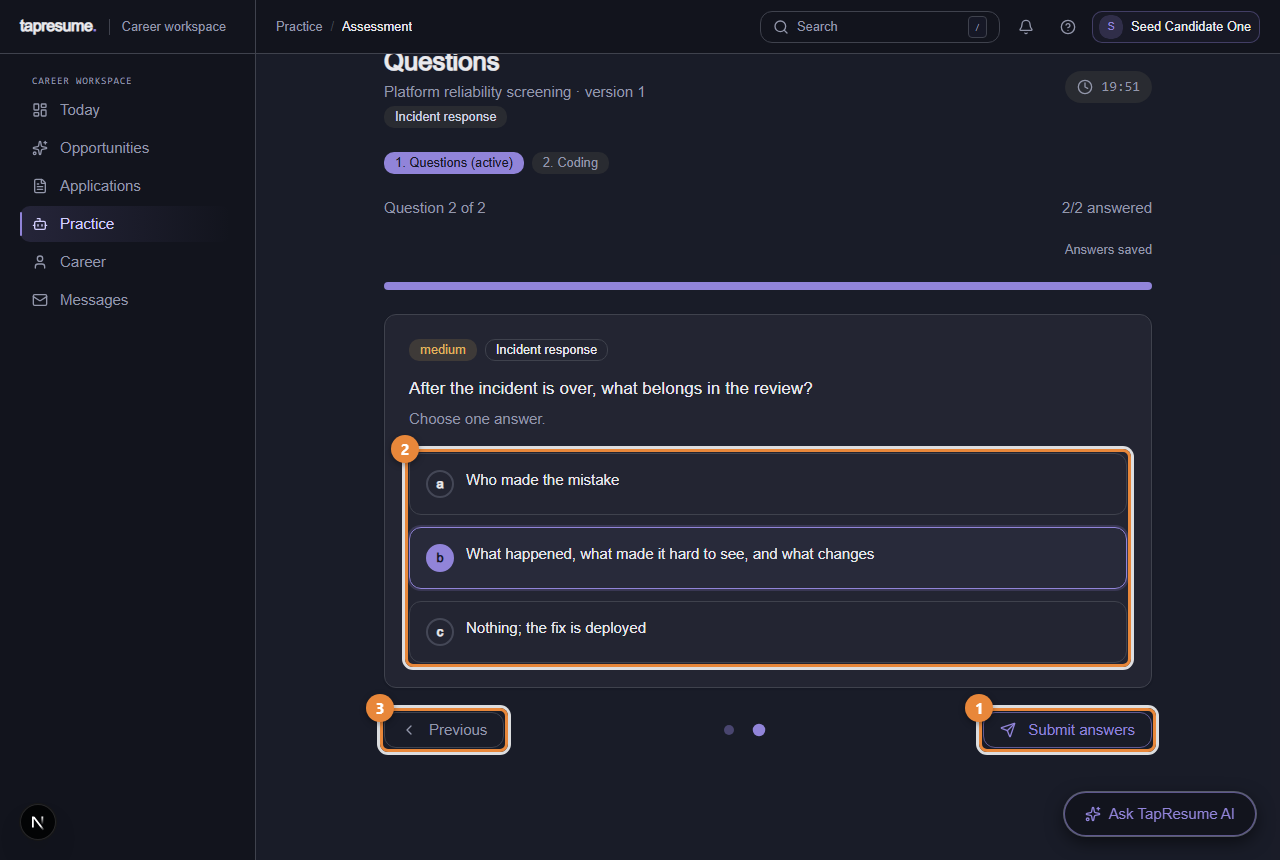
1Marker 1: Submit answers: on the last question. Answers cannot be changed after this
2Marker 2: The answers for the last question
3Marker 3: Previous: go back to check an answer
Submitting
On the last question the button reads Submit answers (marker 1). Click it. If any question is unanswered, the browser asks whether to submit anyway. Once submitted, answers cannot be changed. The page then scores your answers; when the assessment has a coding section, it moves you there next.
Coding problems
Each problem shows its description, the function signature, and example test cases. Write your solution in the editor, click Run Tests to check it against the examples, and when every problem is done click Submit all solutions.
If something goes wrong
You switch to another tab or window. A notice called Tab change noted appears when you come back. It is recorded for context and cannot by itself invalidate your attempt. Click Continue assessment.
Your connection drops. Keep the page open, or reopen it: your answers are kept. The drop is recorded when the connection returns, and it is what entitles you to the minutes it cost you (see After you submit).
Time runs out. The page says Time expired. What you submitted counts; nothing more can be entered.
Common questions
Can I go back to a question? Yes, with Previous or the dots, at any time before you submit.
Does closing the page end the attempt? No. The timer keeps running, and Continue this assessment on the Assessments page brings you back.
Can I use my phone? Yes for questions. A laptop is easier for written answers and coding.
3.17 · Assessments
After you submit: your result, reviews, and lost time
What you see when the assessment ends, what the hiring team sees, how a review works, and how to get lost minutes back.
Your result
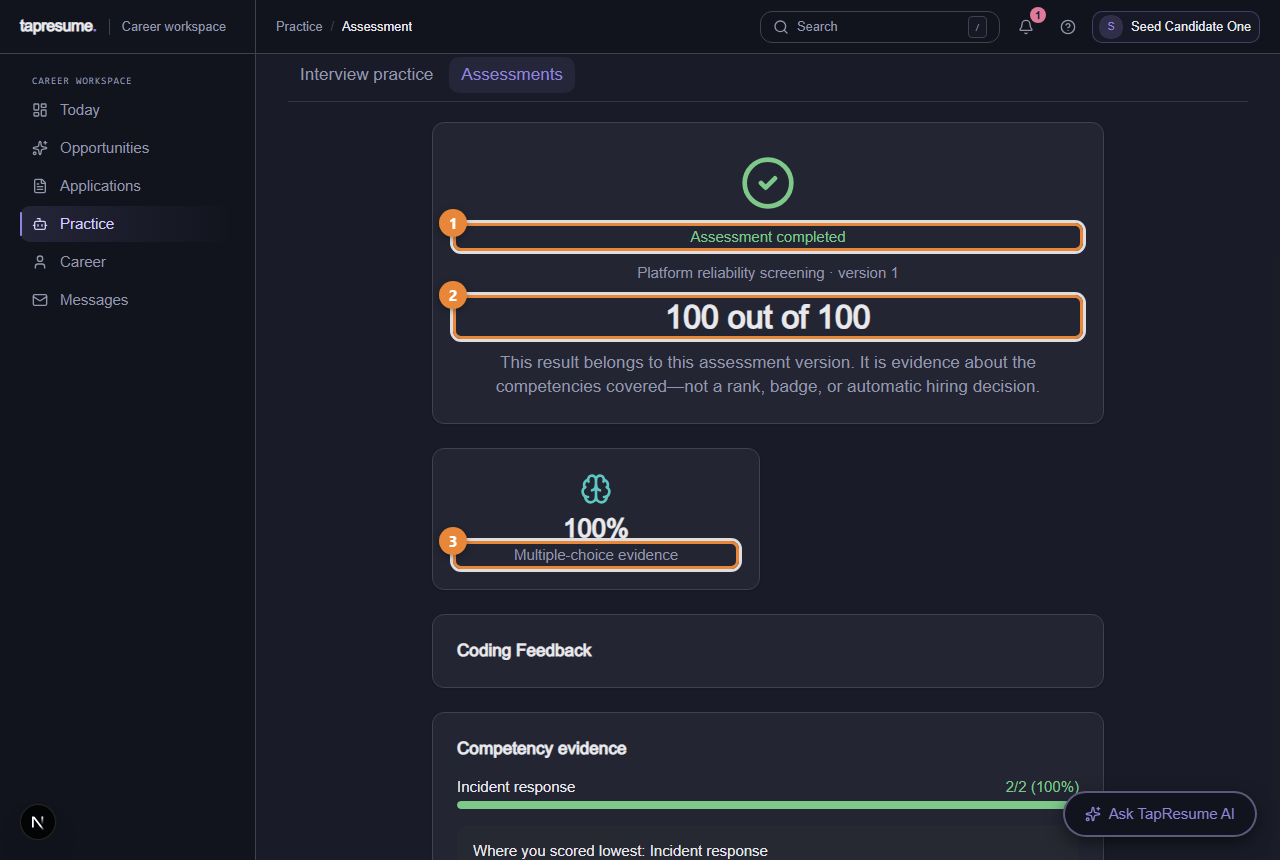
When scoring finishes the page says Assessment completed (marker 1) and shows your result as a number out of 100 (marker 2), with the assessment name and version under it. The text beside it says what the number is: evidence about the competencies covered, not a rank, a badge, or a hiring decision.
1Marker 1: Assessment completed
2Marker 2: Your result out of 100
3Marker 3: Multiple-choice evidence: the questions section as a percentage
Under the result:
Multiple-choice evidence and, when there was a coding section, Coding evidence, each as a percentage. With coding, the questions count for 40 percent of the result.
Coding Feedback per problem: tests passed, code quality, and short notes on strengths and weaknesses.
Competency evidence (marker 3): a bar per competency with how many you answered correctly, and a note on the area where you scored lowest.
A retake date, when the assessment allows one.
If the assessment included written answers, the page instead says Your answers are recorded: a named person on the team scores them against the criteria you saw, and your result appears here once they have. Nothing about it is decided automatically.
On the Assessments page
The request card now says Completed, with View your result. The result was shared with the requesting team for the allowed use you agreed to, and for nothing else.
What the hiring team sees
Your result, as evidence beside your application in the role. A person reads it. It never moves you forward or out on its own.
Attempts under review
If something about an attempt needs a second look, a review opens and a section called Attempts under review appears on the Assessments page. It shows:
What was observed, in the same words the reviewer reads, and each recorded signal.
The date before which your attempt cannot be discarded, so you have time to answer.
A Your response box. Type what happened in your own words and click Send response. You can add to it until a decision is recorded.
When a person decides, their name, the date and their reason appear on the card: Your attempt stands or This attempt was not counted. If a retake is offered, a fresh request appears above.
Time lost to an outage
If your connection dropped during the attempt and the time ran out, the Time expired page explains what was measured and, when it applies, offers Restore N minutes and continue. Click it to get those minutes back and carry on where you left off. The minutes come from the recorded gap, so keeping the page open during a drop is what makes them recoverable.
Common questions
My result is lower than I expected. The Competency evidence section shows where. If the area matters for the roles you want, it is the one to practise before a retake.
Can I take the same assessment again? Only when the page shows a retake date, or when the team sends a new request.
Who decided my attempt did not count? The card names the person and gives their reason. Anything you said during the review is shown with it.
3.18 · Assessments
Interview practice and the skills diagnostic
Two things you do on your own terms: rehearse an interview answer privately, and take a diagnostic that adds evidence to your profile.
Interview practice
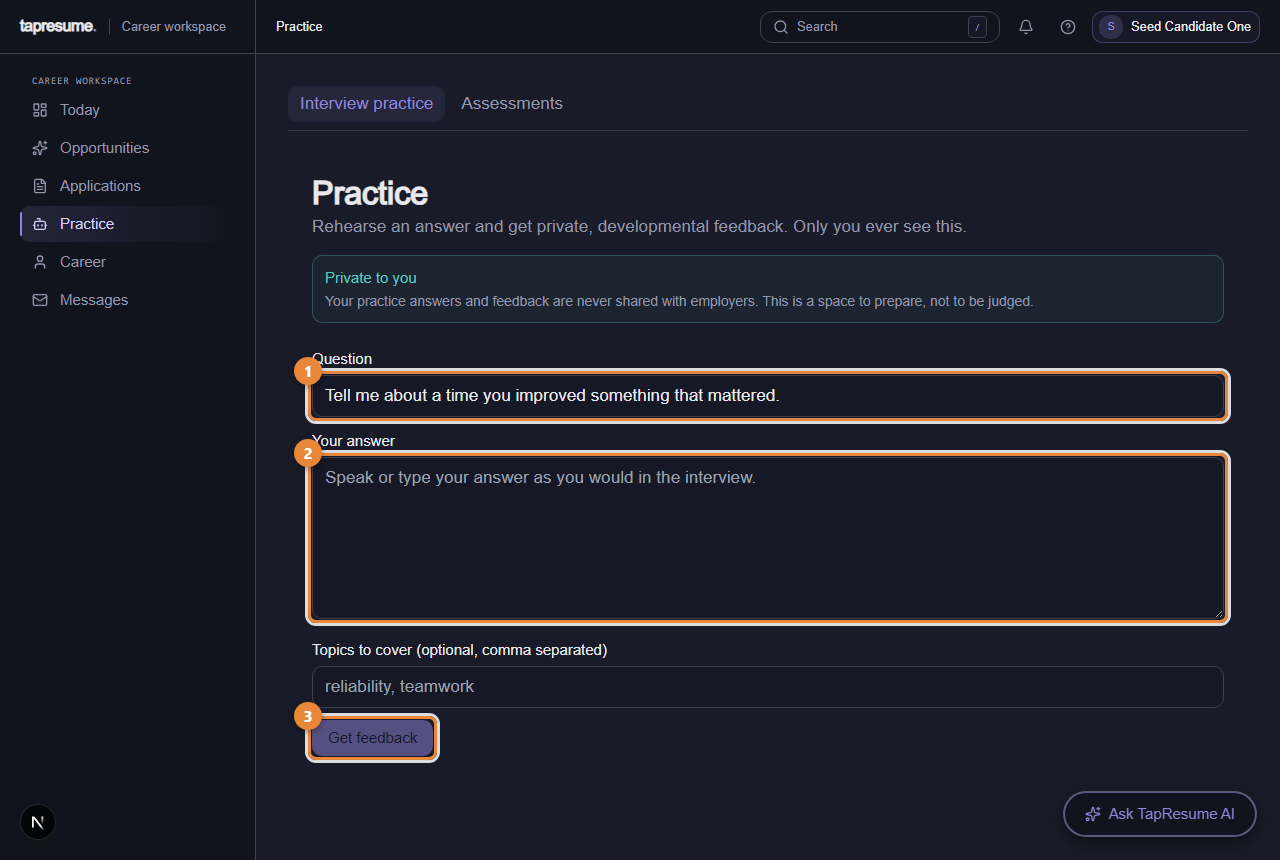
Open Practice, then Interview practice. The page is private: your practice answers and the feedback are never shared with employers.
1Marker 1: Question: edit it or keep the suggestion
2Marker 2: Your answer
3Marker 3: Get feedback: private scores and notes
Edit the Question (marker 1) or keep the suggested one.
Type Your answer (marker 2) as you would say it in an interview.
Optionally list Topics to cover, comma separated.
Click Get feedback (marker 3). After a moment, Your feedback shows a score out of 100 for Structure, Relevance, Clarity, Concision and Evidence, each with a short note, and an overall coaching signal.
Change the answer and click again as often as you like.
The skills diagnostic
On Practice, then Assessments, below any employer requests, is Skills diagnostic. It is not asked for by any employer. It adds structured skills evidence to your own profile, and you decide whether to take it.
When a reviewed diagnostic matches the skills on your profile, the page shows its name and version, then the same preflight an employer request has: Purpose, Time and sections, Accommodations, Integrity and recovery, the competencies covered, and Privacy and use.
Read the preflight.
Tick the consent box.
Click Start diagnostic. Not now leaves without starting. The diagnostic then runs exactly like an employer assessment (see Sitting the assessment).
When you have completed one, a Diagnostic completed card shows your result out of 100 and the date.
When no reviewed diagnostic covers the skills on your profile, the page says so and offers Review profile skills, which opens Edit profile.
Common questions
Does an employer see my practice answers? No. Only you.
Does the diagnostic result go to employers? It is stored as evidence on your profile, which organizations you share your profile with can see. Privacy lists them and lets you stop sharing.
Chapter 4
Your account
4 topics: Your privacy, and messages from hiring teams; Email preferences and stopping email; Your Career Twin: what was read, and what you keep; Legal notices and your rights.
4.19 · Your account
Your privacy, and messages from hiring teams
What employers can see, what you agreed to, who looked, and how to talk to a hiring team.
Privacy
1Marker 1: Privacy tab
The Privacy page (marker 1) shows:
Sharing: which organizations can see your profile, and a switch to stop sharing with any of them.
Consent: what you agreed to, when, and how to withdraw it.
Access history: every time an employer revealed your contact details or downloaded your resume, with the date and the reason they gave.
Your data: request a copy of everything held about you, or ask for deletion.
Messages
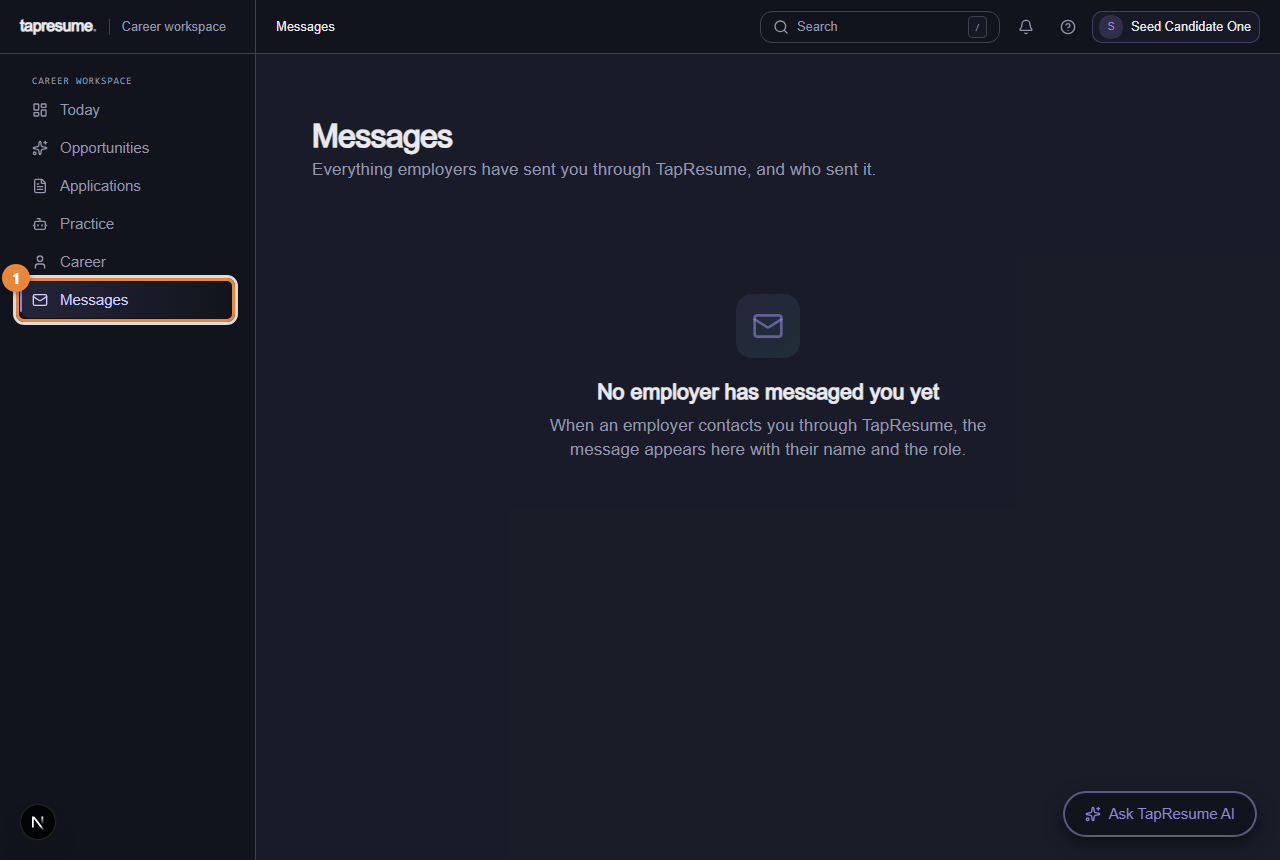
1Marker 1: Messages from hiring teams
Messages (marker 1) is where hiring teams write to you and where you reply. Interview times, offer questions and follow-ups arrive here as well as by email.
Stopping emails
Every email from a hiring team has a one-click unsubscribe link at the bottom. Using it stops that kind of email from that organization. Your application is not affected.
Common questions
Can an employer see my other applications? No. Each organization sees only what you did with them.
I asked for deletion. What happens? Your data is removed after a short waiting period, unless a legal hold applies; you are told either way.
4.20 · Your account
Email preferences and stopping email
The switches behind the Manage email preferences link, and the two other ways to stop email.
Where the switches are
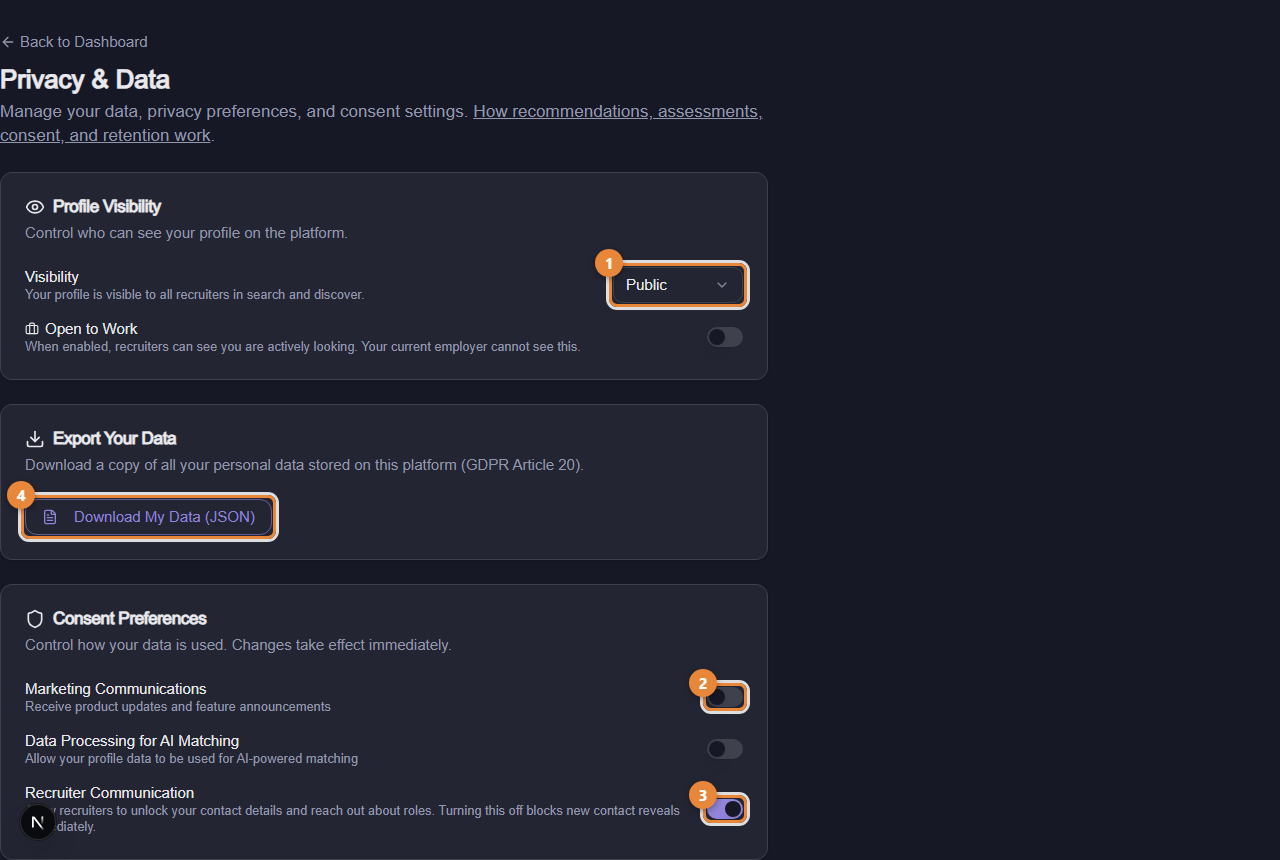
The grey footer of every TapResume account email has Manage email preferences and Unsubscribe. Both open a page called Privacy & Data, at /settings/privacy, after you sign in. It is a plain settings page outside the usual navigation; Back to Dashboard at the top returns you to the app.
1Marker 1: Profile visibility: Public or Private
2Marker 2: Marketing communications switch
3Marker 3: Recruiter communication switch
4Marker 4: Download My Data (JSON)
What is on the page
Profile Visibility: the Visibility selector (marker 1) is Public, visible to all recruiters in search and discover, or Private. The Open to Work switch tells recruiters you are actively looking; your current employer cannot see it.
Export Your Data: Download My Data (JSON) (marker 4) gives you a copy of everything held about you.
Consent Preferences: three switches, and each change takes effect immediately. Marketing Communications (marker 2) covers product updates and feature announcements. Data Processing for AI Matching allows your profile to be used for matching. Recruiter Communication (marker 3) allows recruiters to unlock your contact details and reach out about roles; turning it off blocks new contact reveals at once. Turning a switch off withdraws that consent, and the change is recorded with the date.
Access History: every time an organization revealed your contact details or downloaded your resume, with the reason they gave.
Request History: your past export and deletion requests.
Delete Account: Request Account Deletion, then Confirm Deletion Request. There is a grace period during which Cancel Request undoes it; after it, the deletion cannot be undone.
Three ways to stop email
You want to stop
Do this
One organization's reminders and invitations
Click the one-click link at the bottom of their email (see The unsubscribe links, and what each one stops)
Marketing email, or contact from recruiters
Turn off Marketing Communications or Recruiter Communication here
An organization seeing your profile at all
Privacy in the left navigation, then stop sharing with that organization
Application updates, sign-in codes, and receipts for things you did are about your own actions and keep arriving while your account exists.
Common questions
I turned off Recruiter Communication. Can a team still see my application? Yes. The switch stops new contact reveals and outreach; it does not hide the application you made.
Where is Privacy in the left navigation different from this page? The Privacy page shows what each employer can see, discovery, who accessed your data, and export or delete, per organization. This page holds the account-wide switches and is where the email footer leads.
4.21 · Your account
Your Career Twin: what was read, and what you keep
Everything read from your documents waits for your yes before it is used. You can fix the wording or remove any item, any time.
What it is
Open Career, then Career Twin (marker 1). It is yours: you choose what employers can see, and you can change it at any time. Nothing read from your documents is added to your profile until you accept it.
1Marker 1: Career Twin: what you have done and want next
2Marker 2: Edit profile: your details and resume
3Marker 3: Introduction: a short recording in your words
4Marker 4: Privacy: who can see what about you
Review what we found
After a resume upload, a section called Review what we found lists each fact that was read, with the document it came from. For each one:
Yes, that's right keeps it.
Fix the wording opens a box called Say it in your own words; type your version and click Save my wording. Your wording is what is used from then on.
I'm not sure keeps it but marks it uncertain, so it is not relied on.
Not mine removes it.
The sections
Below, your profile is shown in sections: Experience, Education, Skills, Projects, Credentials, Publications. Each item has Correct this, which opens the same wording box with Save correction, and Remove from my profile.
Removing asks Remove this from your profile? and explains that the item stops being used to suggest roles to you and stops appearing in drafts. Remove it confirms; Keep it cancels.
When it is empty
The page says Your career profile is empty and points you to Edit profile to upload a resume or answer a few questions.
Common questions
Does an employer see the items I marked uncertain? Items are shown to organizations you share your profile with; uncertain items are not relied on for suggestions. Remove anything you do not want seen.
I removed something by mistake. Upload the document again, or add the item on Edit profile.
4.22 · Your account
Legal notices and your rights
Six short notices, linked from the foot of every page, say what is collected, what AI does and never does, and what you can ask for.
Where they are
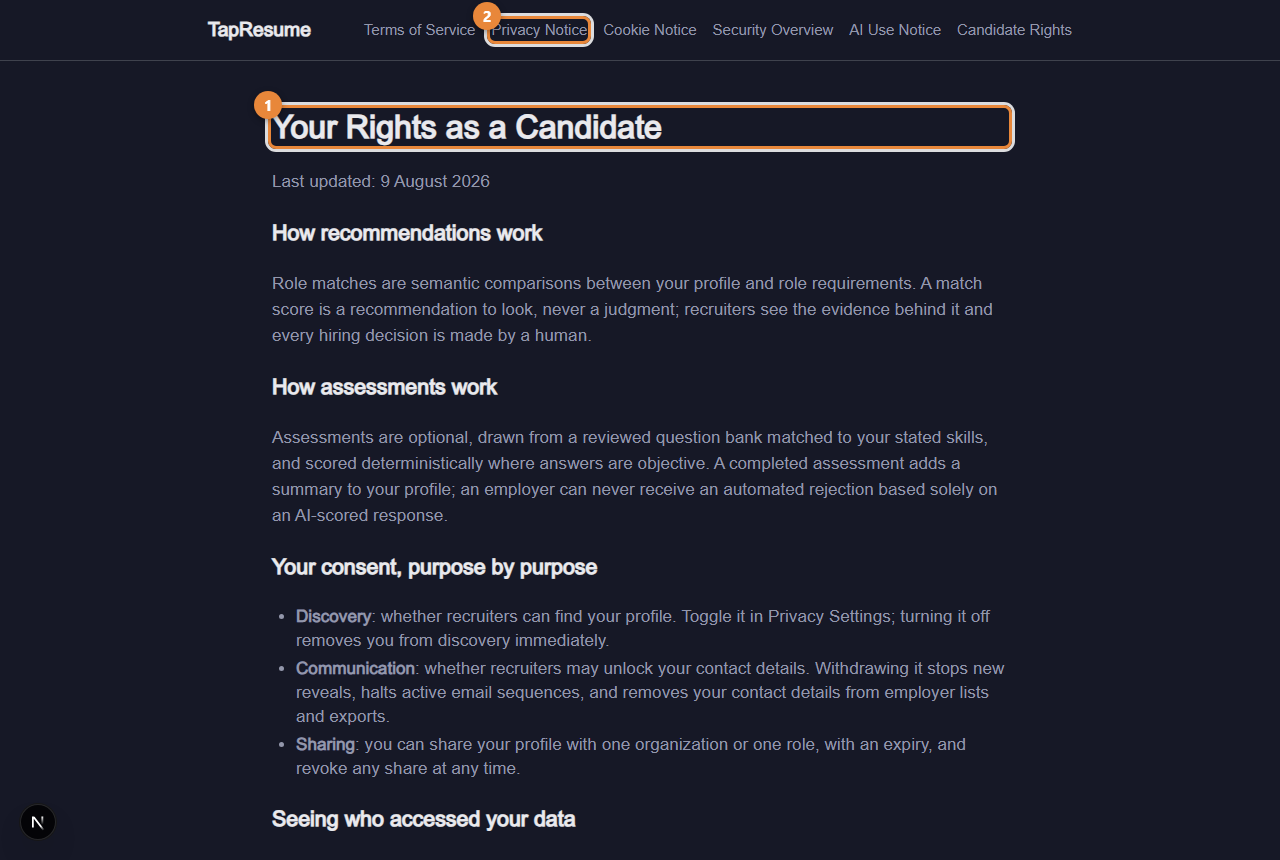
The foot of the public site, the sign-up and application forms, and the pages opened from email links all point to the legal notices. They open without signing in, and each one links to the others across the top.
1Marker 1: Your Rights as a Candidate
2Marker 2: The other notices, linked across the top
Notice
What it covers
Terms of Service
What the service is and the terms of using it
Privacy Notice
What is collected, how consent controls what employers see, retention and deletion, export, the processors used, and how to contact us
Cookie Notice
The cookies used, the ones not used, and contact
Security Overview
Access control, data protection, auditability, and how to report a concern
AI Use Notice
Where AI is used, what AI never does, how your data reaches models, and how to correct AI output
Candidate Rights (marker 1)
How recommendations and assessments work, your consent purpose by purpose, seeing who accessed your data, retention, export and deletion, and questions and appeals
The short version for candidates
Recommendations and assessment results are evidence a person reads. No decision about you is made automatically.
You consent purpose by purpose, and can withdraw each purpose on your privacy pages.
You can see every time an employer revealed your contact details or downloaded your resume, with the reason they gave.
You can export everything held about you, and ask for deletion.
Where to act on them
The switches and buttons behind these rights are on Privacy in the left navigation (sharing, consent, access history, export, deletion) and in the privacy settings reached from any email footer (see Email preferences and stopping email).
Common questions
Who do I write to with a question or an appeal? The contact section of the Privacy Notice and the questions and appeals section of Candidate Rights give the address. For anything about a specific role, use Messages.
Chapter 5
Finding roles
1 topic: Opportunities and job search.
5.23 · Finding roles
Opportunities and job search
Roles matched to you, and every open role you can search.
Opportunities
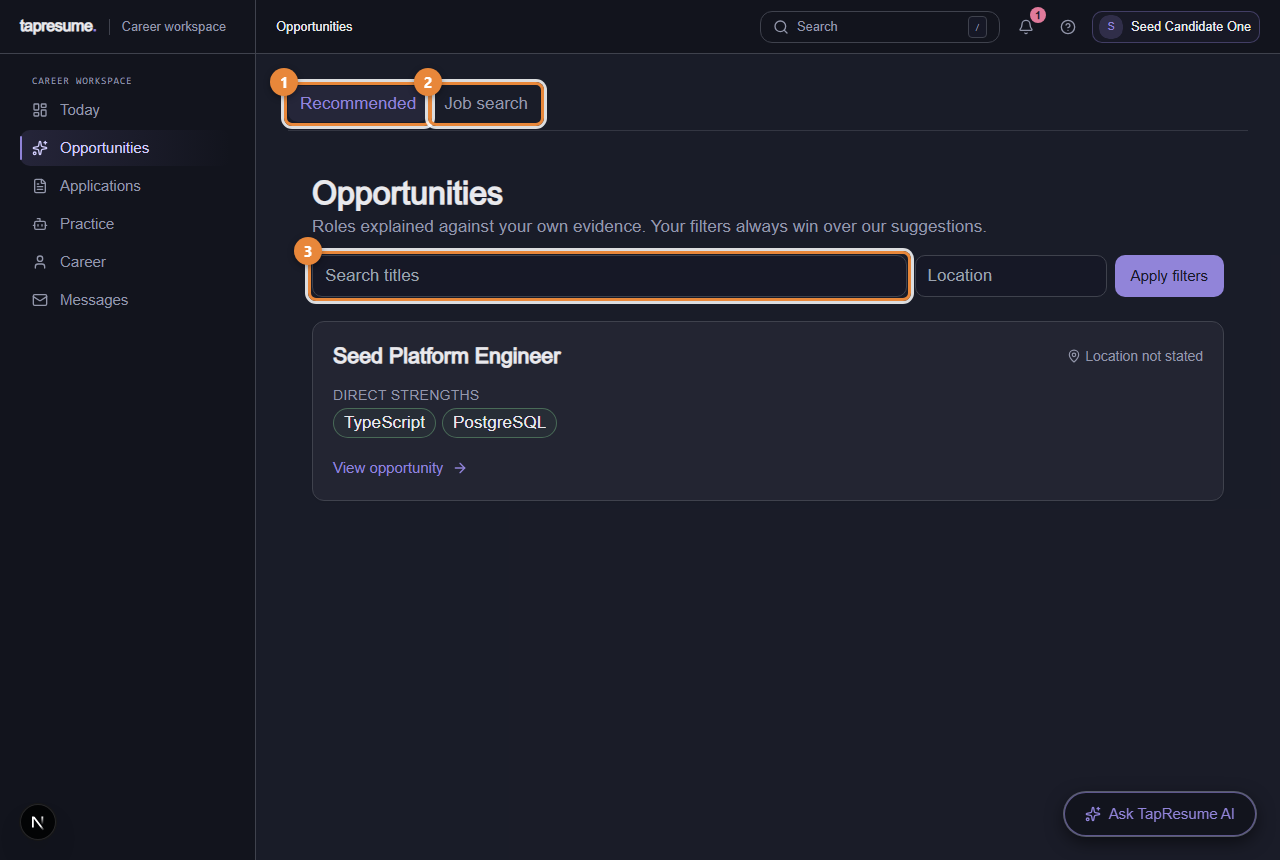
Opportunities lists roles explained against your own evidence: what your profile says you can do and what you said you want. Each card shows the role and the signals behind the suggestion. Your filters always win over the suggestions.
1Marker 1: Recommended: roles explained against your evidence
2Marker 2: Job search: every open role
3Marker 3: Search role titles
Open Opportunities in the left navigation; the Recommended tab (marker 1) is the list.
Search by role title (marker 3) or filter by location.
Click a card to open the opportunity. Its page has an Overview with the role brief and Your Fit Map, an Application section, Messages, a private Preparation checklist, and the candidate-visible Process. A Private workspace on the right holds your tracking status and notes that only you can see.
To apply, click Review application, add a note to the hiring team if you want, and click Submit application. The dialog says exactly what is shared: your profile and this application, never your private notes.
Suggestions come from your profile. Adding your resume and your preferences makes them better.
Job search
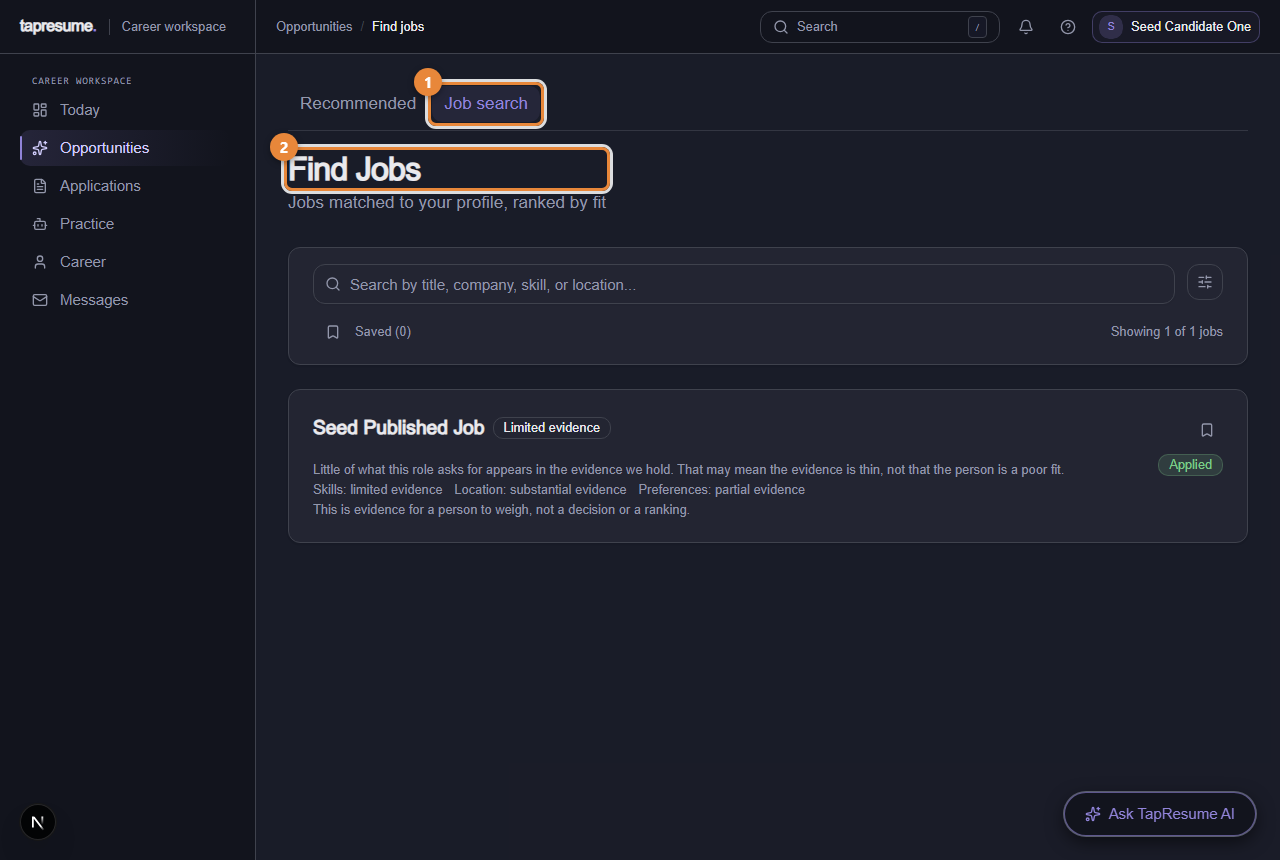
The Job search tab (marker 2) lists every open role you can apply to. The page is called Find Jobs.
1Marker 1: Job search tab
2Marker 2: Find Jobs: roles matched to your profile
Open Opportunities, then Job search.
Type a title, company, skill or location in the search box, or filter by Work Mode and Job Type, and sort.
Click Apply on a role. The dialog Apply to the role takes an optional note; click Submit Application. The bookmark on a card saves the role for later.
Applying from here
Applying from Opportunities or Job search uses your profile and resume; you add only a note. The application then appears under Applications like any other.
Common questions
Why am I suggested roles in another city? Set your location and whether you would relocate on Edit profile; suggestions follow that.
Can an organization see that I saved their role? No. Saved roles are yours until you apply.
Chapter 6
Emails you may receive
10 topics: Email: your application was received; Email: the profile reminder and the final reminder; Email: an application update; Email: your application has no resume on file; Email and notification: an assessment request; Email: a Video Introduction is requested; Email: interview scheduling; Email: you have received an offer; Email: your sign-in code; The unsubscribe links, and what each one stops.
6.24 · Emails you may receive
Email: your application was received
The receipt for an application you just submitted. It asks nothing of you.
The email
Item
Detail
Subject
Application received: followed by the role title
When
Straight after you submit an application on the careers site or in TapResume
Button
View your applications
It says that the organization has received your application for the role, that it is with their hiring team, and that you can see it in your TapResume account. It promises no review timeline, because nothing controls one, and it does not ask you to complete anything.
What to do
Nothing is required. If you have an account, View your applications opens the Applications page, where the application is listed as Applied.
1Marker 1: Every application you have made
2Marker 2: Follow-up email preferences
If you did not apply
Reply to the email and say so. The line at the bottom asks exactly that.
Common questions
There is no unsubscribe link. This is a receipt for something you did, so it has none. Reminders and invitations, which you did not ask for, always carry one.
I applied twice. You receive two receipts, and both applications are listed. Withdraw one from Applications if you want.
6.25 · Emails you may receive
Email: the profile reminder and the final reminder
At most two optional messages after an application, listing what only you can add to your profile. Your application is not waiting on them.
The two emails
First reminder
Final reminder
Subject
A few things you could add to your profile
Your optional TapResume profile follow-up
When
A few days after you apply, if your profile still has gaps only you can fill
Five days after the first, if the gaps remain
Button
Update your profile
Review your profile
Unsubscribe
Unsubscribe from follow-ups at the bottom
The same
Both start by saying that your application is with the hiring team and that nothing is needed for it. They then list up to four (then three) profile items, each with what the item is used for. The final reminder says plainly that no further profile reminder will be sent for this application, and none is.
What to do
Nothing, if you prefer. To add the items, click the button, which opens My Profile, then Edit Profile, fill in what you want, and click Save.
1Marker 1: Edit profile tab
Stopping them
Click Unsubscribe from follow-ups. A page called Email preferences confirms You have been unsubscribed. That stops these reminders and any other recruiting email from the organization to your address. Your application is untouched.
Common questions
Is my application incomplete? No. It was submitted and is with the team. The reminder is about your TapResume profile, which saves you repetition in future applications.
I never got a reminder. They are sent only while your profile has gaps, only inside the organization's sending hours, and never if you unsubscribed.
6.26 · Emails you may receive
Email: an application update
Sent when the hiring team changes where your application stands. The same update appears as a notification in TapResume.
The email
Item
Detail
Subject
Application update: followed by the role title
When
When the team records a decision on your application
Button
View Applications
One sentence says what changed. The wording is one of:
has been reviewed
has been shortlisted
has moved to the interview stage
has received an offer
was not selected
The team's internal reasoning is not included; only the state is.
What to do
Click View Applications. The Applications page shows the new status on the application: Under Review, Shortlisted, Interview, Offer Received, or Not Selected. An interview or an offer comes with its own email carrying the link to respond (see Pick an interview time and Respond to your offer).
1Marker 1: Every application you have made
2Marker 2: Follow-up email preferences
The in-app notification
The same update is posted to your notifications (the bell in the top bar) whether or not the email is sent.
Common questions
Can I turn these emails off? Yes. Open the Manage email preferences link at the bottom of any TapResume email; it opens your privacy settings, where the communication switches live (see Email preferences and stopping email).
It says not selected. Can I ask why? Write to the team through Messages. Only what they choose to share is shown.
6.27 · Emails you may receive
Email: your application has no resume on file
A one-time invitation to claim your profile and add a resume, sent when you applied without one.
The email
Item
Detail
Subject
Your application for the role at the organization has no resume on file
When
Once, ever, for an application that carried no resume
Button
Claim your profile and add your resume
Unsubscribe
Stop email from the organization, at the bottom
It names the role and the date you applied, says the application is on file but has no resume attached, and explains that claiming your profile lets you add the resume once for this and any other role at the organization. The link works until the date given, which is 30 days from sending.
What to do
Click Claim your profile and add your resume. The sign-up page opens with your invitation attached.
Follow Claim your profile from the invitation email.
Once signed in, open Career, then Edit profile, and upload your resume (see Add your resume).
1Marker 1: The sign-up form; from an invitation email your details are linked to your application
What happens next
Your account is linked to the application you made. The team's matching can now read your resume. Nothing about the application changes if you ignore the email.
Common questions
Why did I get this? Only because your application had no resume. It is sent once and never repeated.
I do not want this. Click Stop email from the organization. Your application stays exactly as it is.
6.28 · Emails you may receive
Email and notification: an assessment request
How a hiring team asks you to take an assessment: by email when you have no account yet, and as a notification when you do.
When you have no account yet
Item
Detail
Subject
The organization would like you to take an assessment for the role
Button
Claim your profile and see the request
Unsubscribe
Stop email from the organization, at the bottom
The email names the role, the assessment and roughly how long it takes, and explains that assessments run inside your own account, where you see the purpose, sections and allowed use before you accept, and where you can decline. Your application is already on file; the link only adds an account. It says how many days you have to respond once the account exists, and the date until which the link works.
Click Claim your profile and see the request and create your account (see Claim your profile from the invitation email).
Open Practice, then Assessments. The request is under Requested by employers.
Continue with An assessment request: review it, start it, or decline.
1Marker 1: Requested by employers: requests waiting for your answer
2Marker 2: Review and start
3Marker 3: Decline
When you already have an account
No email is sent. A notification called Assessment request appears under the bell in the top bar, saying which organization asked you to take which assessment for which role, and pointing you to the Assessments page.
What happens next
Nothing until you answer. The request waits until its Respond by date. Declining is recorded plainly and does not remove you from the process.
Common questions
The email says the link works until a date; the request says a different date. The email link is for creating the account. The request's own window starts once the account exists.
I want no more of these. Click Stop email from the organization. Your application is not affected.
6.29 · Emails you may receive
Email: a Video Introduction is requested
The invitation to record a short introduction for a role, and its single reminder.
The emails
Invitation
Reminder
Subject
Video Introduction requested for the role
Reminder: Video Introduction for the role
Button
Review the request
Review the request
The invitation names the organization and role, what they would like you to cover when they said so, the date to respond by when there is one, and the alternatives to video the role accepts. It says that choosing an alternative does not disadvantage your application, that you may decline, and that the hiring team, not automation, owns every hiring decision. The reminder is the same message, worded as still open.
What to do
Click Review the request. It opens the introduction page for that role, with the purpose, time limit, who can watch, retention and deadline.
Choose a format and record or write your introduction, or click Decline this request (see Record an introduction for a role).
1Marker 1: Before you begin: purpose, time limit, who can watch, retention, deadline
2Marker 2: Choose a format: Video, Audio only, or Written
3Marker 3: Decline this request
What happens next
Only the named people on the hiring team can see your response, for the number of days shown under Retention. Declining stops reminders and does not withdraw your application.
Common questions
I cannot open the link because I am not signed in. Sign in with the address the email came to (see Sign in with a code or a password); the page then opens.
Can I change it after sending? Yes. Open the same page to replace it or delete it permanently.
6.30 · Emails you may receive
Email: interview scheduling
A hiring team proposes times for an interview. You pick one from the link, without signing in.
The email
Item
Detail
Subject
Interview Scheduling: followed by the interview title
From
The person on the hiring team who set it up, at their organization
Button
Pick a Time
It says who would like to interview you and for which role, the location and notes when the team added them, and the proposed time slots, listed in the team's time zone. Under the button it says that if none of the times work you can say so through the same link.
What to do
Click Pick a Time.
Choose a slot, add a note if you like, and click Confirm this time; or click None of these times work (see Pick an interview time from the email link).
1Marker 1: A proposed time; pick one
2Marker 2: Add a note, optional
3Marker 3: Confirm this time
4Marker 4: None of these times work
What happens next
The team is told your answer at once. When you are signed in, a confirmed interview is listed under the role's process on its opportunity page. The link then shows the booked time and cannot be changed from the page.
Common questions
The times are in the wrong zone. The page shows the team's zone and, when your browser is elsewhere, your local time under each slot.
I answered and need to change it. Contact the hiring team through Messages.
6.31 · Emails you may receive
Email: you have received an offer
The offer email carries the link to read and answer it. It has an expiry date.
The email
Item
Detail
Subject
You've received an offer: followed by the offer title
Link
View and respond to your offer
It names the organization and the role, the compensation when the team included it, the team's message, and the date the offer expires.
What to do
Click View and respond to your offer.
Read the offer. Click Accept Offer and then Confirm acceptance, or Decline and then Confirm decline (see Respond to your offer from the email link).
1Marker 1: The offer title
2Marker 2: Accept Offer: a confirmation follows
3Marker 3: Decline: add a note, then confirm
What happens next
The team is told your answer at once. After accepting, the link shows You have already answered this offer, and the team follows up outside TapResume with the contract and start date. If the offer is later replaced, a newer email arrives and the old link says This offer was replaced.
Common questions
The email never arrived. The team can see that delivery failed and resend it. Ask them through Messages.
How long do I have? Until the expiry date in the email and on the page. After it, the page says the offer has expired; contact the team if you are still interested.
6.32 · Emails you may receive
Email: your sign-in code
The code that signs you in without a password. It is short-lived and works once.
The email
Item
Detail
Subject
Your TapResume sign-in code
When
Each time you enter your email on the sign-in page and click Continue
Contents
One line, Enter this code on TapResume to sign in, then the code in large digits
It says the code expires shortly and can be used only once, and that you can ignore the email if you did not request it. The code is never in the subject line.
What to do
Go back to the sign-in page, which is waiting on the Sign-in code step.
Type the digits and click the button under the field (see Sign in with a code or a password).
1Marker 1: Sign-in code: type the digits from the newest email
2Marker 2: Use password instead: switch to your password
3Marker 3: Verify and sign in
Common questions
I got two emails. Only the newest code works. The page says so when a code was requested recently.
I did not ask for this. Someone typed your address on the sign-in page. Without the code they cannot get in. Ignore the email.
No email arrives. Codes are only sent to addresses with an account. If you have not claimed your profile, use the claim link from your invitation first.
6.33 · Emails you may receive
The unsubscribe links, and what each one stops
Every reminder and invitation has a one-click unsubscribe. Here is where each link leads and what changes.
The links
Link
Found in
What it stops
Unsubscribe from follow-ups
Profile reminders
These reminders, and any other recruiting email from the organization to your address
Stop email from the organization
Resume and assessment invitations
That invitation, and any other recruiting email from the organization
Unsubscribe in a recruiter's outreach
Outreach sequences
That organization's outreach to your address
Manage email preferences and Unsubscribe in the grey footer
Every TapResume account email
Opens your privacy settings, where the communication switches are
The page
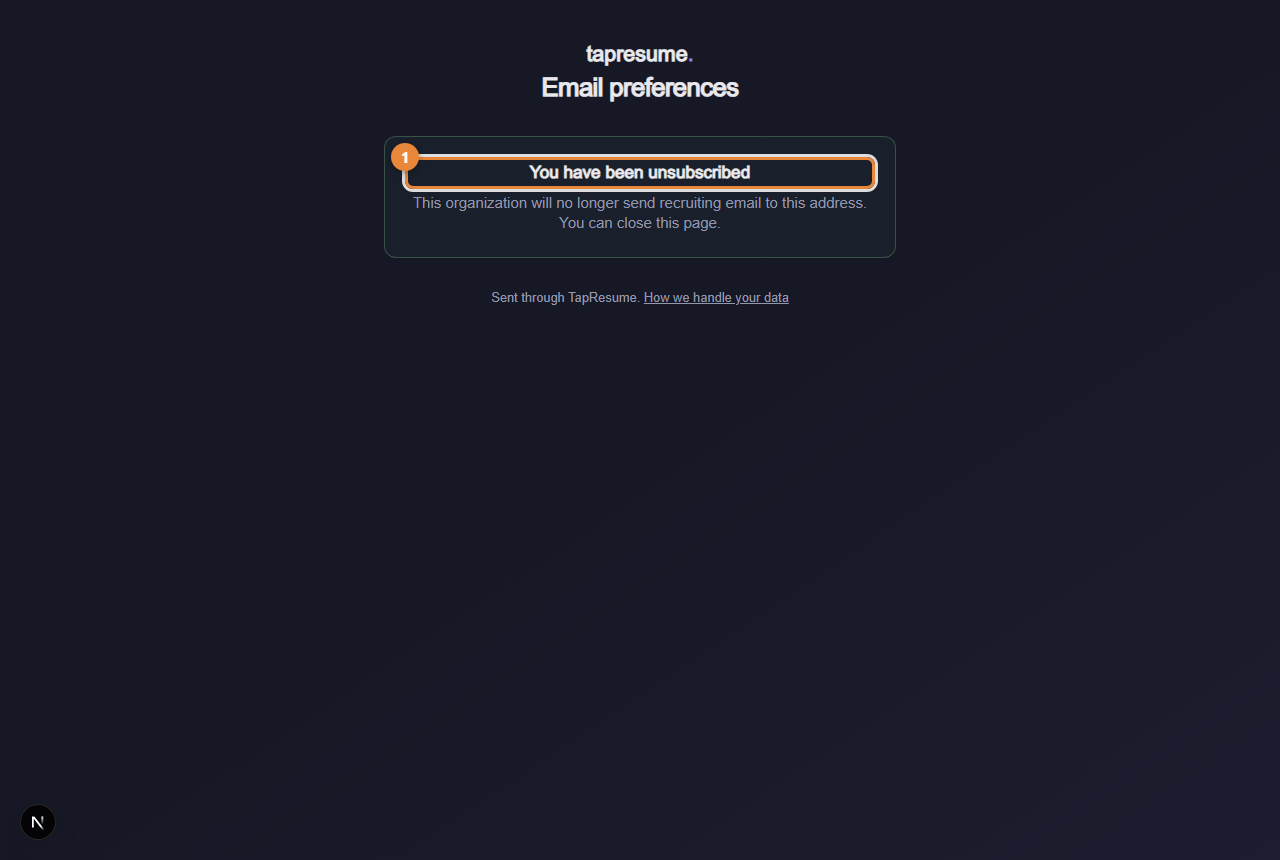
Clicking a one-click link opens a page called Email preferences. It records the choice from your browser, not from the email program, so a link a mail scanner opened for you does not unsubscribe you.
1Marker 1: You have been unsubscribed: done, nothing else changes
The page then says one of:
You have been unsubscribed (marker 1): done. The organization will no longer send recruiting email to this address. You can close the page.
This unsubscribe link is not valid: the link was shortened or cut by your email program. Open the original message and use the full link, or reply to the sender and ask them to stop.
We could not update your email preference: a connection problem; nothing changed. Click Try again.
What does not change
Your application, your profile and your account stay exactly as they are. Unsubscribing hides nothing from the team; it stops email.
Common questions
I want to stop all email, not one organization's. Open your privacy settings from the footer link and use the switches there (see Email preferences and stopping email). To stop an organization seeing your profile at all, use Privacy in the left navigation.
I unsubscribed by mistake. Reply to the sender; the team can ask to have the address reinstated.
Chapter 7
Step by step
7 topics: Step by step: apply from the ACI careers site; Step by step: claim your profile from the email; Step by step: add a resume and complete your profile; Step by step: take an assessment, or decline it; Step by step: answer an interview slot and an offer; Step by step: read your status, withdraw, stop emails; Step by step: record an introduction.
7.34 · Step by step
Step by step: apply from the ACI careers site
The clicks from the role page to the confirmation email, with the one-time code in the middle.
Before you start
You need the email address you want ACI to use, and your resume as a file if you have one. No account is needed.
Steps
On the ACI careers site, open the role. The page shows the description and skills, and under it Apply for this role.
Enter your email address and click the button. The page says We sent a 6-digit code to your address.
Open the newest TapResume email and type the code into 6-digit code. Click Verify code. If the code has expired, click Send a new code.
Fill in your details: your name, your resume file, and a note to the hiring team if you want one.
Tick the consent box, which links to the legal notices, and click Submit application.
The page confirms that your application for the role at ACI Infotech is complete and that the team will review it and reach you by email.
1Marker 1: The sign-up form; from an invitation email your details are linked to your application
What arrives
An email with the subject Application received: and the role title. Later, if your application had no resume, a one-time invitation to add one; if the team decides something, an application update.
If something goes wrong
The code is not right. The page says how many attempts remain. Check the newest email; older codes are void.
Too many attempts. Click Send a new code and use that one.
The page says you already applied. One application per role and email is kept. Sign in to see it under Applications.
7.35 · Step by step
Step by step: claim your profile from the email
From the invitation email to your Today page in five clicks.
Steps
Open the email from ACI Infotech. Its button reads Claim your profile and add your resume or Claim your profile and see the request. Click it.
The sign-up page opens with a banner: Create an account to claim your pre-populated profile with your skills and experience, and the skills read from your application listed under it.
Enter your full name. The email address is filled in from the invitation and cannot be changed here.
Choose a password of at least 8 characters.
Tick the two boxes for the Terms of Service and the Privacy Notice.
Click Claim Profile & Sign Up.
1Marker 1: The sign-up form; from an invitation email your details are linked to your application
What you see next
Your Today page. Your application is under Applications, and any assessment request is under Practice, then Assessments.
1Marker 1: Applications: where each one stands
2Marker 2: Practice and assessments
3Marker 3: Your profile and resume
If something goes wrong
The page says the claim link is not valid or has expired. Links work for 30 days. Ask the ACI hiring team for a new one, or apply again from the careers site.
The email field is empty or editable. The page did not receive the invitation. Open the email again and click the button rather than copying the address by hand.
You already have an account with that address. Sign in instead (see Sign in with a code or a password); the application is linked to that account.
7.36 · Step by step
Step by step: add a resume and complete your profile
Upload once, check what was read, fill the rest by hand, save.
Add a resume
Click Career in the left navigation, then the Edit profile tab. The page is called My Profile.
Find the Resume section. Click Upload a resume and choose your file. The page shows Uploading your resume, then Analyzing your resume with AI.
When it finishes, What we learned from your resume opens with the skills, experience and education that were read. Check them.
1Marker 1: Edit profile tab
Complete your profile
Click Edit Profile at the top right. The page changes to Edit Profile.
Fill in what the resume did not say: headline, location, whether you would relocate, what you want next. Add skills with Add, and projects with + Add Project.
Click Save Changes. The page confirms Profile saved.
Then review your Career Twin
Click the Career Twin tab. Under Review what we found, each item read from your resume can be kept, corrected in your own words, or removed (see Your Career Twin). Only what you keep is used to suggest roles.
If something goes wrong
The upload fails. Use a PDF or Word file. Very large scans can fail; export the document again.
Something was read wrongly. Correct it on Career Twin, or edit the field on Edit Profile. Your version is what is used from then on.
7.37 · Step by step
Step by step: take an assessment, or decline it
Both paths, click by click, from the request card to the result or the recorded decline.
Take it
Click Practice, then Assessments.
Under Requested by employers, read the card: purpose and allowed use, competencies, accommodations, privacy, integrity, and Respond by.
Click Review and start.
In Start this assessment?, tick the consent box and click Start now.
Answer each question. Click Next to move on; the line Answers saved confirms each one reached the server.
On the last question click Submit answers. If a question is unanswered, the browser asks whether to submit anyway.
Read your result on the Assessment completed page. The card on Assessments now says Completed with View your result.
1Marker 1: Requested by employers: requests waiting for your answer
2Marker 2: Review and start
3Marker 3: Decline
Decline it
Click Practice, then Assessments.
On the card, click Decline.
In Decline this request?, write a note to the team if you want.
Click Decline request. The card says You declined with your note; the team sees the same.
1Marker 1: Note to the team, optional
2Marker 2: Decline request
3Marker 3: Keep the request: close without declining
If something goes wrong
You had to stop part way. The card says In progress. Click Continue this assessment; the timer has kept running.
Your connection dropped and time ran out. The Time expired page offers Restore N minutes and continue when the drop was recorded.
You declined by mistake. Tell the team through Messages. They can send a fresh request.
7.38 · Step by step
Step by step: answer an interview slot and an offer
Both arrive as email links and need no sign-in. Here are the exact clicks.
Respond to an interview slot
Open the email with the subject Interview Scheduling: and click Pick a Time.
Click one of the proposed times.
Add a note if you want.
Click Confirm this time. The page says Your interview is confirmed; click Add to calendar to save it.
If no time suits, click None of these times work instead. The team offers others.
1Marker 1: A proposed time; pick one
2Marker 2: Add a note, optional
3Marker 3: Confirm this time
4Marker 4: None of these times work
Respond to an offer
Open the email with the subject You've received an offer: and click View and respond to your offer.
Read the offer, its compensation and its expiry date.
To accept: click Accept Offer, check the summary, click Confirm acceptance. The page says Offer accepted.
To decline: click Decline, add a note if you want, click Confirm decline. The page says Your answer is recorded.
1Marker 1: The offer title
2Marker 2: Accept Offer: a confirmation follows
3Marker 3: Decline: add a note, then confirm
If something goes wrong
The link says it has expired. Ask the team for a new one through Messages.
You need to change an answer. The page cannot undo it. Contact the hiring team directly.
The link says the interview was cancelled or the offer was replaced. Open the newest email from the team; the current one is there.
7.39 · Step by step
Step by step: read your status, withdraw, stop emails
Three short tasks on the Applications page and from an email footer.
Read your application status
Click Applications in the left navigation. The page is called My Applications and says how many applications you have and how many are active.
Each application shows its status: Applied, Under Review, Shortlisted, Interview, Offer Received, Not Selected, or Withdrawn. Filter by status with the selector at the top.
Open an application for its details and the messages about it.
1Marker 1: Every application you have made
2Marker 2: Follow-up email preferences
Withdraw an application
On My Applications, find the application. Withdraw Application appears on applications that are still active.
Click it. The dialog Withdraw Application? names the role and organization and says the action cannot be undone.
Click Withdraw. The page confirms Application withdrawn and the status changes to Withdrawn. The team is told.
To apply again later, apply from the role as before; the team sees both.
Stop emails
Open any reminder or invitation email from the organization.
Click the unsubscribe link at the bottom: Unsubscribe from follow-ups or Stop email from the organization.
The Email preferences page says You have been unsubscribed. Your application is unchanged.
1Marker 1: You have been unsubscribed: done, nothing else changes
For the account-level switches, open Manage email preferences in the grey footer of any TapResume email (see Email preferences and stopping email).
7.40 · Step by step
Step by step: record an introduction
From the request to a submitted recording, in the format you choose.
Steps
Open the request: the Review the request button in the email, the Role introduction button on Submission settings, or the card on Today.
Read Before you begin: why it is requested, the time limit, who can watch, retention, and the deadline.
Under Choose a format, click Video, Audio only, or Written.
For video or audio: click Start recording, speak, and click Stop recording. Recording stops by itself at the time limit. Nothing is uploaded yet. Play it back; click Discard and record again to try again, or Upload a file to use a recording you already have.
For written: type in Your answer.
When the role asks for it, tick the box that says you understand the purpose, who can review it, and how long it is kept.
Click Submit response. The page confirms Your response was submitted.
1Marker 1: Before you begin: purpose, time limit, who can watch, retention, deadline
2Marker 2: Choose a format: Video, Audio only, or Written
3Marker 3: Decline this request
Replace or delete it
Open the same page. Click Replace response, record or write again, and click Submit replacement; or click Delete permanently and confirm. A deleted recording cannot be recovered.
Decline instead
Click Decline this request under the details. Reminders stop; your application stays.
If something goes wrong
The browser asks for camera or microphone access. Allow it, or use Upload a file, or choose Written.
The file is refused. Use WebM, MP4, MP3, OGG or WAV, 50 MB or smaller, and no longer than the time limit.
The page says to open it from an application. It needs the role. Use one of the three ways in step 1.